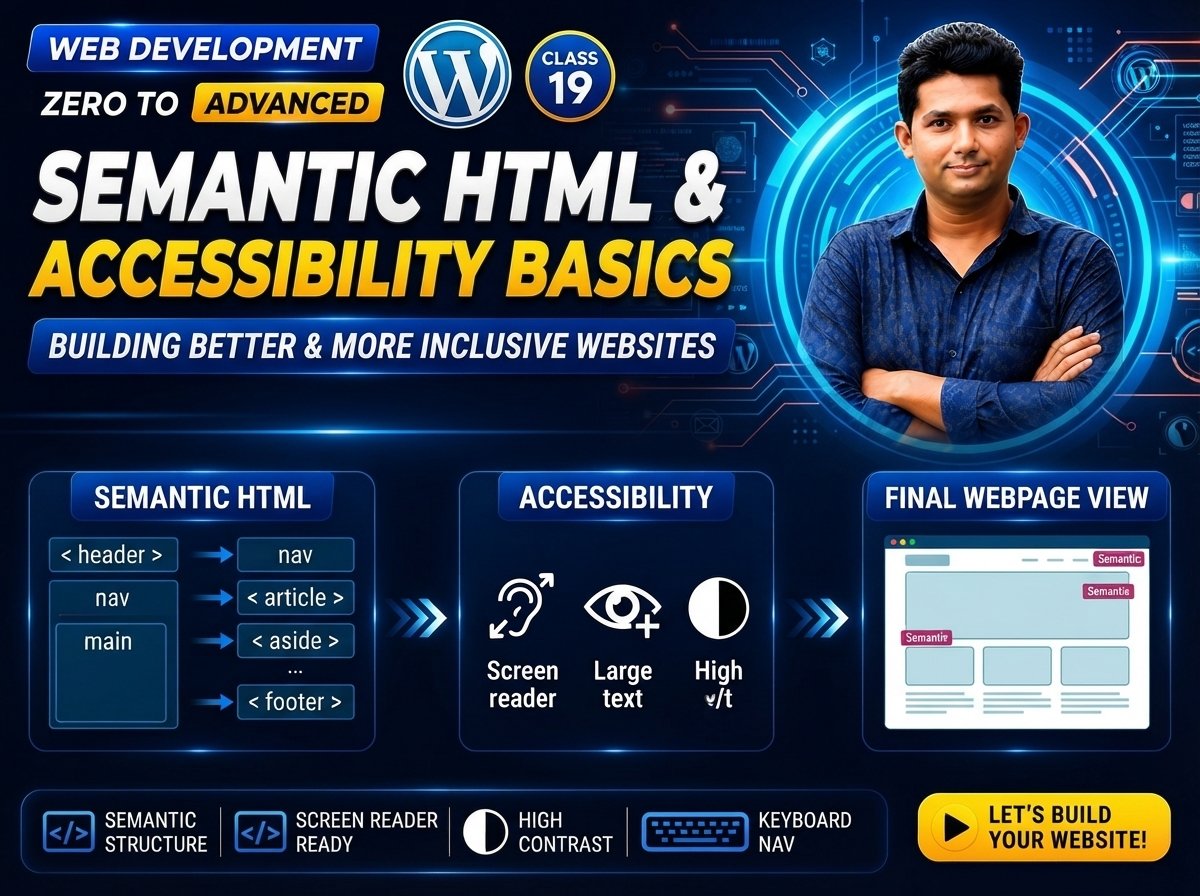
Web Development Zero to Advanced — Class 19 of 120
Semantic HTML: Header, Nav, Main, Section, Article & Footer
Semantic HTML means using HTML elements that clearly describe the meaning and purpose of the content they contain.
Instead of using only generic elements such as:
<div>
we can often use meaningful elements such as:
<header>
<nav>
<main>
<section>
<article>
<aside>
<footer>
These elements help developers, browsers, search engines, and assistive technologies understand the structure of a web page more clearly.
In this class, you will learn:
• What semantic HTML is
• Why semantic structure matters
• <header>
• <nav>
• <main>
• <section>
• <article>
• <aside>
• <footer>
• <div> vs semantic elements
• Accessibility basics
• SEO-related benefits
• Practical business website structure
• Blog page structure
• Common beginner mistakes
What Is Semantic HTML?
Semantic HTML uses elements whose names describe their purpose.
For example:
<header>
    Website Header
</header>
The element name itself tells us that the content belongs to a header area.
Another example:
<nav>
    Navigation Links
</nav>
This clearly tells us that the content contains navigation.
Compare that with:
<div>
    Navigation Links
</div>
A <div> does not describe the purpose of the content.
It is only a generic container.
Semantic vs Non-Semantic Elements
Semantic elements communicate meaning.
Examples:
<header>
<nav>
<main>
<section>
<article>
<aside>
<footer>
Non-semantic elements are more generic.
Examples:
<div>
<span>
This does not mean <div> and <span> are bad.
They are useful when no more meaningful semantic element is appropriate.
Why Is Semantic HTML Important?
Semantic HTML can improve:
• Code readability
• Maintainability
• Accessibility
• Document structure
• Search engine understanding
• Team collaboration
• Long-term project organization
A developer reading:
<header>
<nav>
<main>
<footer>
can understand the page structure quickly.
Compare that with:
<div class="top">
<div class="menu">
<div class="content">
<div class="bottom">
The second version can work, but the semantic structure is less clear.
Basic Semantic Page Structure
A simple semantic page can look like:
<!DOCTYPE html>
<html lang="en">

<head>
    <meta charset="UTF-8">
    <title>Semantic HTML</title>
</head>

<body>

    <header>
        Website Header
    </header>

    <nav>
        Navigation
    </nav>

    <main>
        Main Content
    </main>

    <footer>
        Website Footer
    </footer>

</body>

</html>
This structure is easier to understand than a page made entirely from generic containers.
The <header> Element
The <header> element represents introductory content for a page or section.
It may contain:
• Logo
• Site title
• Introductory heading
• Navigation
• Search form
• Article heading
• Author information
Example:
<header>

    <h1>ABC IT Company</h1>

    <p>
        Professional Web Development Services
    </p>

</header>
Header with Navigation
Example:
<header>

    <h1>ABC IT Company</h1>

    <nav>

        <a href="index.html">Home</a>

        <a href="services.html">Services</a>

        <a href="about.html">About</a>

        <a href="contact.html">Contact</a>

    </nav>

</header>
A <nav> can appear inside a <header>.
Can a Page Have More Than One Header?
Yes.
A document can have a page-level header and separate headers inside articles or sections.
Example:
<header>
    Main Website Header
</header>

<main>

    <article>

        <header>

            <h2>HTML Tutorial</h2>

            <p>Published by Admin</p>

        </header>

        <p>
            Article content...
        </p>

    </article>

</main>
The inner <header> belongs to the article.
The <nav> Element
The <nav> element represents a section containing major navigation links.
Example:
<nav>

    <a href="index.html">Home</a>

    <a href="about.html">About</a>

    <a href="services.html">Services</a>

    <a href="contact.html">Contact</a>

</nav>
Typical uses include:
• Main website navigation
• Section navigation
• Table of contents
• Important navigation groups
Navigation with a List
A common structure is:
<nav>

    <ul>

        <li>
            <a href="index.html">Home</a>
        </li>

        <li>
            <a href="about.html">About</a>
        </li>

        <li>
            <a href="services.html">Services</a>
        </li>

        <li>
            <a href="contact.html">Contact</a>
        </li>

    </ul>

</nav>
This combines semantic navigation with semantic list structure.
Does Every Link Need <nav>?
No.
<nav> should generally represent important navigation groups.
For example, a single link inside a paragraph does not need its own <nav>.
Example:
<p>
    Read our
    <a href="privacy.html">Privacy Policy</a>.
</p>
This is fine without <nav>.
The <main> Element
The <main> element represents the dominant content of the page.
Example:
<main>

    <h1>Web Development Services</h1>

    <p>
        We build modern websites and web applications.
    </p>

</main>
The <main> content should represent what is unique and central to that page.
Typical Main Structure
Example:
<body>

    <header>
        Website Header
    </header>

    <nav>
        Navigation
    </nav>

    <main>

        <h1>Our Services</h1>

        <p>
            Main page content.
        </p>

    </main>

    <footer>
        Footer
    </footer>

</body>
How Many <main> Elements?
A page should normally have one visible main landmark representing the primary content.
Do not create multiple competing <main> sections for ordinary page structure.
The <section> Element
The <section> element represents a thematic grouping of related content.
A section commonly has a heading.
Example:
<section>

    <h2>Our Services</h2>

    <p>
        We provide web development and SEO services.
    </p>

</section>
Practical Section Example
<main>

    <section>

        <h2>Web Development</h2>

        <p>
            We build responsive business websites.
        </p>

    </section>

    <section>

        <h2>SEO Services</h2>

        <p>
            We optimize websites for search visibility.
        </p>

    </section>

</main>
When Should You Use <section>?
Use <section> when the content forms a meaningful thematic group.
Good example:
<section>

    <h2>Customer Reviews</h2>

    ...

</section>
Another:
<section>

    <h2>Frequently Asked Questions</h2>

    ...

</section>
Do not use <section> simply because you need a box for CSS styling.
If the content has no meaningful section role, a <div> may be more appropriate.
The <article> Element
The <article> element represents self-contained content that could make sense independently.
Common examples include:
• Blog post
• News article
• Forum post
• Product review
• User comment
• Independent card/content item in some contexts
Example:
<article>

    <h2>How to Learn HTML</h2>

    <p>
        HTML is the foundation of web page structure.
    </p>

</article>
Blog Article Example
<article>

    <header>

        <h1>How to Start Web Development</h1>

        <p>
            Published on August 25, 2026
        </p>

    </header>

    <p>
        Start by learning HTML, CSS, and JavaScript.
    </p>

    <section>

        <h2>Learn HTML First</h2>

        <p>
            HTML teaches you how web content is structured.
        </p>

    </section>

    <footer>

        <p>
            Written by Web Development Team
        </p>

    </footer>

</article>
An article can contain its own:
<header>
<section>
<footer>
Section vs Article
Beginners often confuse these.
Simple guideline:
<section> = Thematic group of related content
<article> = Self-contained content that could stand independently
Example:
A blog page may contain:
<section>

    <h1>Latest Articles</h1>

    <article>
        Article One
    </article>

    <article>
        Article Two
    </article>

</section>
The section groups articles.
Each article is an independent content item.
The <aside> Element
The <aside> element represents content that is indirectly related or supplementary to the main surrounding content.
Examples include:
• Sidebar
• Related articles
• Author information
• Advertising
• Related links
• Extra notes
Example:
<aside>

    <h2>Related Articles</h2>

    <ul>
        <li>Learn HTML</li>
        <li>Learn CSS</li>
    </ul>

</aside>
Aside Example in an Article
<article>

    <h1>HTML Basics</h1>

    <p>
        HTML is used to structure web content.
    </p>

    <aside>

        <h2>Quick Tip</h2>

        <p>
            Practice writing HTML manually.
        </p>

    </aside>

</article>
The <footer> Element
The <footer> element represents footer information for a page or section.
A website footer may contain:
• Copyright
• Contact information
• Important links
• Social links
• Policies
• Company information
Example:
<footer>
<p>
© 2026 ABC IT Company
</p>
</footer>
Footer with Links
<footer>
<p>
© 2026 ABC IT Company
</p>
<a href="privacy.html">
Privacy Policy
</a>
<a href="terms.html">
Terms and Conditions
</a>
</footer>
Can an Article Have Its Own Footer?
Yes.
Example:
<article>

    <h2>HTML Tutorial</h2>

    <p>
        Article content...
    </p>

    <footer>

        <p>
            Author: Alex
        </p>

    </footer>

</article>
This footer belongs to the article rather than the entire website.
What Is <div>?
<div> is a generic block-level container.
Example:
<div class="card">

    <h2>Web Development</h2>

    <p>
        Professional website development service.
    </p>

</div>
A <div> is useful when no specific semantic element is appropriate.
Semantic Element vs <div>
Instead of:
<div class="header">
    Header
</div>

<div class="nav">
    Navigation
</div>

<div class="main">
    Main Content
</div>

<div class="footer">
    Footer
</div>
prefer meaningful elements where appropriate:
<header>
    Header
</header>

<nav>
    Navigation
</nav>

<main>
    Main Content
</main>

<footer>
    Footer
</footer>
When Should You Still Use <div>?
Use <div> when you need:
• Generic layout wrapper
• Styling container
• JavaScript hook
• Grouping without a specific semantic meaning
Example:
<section>

    <h2>Our Services</h2>

    <div class="service-grid">

        <article>
            Web Development
        </article>

        <article>
            SEO
        </article>

    </div>

</section>
Here:
<section> has semantic meaning.
<div class="service-grid"> is mainly a layout wrapper.
Complete Semantic Website Example
<!DOCTYPE html>
<html lang="en">
<head>
<meta charset="UTF-8">
<meta
name="viewport"
content="width=device-width, initial-scale=1.0"
>
<title>ABC IT Company</title>
</head>
<body>
<header>
<h1>ABC IT Company</h1>
<p>
Professional Web Development Services
</p>
<nav>
<ul>
<li>
<a href="index.html">Home</a>
</li>
<li>
<a href="services.html">Services</a>
</li>
<li>
<a href="portfolio.html">Portfolio</a>
</li>
<li>
<a href="contact.html">Contact</a>
</li>
</ul>
</nav>
</header>
<main>
<section>
<h2>About Our Company</h2>
<p>
We create modern websites and web applications.
</p>
</section>
<section>
<h2>Our Services</h2>
<article>
<h3>Web Development</h3>
<p>
Responsive business and e-commerce websites.
</p>
</article>
<article>
<h3>SEO</h3>
<p>
Search engine optimization services.
</p>
</article>
</section>
<aside>
<h2>Special Offer</h2>
<p>
Contact us for a free project consultation.
</p>
</aside>
</main>
<footer>
<p>
© 2026 ABC IT Company
</p>
<p>
Email: info@example.com
</p>
</footer>
</body>
</html>
Understanding the Structure
The example can be visualized as:
BODY
│
├── HEADER
│   ├── Site Title
│   ├── Introduction
│   └── NAV
│
├── MAIN
│   │
│   ├── SECTION
│   │   └── About
│   │
│   ├── SECTION
│   │   ├── ARTICLE
│   │   └── ARTICLE
│   │
│   └── ASIDE
│
└── FOOTER
Practical Example — Blog Website
<body>
<header>
<h1>Web Development Blog</h1>
<nav>
<a href="/">Home</a>
<a href="/html">HTML</a>
<a href="/css">CSS</a>
<a href="/javascript">JavaScript</a>
</nav>
</header>
<main>
<section>
<h2>Latest Articles</h2>
<article>
<h3>What Is HTML?</h3>
<p>
Learn the basics of HTML.
</p>
<a href="html-basics.html">
Read Article
</a>
</article>
<article>
<h3>What Is CSS?</h3>
<p>
Learn how CSS styles web pages.
</p>
<a href="css-basics.html">
Read Article
</a>
</article>
</section>
<aside>
<h2>Popular Topics</h2>
<ul>
<li>HTML</li>
<li>CSS</li>
<li>JavaScript</li>
</ul>
</aside>
</main>
<footer>
<p>
© 2026 Web Development Blog
</p>
</footer>
</body>
Practical Example — Product Page
<main>

    <article>

        <header>

            <h1>Gaming Laptop</h1>

        </header>

        <section>

            <h2>Product Description</h2>

            <p>
                High-performance gaming laptop.
            </p>

        </section>

        <section>

            <h2>Specifications</h2>

            <ul>
                <li>16GB RAM</li>
                <li>1TB SSD</li>
                <li>Dedicated Graphics</li>
            </ul>

        </section>

        <aside>

            <h2>Related Products</h2>

            <p>
                Gaming Mouse
            </p>

        </aside>

        <footer>

            <p>
                Product information updated in 2026.
            </p>

        </footer>

    </article>

</main>
Semantic HTML and Accessibility
Semantic elements can create useful page landmarks for assistive technologies.
For example:
<nav> → Navigation landmark
<main> → Main-content landmark
<header> → Banner/introductory context depending on placement
<footer> → Footer/content information
This can make it easier for some users to navigate the page.
Semantic HTML and Screen Readers
A screen-reader user may be able to move between important landmarks rather than reading every element from the beginning.
A clear structure such as:
<header>
<nav>
<main>
<aside>
<footer>
can therefore improve navigation compared with a completely unstructured collection of generic containers.
Semantic HTML and SEO
Semantic HTML can help search engines and other systems better understand the structure and relationships in a page.
However:
Semantic HTML does not automatically guarantee high search rankings.
SEO also depends on factors such as:
• Useful content
• Search intent
• Page quality
• Internal linking
• Performance
• Mobile usability
• Crawlability
• Metadata
• Authority and reputation
Semantic HTML is one part of good technical page structure.
Semantic HTML and CSS
Semantic elements do not replace CSS.
HTML:
<header>
    My Website
</header>
defines meaning.
CSS:
header {
    background: #eee;
    padding: 20px;
}
controls presentation.
Remember:
HTML → Structure and Meaning
CSS → Presentation
Semantic HTML and JavaScript
JavaScript can also work with semantic elements.
Example:
const navigation = document.querySelector("nav");
Semantic elements are real HTML elements and can be selected and manipulated like other elements.
Heading Structure Inside Semantic Elements
Semantic elements should still contain logical heading structures.
Example:
<main>

    <h1>Web Development Services</h1>

    <section>

        <h2>Frontend Development</h2>

        <article>

            <h3>React Development</h3>

        </article>

    </section>

</main>
Semantic containers do not replace heading hierarchy.
Common Beginner Mistakes
1. Replacing Every <div> with <section>
Wrong idea:
“Semantic HTML means I must never use <div>.”
That is incorrect.
Use <section> only when the content represents a meaningful thematic section.
Use <div> for generic grouping or layout when appropriate.
2. Using <section> Without Meaningful Structure
Avoid using:
<section class="box">
only because you need a CSS box.
If the content has no section-level semantic meaning, a <div> may be better.
3. Using Multiple Main Elements Incorrectly
Avoid creating several visible main-content areas such as:
<main>
    First Main
</main>

<main>
    Second Main
</main>
An ordinary page should generally have one main content landmark.
4. Using <nav> for Every Link
A single link does not automatically require a <nav>.
Use <nav> for important navigation groups.
5. Confusing <head> and <header>
These are completely different.
<head>:
Contains document metadata and configuration.
Example:
<head>
    <title>Page Title</title>
</head>
<header>:
Represents introductory visible content for a page or section.
Example:
<header>
    <h1>My Website</h1>
</header>
6. Confusing <main> and <body>
<body> contains all visible document content.
<main> represents the primary content within the body.
Example:
<body>

    <header>...</header>

    <main>
        Main Page Content
    </main>

    <footer>...</footer>

</body>
7. Using Article for Everything
Use <article> when the content is meaningfully self-contained.
Do not wrap every small visual box in <article> without considering its purpose.
8. Ignoring Heading Hierarchy
Semantic containers do not remove the need for:
<h1>
<h2>
<h3>
and logical heading structure.
9. Thinking Semantic HTML Automatically Improves Ranking
Semantic structure is good practice, but SEO depends on many other factors.
Do not treat semantic elements as a shortcut to search rankings.
New & Difficult Words
Semantic = Related to meaning
Semantic HTML = HTML that uses meaningful elements to describe content structure
Header = Introductory content for a page or section
Nav = Navigation section
Main = Primary content of a document
Section = Thematic grouping of related content
Article = Self-contained content
Aside = Supplementary or indirectly related content
Footer = Footer information for a page or section
Div = Generic block container
Span = Generic inline container
Landmark = Recognizable page region used for navigation and structure
Accessibility = Making content usable by people with different abilities
Screen Reader = Assistive software that reads or interprets digital content
SEO = Search Engine Optimization
Hierarchy = Organization into levels
Self-Contained = Able to make sense independently
Thematic = Related to a specific subject or theme
Metadata = Information describing the document
Maintainability = Ease of updating and managing code over time
Important Notes
Remember:
<header>
Introductory content
<nav>
Navigation
<main>
Primary page content
<section>
Thematic content group
<article>
Self-contained content
<aside>
Supplementary content
<footer>
Footer information
<div>
Generic container
Basic semantic structure:
<body>

    <header>
        ...
    </header>

    <nav>
        ...
    </nav>

    <main>

        <section>
            ...
        </section>

        <article>
            ...
        </article>

        <aside>
            ...
        </aside>

    </main>

    <footer>
        ...
    </footer>

</body>
Most importantly:
Use elements according to the meaning of the content.
Do not choose semantic elements only for visual styling.
Practice Questions
- What is semantic HTML?
- Why is semantic HTML useful?
- What is the purpose of
<header>? - What does
<nav>represent? - What does
<main>represent? - What is
<section>used for? - What is
<article>used for? - What does
<aside>represent? - What does
<footer>represent? - What is the difference between
<section>and<article>? - What is the difference between
<div>and semantic elements? - When should you still use
<div>? - What is the difference between
<head>and<header>? - What is the difference between
<body>and<main>? - Can an article have its own header and footer?
- Does every link need to be inside
<nav>? - How does semantic HTML help accessibility?
- How can semantic HTML help search engines?
- Does semantic HTML guarantee good SEO rankings?
- Why is heading hierarchy still important?
Assignment
Create a folder named:
class-19
Inside it create:
index.html
Build a complete semantic homepage for an IT company.
Your page must contain:
1. Header
Include:
• Company name
• Tagline
• Logo or text logo
2. Navigation
Include links:
• Home
• Services
• Portfolio
• Blog
• Contact
Use:
<nav>
3. Main
Use:
<main>
Inside main, create:
About Section
Use:
<section>
Add:
Heading
Paragraph
Services Section
Add at least three <article> elements:
Web Development
SEO
Website Maintenance
Portfolio Section
Create another meaningful section.
Aside
Add:
Special Offer
or:
Related Services
4. Footer
Include:
• Copyright
• Email
• Privacy Policy link
• Terms link
Your structure should roughly follow:
BODY
│
├── HEADER
│   └── NAV
│
├── MAIN
│   ├── SECTION
│   ├── SECTION
│   │   ├── ARTICLE
│   │   ├── ARTICLE
│   │   └── ARTICLE
│   ├── SECTION
│   └── ASIDE
│
└── FOOTER
After building the page:
- Open it in a browser.
- Inspect it using Developer Tools.
- Check the heading hierarchy.
- Identify every semantic element.
- Explain why each semantic element was used.
- Replace one semantic element with
<div>and compare the code meaning. - Restore the correct semantic structure.
Quiz
- What is semantic HTML?
Answer: Semantic HTML uses meaningful elements that describe the purpose and structure of content.
- Which element represents primary page content?
Answer: <main>.
- Which element represents major navigation?
Answer: <nav>.
- Which element represents introductory content?
Answer: <header>.
- Which element represents a thematic group?
Answer: <section>.
- Which element represents self-contained content?
Answer: <article>.
- Which element commonly represents supplementary content?
Answer: <aside>.
- Which element represents footer information?
Answer: <footer>.
- Is
<div>a semantic element?
Answer: No. It is a generic container.
- Should every
<div>be replaced with<section>?
Answer: No.
- Can an
<article>contain its own<header>?
Answer: Yes.
- Can an
<article>contain its own<footer>?
Answer: Yes.
- What is the difference between
<head>and<header>?
Answer: <head> contains document metadata and configuration, while <header> represents introductory content in the visible document.
- Does semantic HTML automatically guarantee high SEO rankings?
Answer: No.
Interview Questions
Q: What is semantic HTML?
Answer: Semantic HTML is the practice of using HTML elements whose names and roles clearly describe the meaning and structure of their content.
Q: Why is semantic HTML important?
Answer: It improves code readability, maintainability, accessibility, structural clarity, and helps software systems better understand page content.
Q: What is the difference between <section> and <article>?
Answer: <section> represents a thematic grouping of related content, while <article> represents self-contained content that can often make sense independently.
Q: What is the difference between <div> and <section>?
Answer: <div> is a generic container without specific semantic meaning. <section> represents a meaningful thematic section of content.
Q: What is the purpose of <main>?
Answer: <main> represents the primary content of the document that is central to the page’s purpose.
Q: What is the purpose of <nav>?
Answer: <nav> represents a major group of navigation links.
Q: What is <aside> used for?
Answer: <aside> represents supplementary or indirectly related content such as sidebars, related articles, advertisements, or additional notes.
Q: Can there be multiple <header> elements on one page?
Answer: Yes. A page can have a main header, while sections or articles can also have their own headers.
Q: Why does semantic HTML improve accessibility?
Answer: Semantic elements provide meaningful page structure and landmarks that assistive technologies can use to help users navigate and understand content.
Class Summary
In Class 19, you learned how semantic HTML gives meaningful structure to web pages.
You learned:
<header> → Introductory Content
<nav> → Navigation
<main> → Primary Page Content
<section> → Thematic Group
<article> → Self-Contained Content
<aside> → Supplementary Content
<footer> → Footer Information
<div> → Generic Container
The most important structure to remember is:
<body>

    <header>
        ...
    </header>

    <nav>
        ...
    </nav>

    <main>

        <section>
            ...
        </section>

        <article>
            ...
        </article>

        <aside>
            ...
        </aside>

    </main>

    <footer>
        ...
    </footer>

</body>
Remember:
HTML should describe structure and meaning.
CSS should control visual presentation.
Use semantic elements when they match the actual purpose of the content.
Use <div> when a generic container is the correct choice.
Semantic HTML provides a strong foundation for accessible, maintainable, SEO-friendly, and professionally structured websites.
Next Class:
Class 20 — HTML SEO, Meta Tags & Complete HTML Project