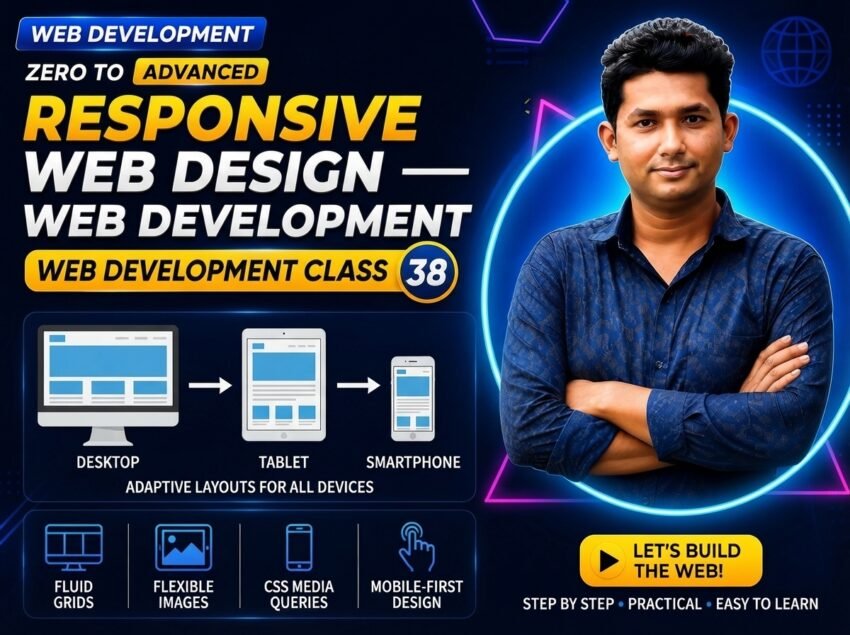
Class 038 — Responsive Web Design
Responsive Web Design is the practice of building websites that remain usable and visually organized across different screen sizes.
A website may be opened on:
- Mobile phones
- Tablets
- Laptops
- Desktop monitors
- Large displays
A layout that looks good on a desktop may become difficult to use on a small mobile screen if its widths, images, text and layout are not flexible.
The core idea of this class from the master course is:
Responsive design ensures a usable layout across different screen sizes.
The core example from the course is:
.container {
width: min(100% – 2rem, 70rem);
margin: auto;
}
This creates a flexible container that can adapt to smaller screens while limiting its maximum width on large screens.
LEARNING OBJECTIVES
After completing this class, you will be able to:
- Understand Responsive Web Design.
- Understand why responsive websites are important.
- Create flexible page containers.
- Understand fluid layouts.
- Create responsive images.
- Use relative and flexible sizing.
- Understand viewport width.
- Understand mobile, tablet and desktop layouts.
- Use max-width effectively.
- Create flexible Flexbox layouts.
- Create responsive CSS Grid layouts.
- Avoid horizontal overflow.
- Understand basic responsive typography.
- Understand common responsive design mistakes.
- Test a webpage at different screen sizes.
WHAT IS RESPONSIVE WEB DESIGN?
Responsive Web Design, commonly called RWD, is an approach to web development where a website adapts to different screen sizes and available spaces.
The objective is not simply to make a desktop website smaller.
The objective is to make the interface remain:
- Readable
- Usable
- Navigable
- Accessible
- Organized
on different devices.
WHY RESPONSIVE WEB DESIGN IS IMPORTANT
Users access websites from many different devices.
For example:
A customer may open an online shop from a smartphone.
Another customer may use a tablet.
An administrator may use a laptop.
Another user may visit from a large desktop monitor.
The same website should provide a usable experience for all of them.
WITHOUT RESPONSIVE DESIGN
A non-responsive website may have problems such as:
- Horizontal scrolling
- Tiny text
- Oversized images
- Buttons that are difficult to tap
- Navigation that does not fit
- Cards extending outside the screen
- Forms wider than the device
- Content becoming difficult to read
WITH RESPONSIVE DESIGN
A responsive website can:
- Adapt its width.
- Rearrange content.
- Resize images.
- Wrap cards.
- Adjust navigation.
- Maintain readable text.
- Keep controls usable.
- Reduce unnecessary horizontal scrolling.
RESPONSIVE DESIGN IS NOT ONLY ABOUT MOBILE
Responsive design is often associated with smartphones.
However, responsive design means adapting to available space in general.
A responsive layout should also work well on:
- Small phones
- Large phones
- Tablets
- Small laptops
- Large laptops
- Desktop monitors
- Wide screens
THE VIEWPORT
The viewport is the visible area of a webpage inside the browser.
On different devices, the viewport width can be different.
For example:
A mobile browser may have a narrow viewport.
A desktop browser may have a much wider viewport.
Responsive layouts react to this available space.
VIEWPORT META TAG
A common HTML document for responsive websites includes:
This is placed inside:
Example:
<meta charset="UTF-8">

<meta
    name="viewport"
    content="width=device-width, initial-scale=1.0"
>

<title>
    Responsive Website
</title>
WHAT DOES THE VIEWPORT META TAG DO?
width=device-width
tells the browser to use the device width as the layout viewport width.
initial-scale=1.0
sets the initial zoom scale.
This is an important foundation for responsive layouts on mobile browsers.
FLUID LAYOUT
A fluid layout uses flexible dimensions instead of depending entirely on fixed widths.
Fixed example:
.container {
width: 1200px;
}
This may be wider than a small screen.
Flexible example:
.container {
width: 90%;
max-width: 1200px;

margin: 0 auto;
}
The container can become smaller when the available screen width decreases.
MASTER COURSE CONTAINER EXAMPLE
The course provides this responsive pattern:
.container {
width:
min(100% – 2rem, 70rem);
margin: auto;
}
This is an excellent example of a flexible container.
UNDERSTANDING MIN()
CSS min() allows the browser to choose the smallest value from the supplied values.
Example:
width:
min(100% – 2rem, 70rem);
The browser compares:
100% – 2rem
and
70rem
It uses whichever is smaller.
WHY IS THIS RESPONSIVE?
On a small screen:
100% – 2rem
is likely smaller than 70rem.
So the container stays within the screen and leaves spacing around its sides.
On a large screen:
70rem
becomes the limit.
This prevents the content from becoming excessively wide.
FULL CONTAINER EXAMPLE
.container {
width:
min(100% – 2rem, 70rem);
margin-inline: auto;
}
This creates:
- Flexible width
- Maximum readable width
- Automatic horizontal centering
- Space near screen edges
MARGIN: AUTO
Another common version is:
.container {
width: 90%;
max-width: 1200px;

margin: 0 auto;
}
Here:
width: 90%;
makes the container flexible.
max-width: 1200px;
prevents it from becoming too wide.
margin: 0 auto;
centers it horizontally.
FIXED VS FLUID WIDTH
Fixed:
.container {
width: 1200px;
}
Fluid:
.container {
width: 90%;
max-width: 1200px;
}
Responsive designs usually make extensive use of flexible dimensions.
RESPONSIVE IMAGES
Images can cause horizontal overflow when their intrinsic width is larger than their container.
A common responsive image rule is:
img {
max-width: 100%;
height: auto;
}
WHAT DOES THIS DO?
max-width: 100%;
prevents the image from becoming wider than its container.
height: auto;
preserves the image’s aspect ratio when its width changes.
COMPLETE IMAGE EXAMPLE
HTML:
<img
    src="website.jpg"
    alt="Responsive website example"
>
CSS:
.image-wrapper {
width: 100%;
}
.image-wrapper img {
display: block;
max-width: 100%;

height: auto;
}
RESPONSIVE VIDEO
Embedded media can also need responsive treatment.
A modern approach for a video element may include:
video {
max-width: 100%;
height: auto;
}
For embedded iframes, an aspect-ratio wrapper or direct aspect-ratio sizing can be useful depending on the embed.
ASPECT-RATIO
Example:
.video {
width: 100%;
aspect-ratio: 16 / 9;
}
.video iframe {
width: 100%;
height: 100%;
}
RESPONSIVE WIDTH UNITS
Responsive designs commonly use flexible units such as:
%
rem
em
vw
fr
Example:
.card {
width: 100%;
}
Example:
.container {
width: 90%;
}
Example:
.grid {
grid-template-columns:
repeat(3, 1fr);
}
These values can adapt better than using fixed pixel widths everywhere.
AVOID LARGE FIXED WIDTHS
Problem:
.card {
width: 600px;
}
A phone viewport may be narrower than 600px.
More flexible example:
.card {
width: 100%;
max-width: 600px;
}
Now the card can shrink with its container.
MAX-WIDTH
max-width is one of the most useful properties in responsive design.
Example:
.article {
width: 100%;
max-width: 700px;
}
This allows the article to:
Shrink on smaller screens
but
Stop becoming wider after 700px.
RESPONSIVE TEXT CONTENT
Extremely wide paragraphs can be difficult to read.
Example:
.article {
width:
min(100% – 2rem, 70ch);
margin-inline: auto;
}
This keeps text within a more manageable reading width.
RESPONSIVE FLEXBOX
Flexbox can be useful for responsive components.
Example:
.cards {
display: flex;
flex-wrap: wrap;

gap: 24px;
}
.card {
flex:
1 1 280px;
}
WHAT HAPPENS?
Cards begin with a flexible basis.
If enough space exists, several cards can appear in one row.
If space becomes limited, cards can wrap onto additional rows.
PRACTICAL FLEXBOX EXAMPLE
HTML:
<article class="service">
    Web Development
</article>

<article class="service">
    SEO
</article>

<article class="service">
    Digital Marketing
</article>
CSS:
.services {
display: flex;
flex-wrap: wrap;

gap: 24px;
}
.service {
flex:
1 1 280px;
padding: 30px;

border: 1px solid #dddddd;
}
RESPONSIVE CSS GRID
CSS Grid provides powerful responsive layout options.
Example:
.products {
display: grid;
grid-template-columns:
    repeat(
        auto-fit,
        minmax(250px, 1fr)
    );

gap: 24px;
}
This can automatically change the number of columns according to available space.
HOW THE RESPONSIVE GRID WORKS
minmax(250px, 1fr)
provides a useful minimum size and flexible maximum.
auto-fit
fits as many columns as possible.
repeat()
repeats that track definition.
Result:
Wide screen
→ More columns
Narrow screen
→ Fewer columns
RESPONSIVE GRID EXAMPLE
HTML:
<article class="product-card">
    Laptop
</article>

<article class="product-card">
    Desktop
</article>

<article class="product-card">
    Monitor
</article>

<article class="product-card">
    Keyboard
</article>
CSS:
.products {
display: grid;
grid-template-columns:
    repeat(
        auto-fit,
        minmax(250px, 1fr)
    );

gap: 24px;
}
.product-card {
padding: 24px;
border: 1px solid #dddddd;

border-radius: 12px;
}
RESPONSIVE TYPOGRAPHY
Text should also remain readable at different sizes.
A heading that is extremely large on a desktop may take too much space on mobile.
Fixed example:
.hero h1 {
font-size: 80px;
}
A flexible example can use:
clamp()
Example:
.hero h1 {
font-size:
clamp(2rem, 5vw, 4.5rem);
}
CLAMP()
clamp() accepts:
Minimum
Preferred
Maximum
Syntax:
clamp(
minimum,
preferred,
maximum
)
Example:
font-size:
clamp(
2rem,
5vw,
4rem
);
The font can scale but remains within the specified minimum and maximum limits.
RESPONSIVE SPACING
Spacing may also need to adapt.
Example:
.section {
padding:
clamp(
3rem,
8vw,
7rem
)
0;
}
This creates flexible vertical spacing.
RESPONSIVE NAVIGATION
Navigation is one of the most common responsive design challenges.
Desktop navigation may appear horizontally:
Home
Courses
Blog
Contact
A smaller layout may require:
- Wrapping
- Different spacing
- A vertical menu
- A mobile navigation control
Basic flexible navigation:
.nav {
display: flex;
flex-wrap: wrap;

gap: 20px;
}
You will learn conditional CSS with Media Queries and Mobile-First Design in Class 39.
TWO-COLUMN RESPONSIVE SECTION
HTML:
<div class="about-image">

    <img
        src="developer.jpg"
        alt="Developer"
    >

</div>

<div class="about-content">

    <h2>
        About Us
    </h2>

    <p>
        We build modern websites.
    </p>

</div>
CSS:
.about {
display: flex;
flex-wrap: wrap;

align-items: center;

gap: 40px;
}
.about-image,
.about-content {
flex:
1 1 350px;
}
.about img {
max-width: 100%;
height: auto;
}
On a wider screen, the sections may appear side by side.
On a narrower screen, they can wrap.
RESPONSIVE CARDS
Example:
.cards {
display: grid;
grid-template-columns:
    repeat(
        auto-fit,
        minmax(
            min(250px, 100%),
            1fr
        )
    );

gap: 24px;
}
This is a more defensive Grid pattern when the available container width may become smaller than the desired card minimum.
HORIZONTAL OVERFLOW
A common sign of a responsive problem is unwanted horizontal scrolling.
Possible causes include:
- Large fixed widths
- Images wider than containers
- Large min-width values
- Long unbreakable text
- Absolute positioning
- Excessive margins
- Incorrect use of 100vw
Example problem:
.box {
width: 1200px;
}
On a 360px viewport, this can create overflow.
Better:
.box {
width: 100%;
max-width: 1200px;
}
LONG TEXT AND URLs
Long strings can also create overflow.
Example:
.text {
overflow-wrap: anywhere;
}
This can help long URLs or unbroken strings wrap when necessary.
RESPONSIVE TABLES
Tables can be wider than a small viewport.
One practical technique is:
.table-wrapper {
overflow-x: auto;
}
HTML:
<table>
    ...
</table>
This allows horizontal scrolling inside the table area rather than forcing the entire page wider.
TOUCH-FRIENDLY CONTROLS
Responsive design also concerns usability.
Buttons and links should not become so small or crowded that they are difficult to operate on touch devices.
Example:
.button {
display: inline-block;
padding: 12px 20px;
}
Also provide reasonable spacing between interactive controls.
DO NOT DESIGN ONLY FOR DEVICE NAMES
Responsive design should respond to available space rather than assuming every device fits into one exact category.
Instead of thinking only:
Phone
Tablet
Desktop
also ask:
At what width does this specific layout stop working?
This idea becomes especially important when learning Media Queries.
CONTENT-FIRST RESPONSIVENESS
Break the layout when the content requires it, not simply because a particular phone model exists.
For example:
If navigation no longer fits at a certain width, that is a useful point for changing the navigation layout.
MEDIA QUERIES
Media queries allow CSS rules to be applied conditionally.
Example:
@media (max-width: 768px) {
.layout {
    flex-direction: column;
}
}
However, Media Queries and Mobile-First Design are the main subjects of Class 39.
In this class, the focus is understanding responsive design principles and flexible layouts.
RESPONSIVE DESIGN WITH NO MEDIA QUERY
Not every responsive component requires a media query.
Example:
.cards {
display: grid;
grid-template-columns:
    repeat(
        auto-fit,
        minmax(250px, 1fr)
    );

gap: 24px;
}
The Grid automatically responds to available space.
Another example:
.container {
width:
min(100% – 2rem, 70rem);
margin-inline: auto;
}
Again, no media query is required.
PRACTICAL WEBSITE EXAMPLE
HTML:
<meta charset="UTF-8">

<meta
    name="viewport"
    content="width=device-width, initial-scale=1.0"
>

<title>
    Responsive Web Design
</title>

<link
    rel="stylesheet"
    href="style.css"
>
<header class="header">
<div class="container">
<nav class="navigation">
<a href="#">
Home
</a>
<a href="#">
Courses
</a>
<a href="#">
Blog
</a>
<a href="#">
Contact
</a>
</nav>
</div>
</header>
<main>
<section class="hero">
<div class="container">
<h1>
Learn Modern Web Development
</h1>
<p>
Build websites that work across different screen sizes.
</p>
</div>
</section>
<section class="services">
<div class="container">
<div class="service-grid">
<article class="card">
<h2>
HTML
</h2>
<p>
Learn website structure.
</p>
</article>
<article class="card">
<h2>
CSS
</h2>
<p>
Learn responsive styling.
</p>
</article>
<article class="card">
<h2>
JavaScript
</h2>
<p>
Learn website interactivity.
</p>
</article>
</div>
</div>
</section>
<section class="about">
<div class="container about-layout">
<div class="about-image">
<img
src="developer.jpg"
alt="Web developer"
>
</div>
<div class="about-content">
<h2>
Responsive Development
</h2>
<p>
A professional website should remain usable across different available screen sizes.
</p>
</div>
</div>
</section>
</main>CSS:
*,
*::before,
*::after {
box-sizing: border-box;
}
body {
margin: 0;
font-family:
    Arial,
    sans-serif;

line-height: 1.6;
}
img {
display: block;
max-width: 100%;

height: auto;
}
.container {
width:
min(
100% – 2rem,
70rem
);
margin-inline: auto;
}
.header {
padding: 20px 0;
}
.navigation {
display: flex;
flex-wrap: wrap;

gap: 20px;
}
.hero {
padding:
clamp(
4rem,
10vw,
8rem
)
0;
}
.hero h1 {
font-size:
clamp(
2rem,
6vw,
4.5rem
);
line-height: 1.1;
}
.service-grid {
display: grid;
grid-template-columns:
    repeat(
        auto-fit,
        minmax(
            min(250px, 100%),
            1fr
        )
    );

gap: 24px;
}
.card {
padding: 24px;
border: 1px solid #dddddd;

border-radius: 12px;
}
.about {
padding: 80px 0;
}
.about-layout {
display: flex;
flex-wrap: wrap;

align-items: center;

gap: 40px;
}
.about-image,
.about-content {
flex:
1 1 350px;
}
CODE EXPLANATION
.container {
width:
min(
100% – 2rem,
70rem
);
margin-inline: auto;
}
This is the core responsive container approach from the course.
The container:
- Remains flexible on smaller screens.
- Keeps spacing from screen edges.
- Stops growing excessively on large screens.
- Remains horizontally centered.
img {
max-width: 100%;
height: auto;
}
helps images remain inside their containers.
.service-grid
uses auto-fit and minmax() to automatically adapt the number of Grid columns.
.about-layout
uses Flexbox wrapping so the content can move from side-by-side to stacked when available space becomes limited.
.hero h1
uses clamp() so the heading can scale within controlled minimum and maximum sizes.
COMMON MISTAKES
- USING FIXED WIDTHS EVERYWHERE
Problem:
.container {
width: 1200px;
}
This can overflow small screens.
Better:
.container {
width: 90%;
max-width: 1200px;
}
- FORGETTING THE VIEWPORT META TAG
Without an appropriate viewport configuration, mobile responsive behavior may not work as intended.
Use:
- NON-RESPONSIVE IMAGES
Problem:
img {
width: 1000px;
}
Better general pattern:
img {
max-width: 100%;
height: auto;
}
- USING LARGE MIN-WIDTH VALUES
Example:
.card {
min-width: 600px;
}
This may cause overflow on smaller screens.
- HIDING HORIZONTAL OVERFLOW INSTEAD OF FIXING IT
Avoid using:
body {
overflow-x: hidden;
}
as the first solution.
Find the element causing the overflow.
- DESIGNING ONLY FOR ONE SCREEN SIZE
A page may look correct at 1920px but fail at 1366px, 768px or a narrow mobile width.
Test multiple available widths.
- MAKING TEXT TOO SMALL
Responsive design should preserve readability.
Do not shrink text until users struggle to read it.
- MAKING BUTTONS TOO SMALL
Interactive controls must remain practical to use, especially on touch devices.
- FIXED HEIGHT FOR DYNAMIC CONTENT
Example:
.card {
height: 150px;
}
Long content may overflow.
Use flexible height when possible.
- IGNORING CONTENT
Do not choose responsive behavior only from arbitrary device categories.
Observe when the actual content and layout need to change.
- USING ONLY MEDIA QUERIES
Responsive design is not just media queries.
It also includes:
- Flexible sizing
- Responsive images
- Flexible layouts
- max-width
- Flexbox
- Grid
- Appropriate typography
- Content-aware design
- NOT TESTING REAL CONTENT
Short demo text may fit perfectly while actual long titles, URLs and product names break the layout.
Always test realistic content.
NEW & DIFFICULT WORDS
Responsive Web Design = Approach for creating layouts that remain usable across different available screen sizes.
RWD = Responsive Web Design.
Viewport = Visible webpage area inside the browser.
Fluid Layout = Layout whose dimensions can adapt to available space.
Flexible Container = Container capable of resizing within defined limits.
max-width = CSS property that limits maximum width.
min() = CSS function that chooses the smallest supplied value.
clamp() = CSS function defining minimum, preferred and maximum values.
Relative Unit = Unit whose value depends on another measurement.
Breakpoint = Point where a layout condition requires a different design treatment.
Responsive Image = Image that adapts to the available container size.
Aspect Ratio = Relationship between an element’s width and height.
Horizontal Overflow = Content extending beyond available horizontal space.
Touch-Friendly = Interface designed to remain practical for touch interaction.
Fluid Typography = Typography that can scale within controlled limits.
Content-First = Designing layout changes according to actual content requirements rather than only named device categories.
IMPORTANT NOTES
Master course core example:
.container {
width:
min(
100% – 2rem,
70rem
);
margin: auto;
}
Common responsive container:
.container {
width: 90%;
max-width: 1200px;

margin: 0 auto;
}
Responsive image:
img {
max-width: 100%;
height: auto;
}
Responsive Grid:
.grid {
display: grid;
grid-template-columns:
    repeat(
        auto-fit,
        minmax(250px, 1fr)
    );

gap: 24px;
}
Flexible Flexbox:
.cards {
display: flex;
flex-wrap: wrap;

gap: 24px;
}
Flexible heading:
h1 {
font-size:
clamp(
2rem,
5vw,
4rem
);
}
Remember:
Responsive Design
= Make the layout usable across different available screen sizes.
PRACTICE
- Add the viewport meta tag to an HTML document.
- Create a fixed 1000px container and test it on a narrow screen.
- Replace it with a flexible container.
- Use the course pattern:
width:
min(100% – 2rem, 70rem);
- Resize the browser and observe the container.
- Create a responsive image.
- Test an oversized image without max-width.
- Add max-width: 100%.
- Create a Flexbox layout with flex-wrap.
- Create responsive Flexbox cards.
- Create a Grid with auto-fit.
- Use minmax().
- Resize the browser and observe column changes.
- Create responsive typography with clamp().
- Create a two-column flexible section.
- Make it wrap naturally on narrow widths.
- Test a long URL.
- Test long headings.
- Find and fix horizontal overflow.
- Test the page at several browser widths.
ASSIGNMENT
Create a webpage called:
Responsive Web Design Practice
The webpage should contain:
- Header
- Navigation
- Hero section
- About section
- Services section
- Product cards
- Images
- Contact section
- Footer
Requirements:
- Add the viewport meta tag.
- Use a flexible container.
- Use max-width.
- Use percentages.
- Use responsive images.
- Use Flexbox with wrapping.
- Use responsive CSS Grid.
- Use auto-fit and minmax().
- Use flexible typography.
- Prevent unnecessary horizontal overflow.
- Test the layout on narrow, medium and wide screens.
MINI PROJECT
Create a responsive service section.
HTML:
<div class="container">

    <h2>
        Our Services
    </h2>

    <div class="service-grid">

        <article class="service-card">

            <h3>
                Web Development
            </h3>

            <p>
                Build modern responsive websites.
            </p>

        </article>


        <article class="service-card">

            <h3>
                SEO
            </h3>

            <p>
                Improve search visibility.
            </p>

        </article>


        <article class="service-card">

            <h3>
                Digital Marketing
            </h3>

            <p>
                Grow your business online.
            </p>

        </article>

    </div>

</div>
CSS:
*,
*::before,
*::after {
box-sizing: border-box;
}
.container {
width:
min(
100% – 2rem,
70rem
);
margin-inline: auto;
}
.service-grid {
display: grid;
grid-template-columns:
    repeat(
        auto-fit,
        minmax(
            min(250px, 100%),
            1fr
        )
    );

gap: 24px;
}
.service-card {
padding: 24px;
border: 1px solid #dddddd;

border-radius: 12px;
}
QUIZ
- What is Responsive Web Design?
Answer:
Responsive Web Design is an approach to creating websites that remain usable and appropriately arranged across different screen sizes and available spaces.
- What does RWD stand for?
Answer:
Responsive Web Design.
- What is a viewport?
Answer:
The viewport is the visible area of a webpage inside the browser.
- Why is the viewport meta tag important?
Answer:
It helps mobile browsers use the device width appropriately for responsive page layout.
- What does max-width do?
Answer:
It prevents an element from becoming wider than a specified maximum.
- How can an image commonly be made responsive?
Answer:
img {
max-width: 100%;
height: auto;
}
- What does this course example do?
.container {
width:
min(100% – 2rem, 70rem);
margin: auto;
}
Answer:
It creates a flexible centered container that stays within the available width while limiting its maximum width to 70rem.
- What does min() do?
Answer:
It chooses the smallest value from the supplied CSS values.
- Why is flex-wrap useful?
Answer:
It allows Flexbox items to move onto additional lines when there is insufficient horizontal space.
- Why is auto-fit with minmax() useful?
Answer:
It allows CSS Grid to automatically adjust the number and size of columns according to available space.
- Does responsive design mean only creating a mobile version?
Answer:
No. Responsive design concerns usable layouts across many screen sizes and available spaces.
- Is a media query always required for responsive design?
Answer:
No. Flexible widths, Flexbox wrapping, Grid auto-fit, responsive images and other fluid techniques can create responsive behavior without a media query.
INTERVIEW QUESTIONS
Q: What is Responsive Web Design?
Answer:
Responsive Web Design is an approach where website layouts adapt to different screen sizes and available spaces to maintain usability and readability.
Q: Why is responsive design important?
Answer:
Users access websites from devices with different screen sizes, so layouts must remain usable instead of depending on one fixed width.
Q: What is a fluid layout?
Answer:
A fluid layout uses flexible dimensions that can adapt according to available space.
Q: How can you make images responsive?
Answer:
A common approach is:
img {
max-width: 100%;
height: auto;
}
Q: What is the purpose of max-width?
Answer:
max-width establishes an upper limit while still allowing an element to become narrower when necessary.
Q: What is the purpose of the viewport meta tag?
Answer:
It configures how mobile browsers size the viewport, which is important for responsive layouts.
Q: What is the difference between fixed and responsive width?
Answer:
A fixed width remains at a specified size, while responsive sizing can adapt according to available space and defined limits.
Q: Can CSS Grid create responsive layouts?
Answer:
Yes. A pattern such as repeat(auto-fit, minmax(…)) can automatically change the number of Grid columns according to available width.
Q: What is a breakpoint?
Answer:
A breakpoint is a point where the layout requires a design change based on a condition such as viewport width. Media queries are commonly used to implement these changes.
Q: What should determine responsive design decisions?
Answer:
The actual content, available space, readability and usability requirements should guide responsive design decisions.
CLASS SUMMARY
In Class 38, you learned Responsive Web Design.
You learned:
- Responsive Web Design
- RWD
- Different screen sizes
- Viewport
- Viewport meta tag
- Fluid layouts
- Flexible containers
- max-width
- CSS min()
- Responsive images
- Flexible sizing
- Responsive Flexbox
- Responsive CSS Grid
- auto-fit
- minmax()
- Responsive typography
- clamp()
- Responsive spacing
- Horizontal overflow
- Flexible navigation
- Content-first responsive thinking
- Responsive testing
The master course defines the core goal of Responsive Web Design as keeping layouts usable across different screen sizes. Its core code example is:
.container {
width:
min(100% – 2rem, 70rem);
margin: auto;
}
:contentReference[oaicite:0]{index=0}
NEXT CLASS:
Class 039 — Media Queries + Mobile-First Design