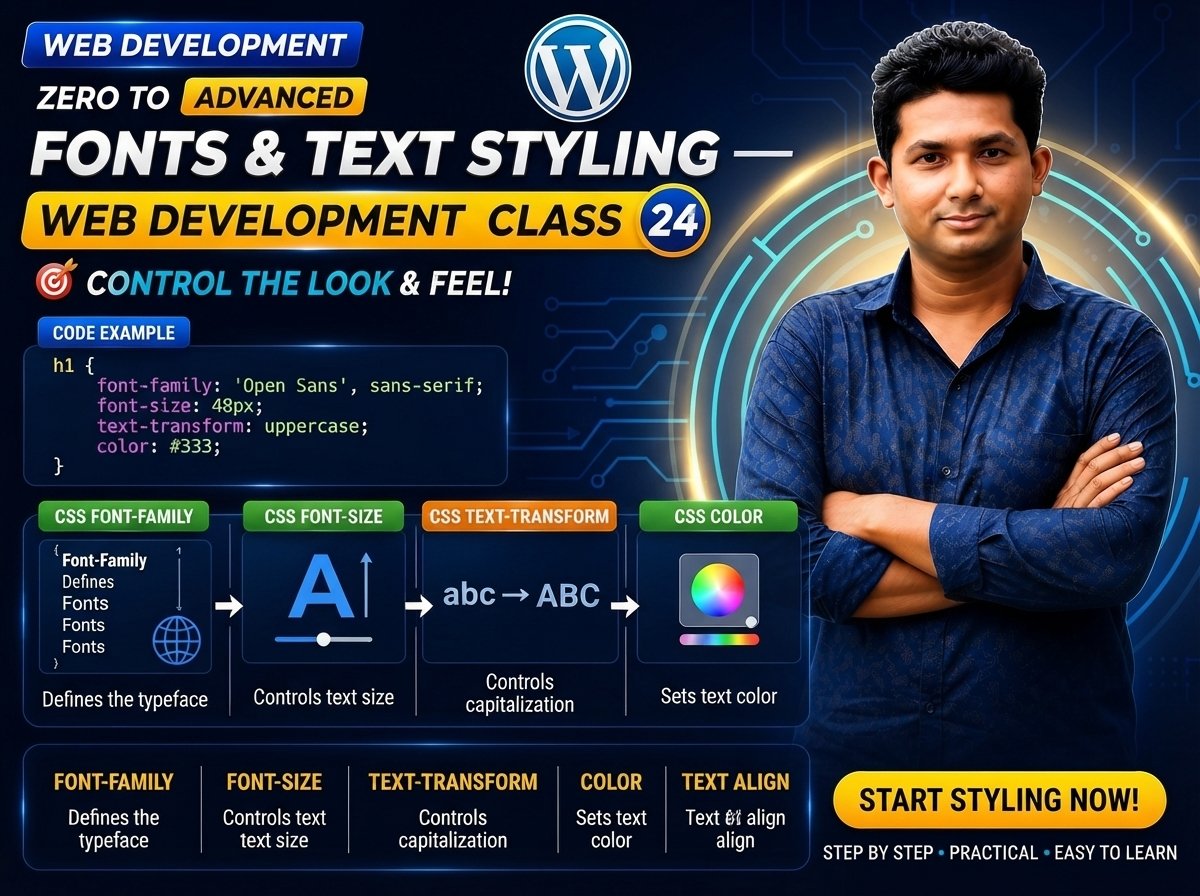
Class 024 — Fonts & Text Styling
Typography is one of the most important parts of web design. A website may have excellent colors, images and layouts, but poor typography can make the content difficult to read and the overall design look unprofessional.
CSS provides many properties for controlling how text appears on a webpage.
In this class, you will learn:
- font-family
- font-size
- font-weight
- font-style
- line-height
- text-align
- text-decoration
- text-transform
- letter-spacing
- word-spacing
- text-indent
- text-shadow
- Web-safe fonts
- Font fallbacks
- Google Fonts
- Basic responsive typography
- Professional typography practices
LEARNING OBJECTIVES
After completing this class, you will be able to:
- Change font families.
- Change font sizes.
- Control font weight.
- Create italic text.
- Adjust line height.
- Align text.
- Add or remove text decoration.
- Transform text between uppercase and lowercase.
- Control letter and word spacing.
- Add text shadows.
- Understand font fallback.
- Use Google Fonts.
- Create readable and professional website typography.
WHAT IS TYPOGRAPHY?
Typography is the visual presentation and arrangement of text.
In web development, typography includes:
- Font family
- Font size
- Font weight
- Line spacing
- Letter spacing
- Text alignment
- Text decoration
- Text hierarchy
- Readability
Good typography helps users understand content quickly and comfortably.
FONT-FAMILY
The font-family property specifies the typeface used for text.
Syntax:
selector {
font-family: font-name;
}
Example:
body {
font-family: Arial;
}
Another example:
p {
font-family: Georgia;
}
FONT FAMILY WITH SPACES
If a font name contains spaces, it is commonly written inside quotation marks.
Example:
h1 {
font-family: “Times New Roman”;
}
FONT FALLBACK
Not every device has every font installed.
For this reason, CSS allows multiple font choices.
Example:
body {
font-family: Arial, Helvetica, sans-serif;
}
The browser tries:
- Arial
If Arial is unavailable:
- Helvetica
If Helvetica is unavailable:
- A generic sans-serif font
GENERIC FONT FAMILIES
Common generic font families include:
serif
sans-serif
monospace
cursive
fantasy
Example:
p {
font-family: Georgia, serif;
}
Another example:
code {
font-family: “Courier New”, monospace;
}
SERIF VS SANS-SERIF
Serif fonts contain small decorative strokes at the ends of characters.
Examples:
Times New Roman
Georgia
Sans-serif fonts do not have those decorative strokes.
Examples:
Arial
Helvetica
Verdana
Sans-serif fonts are widely used in modern website interfaces.
WEB-SAFE FONTS
Web-safe fonts are fonts commonly available across many operating systems and devices.
Examples include:
Arial
Verdana
Georgia
Times New Roman
Courier New
However, modern websites also commonly use web fonts.
FONT-SIZE
The font-size property controls text size.
Example:
p {
font-size: 18px;
}
Another example:
h1 {
font-size: 48px;
}
COMMON FONT-SIZE UNITS
Font sizes can use different CSS units.
Examples:
px
em
rem
%
vw
Example:
h1 {
font-size: 3rem;
}
p {
font-size: 1rem;
}
You will study CSS units in more detail in Class 25.
FONT-WEIGHT
The font-weight property controls how thick or bold text appears.
Example:
h1 {
font-weight: bold;
}
Numeric values can also be used.
Example:
h1 {
font-weight: 700;
}
p {
font-weight: 400;
}
COMMON FONT-WEIGHT VALUES
normal
bold
Numeric weights may include:
100
200
300
400
500
600
700
800
900
Whether every numeric weight is visually available depends on the font being used.
EXAMPLE
.title {
font-weight: 700;
}
.description {
font-weight: 400;
}
FONT-STYLE
The font-style property can create italic or normal text.
Example:
p {
font-style: italic;
}
Common values:
normal
italic
oblique
Example:
.quote {
font-style: italic;
}
LINE-HEIGHT
The line-height property controls the vertical spacing between lines of text.
Example:
p {
line-height: 1.6;
}
This is especially important for paragraph readability.
WITHOUT GOOD LINE HEIGHT
A long paragraph with lines too close together can be difficult to read.
A useful example:
.article p {
font-size: 18px;
line-height: 1.7;
}
UNITLESS LINE-HEIGHT
A common professional pattern is:
body {
line-height: 1.5;
}
A unitless line-height can scale naturally with the element’s font size.
TEXT-ALIGN
The text-align property controls horizontal text alignment.
Example:
h1 {
text-align: center;
}
Common values include:
left
right
center
justify
EXAMPLES
Left:
p {
text-align: left;
}
Center:
h1 {
text-align: center;
}
Right:
.date {
text-align: right;
}
Justify:
.article {
text-align: justify;
}
TEXT-DECORATION
The text-decoration property controls decorative lines associated with text.
Example:
a {
text-decoration: none;
}
This is commonly used to remove the default underline from links.
OTHER EXAMPLES
Underline:
.title {
text-decoration: underline;
}
Line-through:
.old-price {
text-decoration: line-through;
}
Overline:
.text {
text-decoration: overline;
}
PRACTICAL PRICE EXAMPLE
HTML:
$100 $80
CSS:
.old-price {
text-decoration: line-through;
}
.new-price {
font-weight: 700;
}
TEXT-TRANSFORM
The text-transform property changes the capitalization presentation of text.
Common values:
uppercase
lowercase
capitalize
none
UPPERCASE
h1 {
text-transform: uppercase;
}
LOWERCASE
p {
text-transform: lowercase;
}
CAPITALIZE
.title {
text-transform: capitalize;
}
IMPORTANT NOTE
text-transform changes how the text is displayed.
It does not rewrite the original HTML text content.
LETTER-SPACING
The letter-spacing property controls spacing between characters.
Example:
h1 {
letter-spacing: 2px;
}
PRACTICAL EXAMPLE
.logo {
letter-spacing: 3px;
text-transform: uppercase;
}
NEGATIVE LETTER SPACING
CSS can also use negative letter spacing.
Example:
.hero-title {
letter-spacing: -1px;
}
Use negative values carefully because excessive tightening can reduce readability.
WORD-SPACING
The word-spacing property controls spacing between words.
Example:
p {
word-spacing: 4px;
}
TEXT-INDENT
The text-indent property controls indentation of the first line of text.
Example:
.article p {
text-indent: 30px;
}
TEXT-SHADOW
The text-shadow property adds a shadow to text.
Basic syntax:
text-shadow:
horizontal-offset
vertical-offset
blur-radius
color;
Example:
h1 {
text-shadow: 2px 2px 4px gray;
}
TEXT SHADOW EXPLANATION
In:
text-shadow: 2px 2px 4px gray;
First 2px = Horizontal offset
Second 2px = Vertical offset
4px = Blur radius
gray = Shadow color
HERO TEXT SHADOW
Example:
.hero-title {
color: white;
text-shadow: 0 2px 8px rgba(0, 0, 0, 0.5);
}
This can help improve readability when text appears over an image.
MULTIPLE TEXT SHADOWS
CSS can apply multiple text shadows separated by commas.
Example:
.title {
text-shadow:
1px 1px 2px black,
0 0 10px blue;
}
Use multiple shadows carefully to avoid reducing readability.
FONT SHORTHAND
CSS provides a font shorthand property.
Example:
p {
font: italic 700 18px/1.6 Arial, sans-serif;
}
This can combine several font-related settings.
For beginners, separate properties are often easier to understand:
p {
font-style: italic;
font-weight: 700;
font-size: 18px;
line-height: 1.6;
font-family: Arial, sans-serif;
}
USING GOOGLE FONTS
Google Fonts provides web fonts that can be used on websites.
A typical method is to add a stylesheet link inside the HTML .
Example:
Then include the font stylesheet provided for your selected font.
After loading the font, it can be used in CSS.
Example:
body {
font-family: “Roboto”, sans-serif;
}
Important:
Always use the actual embed code supplied for the font and styles you selected.
FONT HIERARCHY
Professional websites normally use a clear text hierarchy.
Example:
h1 {
font-size: 48px;
font-weight: 700;
}
h2 {
font-size: 36px;
font-weight: 700;
}
h3 {
font-size: 28px;
font-weight: 600;
}
p {
font-size: 18px;
font-weight: 400;
line-height: 1.6;
}
Users can quickly understand which content is most important.
BODY TYPOGRAPHY
A simple body typography setup:
body {
font-family: Arial, Helvetica, sans-serif;
font-size: 16px;
line-height: 1.6;
color: #333333;
}
HEADING TYPOGRAPHY
Example:
h1,
h2,
h3 {
font-weight: 700;
line-height: 1.2;
}
PARAGRAPH TYPOGRAPHY
Example:
p {
font-size: 18px;
line-height: 1.7;
color: #555555;
}
LINK TYPOGRAPHY
Example:
a {
color: #2563eb;
text-decoration: none;
}
a:hover {
text-decoration: underline;
}
You will study pseudo-classes such as :hover in greater detail later.
BUTTON TYPOGRAPHY
Example:
.button {
font-family: inherit;
font-size: 16px;
font-weight: 600;
text-transform: uppercase;
letter-spacing: 0.5px;
}
INHERIT
The inherit keyword tells a property to use the computed value from its parent.
Example:
button {
font-family: inherit;
}
This is useful because some form controls may otherwise use browser-specific default fonts.
PRACTICAL WEBSITE EXAMPLE
HTML:
<meta charset="UTF-8">

<title>CSS Typography</title>

<link rel="stylesheet" href="style.css">
<section class="hero">
<p class="subtitle">
Professional Web Development
</p>
<h1 class="hero-title">
Build Better Websites
</h1>
<p class="hero-description">
Learn modern web development from basic concepts to professional projects.
</p>
<a href="#" class="button">
Start Learning
</a>
</section>CSS:
body {
font-family: Arial, Helvetica, sans-serif;
color: #333333;
}
.hero {
text-align: center;
}
.subtitle {
font-size: 14px;
font-weight: 700;
text-transform: uppercase;
letter-spacing: 2px;
}
.hero-title {
font-size: 48px;
font-weight: 700;
line-height: 1.1;
letter-spacing: -1px;
}
.hero-description {
font-size: 18px;
line-height: 1.7;
}
.button {
font-family: inherit;
font-size: 16px;
font-weight: 600;
text-decoration: none;
text-transform: uppercase;
letter-spacing: 1px;
}
CODE EXPLANATION
font-family:
Controls the typeface.
font-size:
Controls the size of the text.
font-weight:
Controls the visual weight of the font.
line-height:
Controls spacing between lines.
text-align:
Controls text alignment.
text-transform:
Controls displayed capitalization.
letter-spacing:
Controls spacing between characters.
text-decoration:
Controls decorative lines such as underlines.
BASIC RESPONSIVE TYPOGRAPHY
Typography should work on different screen sizes.
Example:
.hero-title {
font-size: 36px;
}
@media (min-width: 768px) {
.hero-title {
    font-size: 56px;
}
}
This makes the heading larger on wider screens.
You will study responsive design and media queries in detail later.
USING REM FOR TYPOGRAPHY
Example:
body {
font-size: 16px;
}
h1 {
font-size: 3rem;
}
p {
font-size: 1.125rem;
}
You will learn px, %, em, rem, vw and other CSS units in detail in the next class.
READABLE LINE LENGTH
Very long lines of text can be difficult to read.
Example:
.article {
max-width: 700px;
}
This can help keep article content at a more comfortable reading width.
PROFESSIONAL TYPOGRAPHY TIPS
- Use a consistent font system.
- Create a clear heading hierarchy.
- Keep body text readable.
- Use appropriate line height.
- Avoid excessive font families.
- Maintain sufficient text/background contrast.
- Use bold text intentionally.
- Avoid excessive uppercase text.
- Use letter spacing carefully.
- Keep paragraph widths manageable.
- Test typography on mobile and desktop.
- Choose fallback fonts.
COMMON MISTAKES
- USING TOO MANY FONT FAMILIES
Using many unrelated fonts can make a design inconsistent.
A simple website may only need one or two font families.
- FONT SIZE TOO SMALL
Very small text can be difficult to read.
Choose readable body text sizes.
- POOR LINE HEIGHT
Wrong:
p {
font-size: 18px;
line-height: 18px;
}
This may make lines feel crowded.
Better example:
p {
font-size: 18px;
line-height: 1.6;
}
- TOO MUCH LETTER SPACING
Wrong:
p {
letter-spacing: 10px;
}
This makes normal paragraphs difficult to read.
- EXCESSIVE UPPERCASE
Using uppercase for large amounts of body text can reduce readability.
Use it selectively.
- REMOVING LINK UNDERLINES WITHOUT ANOTHER CUE
If you remove:
text-decoration: underline;
make sure users can still recognize interactive links through another clear visual treatment.
- USING ONLY ONE FONT WITHOUT FALLBACK
Less robust:
body {
font-family: Arial;
}
Better:
body {
font-family: Arial, Helvetica, sans-serif;
}
- USING BOLD EVERYWHERE
If everything is bold, visual hierarchy becomes weaker.
- TOO MUCH TEXT SHADOW
Heavy text shadows can make text look blurry or difficult to read.
- POOR CONTRAST
Typography must remain readable against its background.
- FORGETTING FORM CONTROL FONTS
Buttons and inputs may not always visually match surrounding text.
A useful pattern is:
button,
input,
textarea,
select {
font: inherit;
}
- RANDOM FONT SIZES
Use a consistent typography hierarchy rather than unrelated sizes throughout the project.
NEW & DIFFICULT WORDS
Typography = The visual presentation and arrangement of text.
Font = A particular design or representation of characters.
Typeface = The overall design family of letterforms.
Font Family = The CSS property used to specify the preferred typeface or font family.
Serif = A typeface category with decorative strokes on characters.
Sans-serif = A typeface category without those decorative strokes.
Monospace = A font style where characters generally occupy equal horizontal width.
Fallback Font = An alternative font used if the preferred font is unavailable.
Font Size = The size of displayed text.
Font Weight = The visual thickness of text.
Line Height = Vertical spacing associated with lines of text.
Letter Spacing = Space between characters.
Word Spacing = Space between words.
Text Alignment = Horizontal alignment of inline content such as text.
Text Decoration = Decorative lines such as underline or line-through.
Text Transform = CSS control over displayed capitalization.
Text Shadow = A shadow effect applied to text.
Hierarchy = Visual organization that communicates levels of importance.
Readability = How easily text can be read.
Web Font = A font resource loaded for use on a website.
Inheritance = CSS behavior where certain property values can be passed from parent elements to descendants.
IMPORTANT NOTES
Font family:
font-family:
Arial,
Helvetica,
sans-serif;
Font size:
font-size: 18px;
Font weight:
font-weight: 700;
Italic:
font-style: italic;
Line height:
line-height: 1.6;
Center text:
text-align: center;
Remove link underline:
text-decoration: none;
Uppercase:
text-transform: uppercase;
Letter spacing:
letter-spacing: 2px;
Word spacing:
word-spacing: 4px;
Text indent:
text-indent: 30px;
Text shadow:
text-shadow:
0 2px 4px
rgba(0, 0, 0, 0.3);
PRACTICE
- Change the body font family.
- Add at least three fallback fonts.
- Set paragraph font size to 18px.
- Set a heading to font-weight: 700.
- Make a quote italic.
- Change paragraph line-height.
- Center a heading.
- Remove underline from a link.
- Create uppercase button text.
- Use capitalize on a heading.
- Add letter spacing to a logo.
- Add word spacing to a paragraph.
- Add text indentation.
- Create a text shadow.
- Create a clear heading hierarchy.
- Test typography on different screen widths.
ASSIGNMENT
Create a webpage called:
Professional Typography Practice
The page should contain:
- Website title
- Navigation
- Hero heading
- Hero paragraph
- About section
- Services section
- Blog section
- Quote
- Buttons
- Footer
Requirements:
- Use font-family.
- Use font fallbacks.
- Use at least four font sizes.
- Use multiple font weights.
- Use font-style.
- Use line-height.
- Use text-align.
- Use text-decoration.
- Use text-transform.
- Use letter-spacing.
- Use word-spacing.
- Use text-shadow.
- Create a clear typography hierarchy.
- Keep body content readable.
MINI PROJECT
Create a professional blog article layout.
HTML:
<p class="category">
    Web Development
</p>

<h1>
    How to Become a Web Developer
</h1>

<p class="intro">
    Web development is one of the most useful digital skills for building modern websites and applications.
</p>

<h2>
    Start with the Fundamentals
</h2>

<p>
    Learn HTML, CSS and JavaScript step by step and practice each concept through real projects.
</p>
CSS:
.article {
max-width: 700px;
}
.article h1 {
font-family: Arial, sans-serif;
font-size: 48px;
font-weight: 700;
line-height: 1.15;
letter-spacing: -1px;
}
.article h2 {
font-size: 30px;
line-height: 1.3;
}
.article p {
font-size: 18px;
line-height: 1.7;
}
.category {
font-size: 14px;
font-weight: 700;
text-transform: uppercase;
letter-spacing: 2px;
}
.intro {
font-size: 20px;
font-weight: 500;
}
QUIZ
- Which CSS property changes the font family?
Answer:
font-family
- Which property changes text size?
Answer:
font-size
- Which property controls text thickness?
Answer:
font-weight
- Which property can make text italic?
Answer:
font-style
- Which property controls spacing between lines?
Answer:
line-height
- Which property centers text?
Answer:
text-align
- How can you remove a link underline?
Answer:
text-decoration: none;
- Which property converts displayed text to uppercase?
Answer:
text-transform
- Which property controls space between characters?
Answer:
letter-spacing
- Which property controls space between words?
Answer:
word-spacing
- Which property creates a text shadow?
Answer:
text-shadow
- Why are fallback fonts useful?
Answer:
They allow the browser to use another suitable font if the preferred font is unavailable.
INTERVIEW QUESTIONS
Q: What is typography in web design?
Answer:
Typography is the visual presentation and arrangement of text, including font family, size, weight, spacing, alignment and hierarchy.
Q: What is font-family?
Answer:
font-family specifies the preferred typeface or list of fallback font families for an element.
Q: What is a font fallback?
Answer:
A fallback is an alternative font that the browser can use when a preferred font is unavailable.
Q: What is the difference between font-size and font-weight?
Answer:
font-size controls the size of text, while font-weight controls its visual thickness.
Q: What does line-height do?
Answer:
line-height controls the height of line boxes and therefore affects vertical spacing between lines of text.
Q: What does text-transform do?
Answer:
It controls the displayed capitalization of text, such as uppercase, lowercase or capitalize.
Q: What is letter-spacing?
Answer:
letter-spacing controls the spacing between characters.
Q: What is text-shadow?
Answer:
text-shadow applies one or more shadow effects to text.
Q: Why is typography important in web development?
Answer:
Good typography improves readability, visual hierarchy, usability and the overall quality of a website.
Q: What is a generic font family?
Answer:
A generic font family is a broad font category such as serif, sans-serif or monospace that the browser can use as a fallback.
CLASS SUMMARY
In Class 24, you learned CSS Fonts & Text Styling.
You learned:
- Typography
- font-family
- Font fallback
- Generic font families
- Serif and sans-serif
- Web-safe fonts
- font-size
- font-weight
- font-style
- line-height
- text-align
- text-decoration
- text-transform
- letter-spacing
- word-spacing
- text-indent
- text-shadow
- Font shorthand
- Web fonts
- Google Fonts
- Typography hierarchy
- Basic responsive typography
- Readability principles
Important examples:
font-family:
Arial,
Helvetica,
sans-serif;
font-size: 18px;
font-weight: 700;
line-height: 1.6;
text-align: center;
text-decoration: none;
text-transform: uppercase;
letter-spacing: 2px;
Good typography is not only about making text attractive. It should make content easy to read, understand and navigate.
NEXT CLASS:
Class 025 — Width, Height & CSS Units