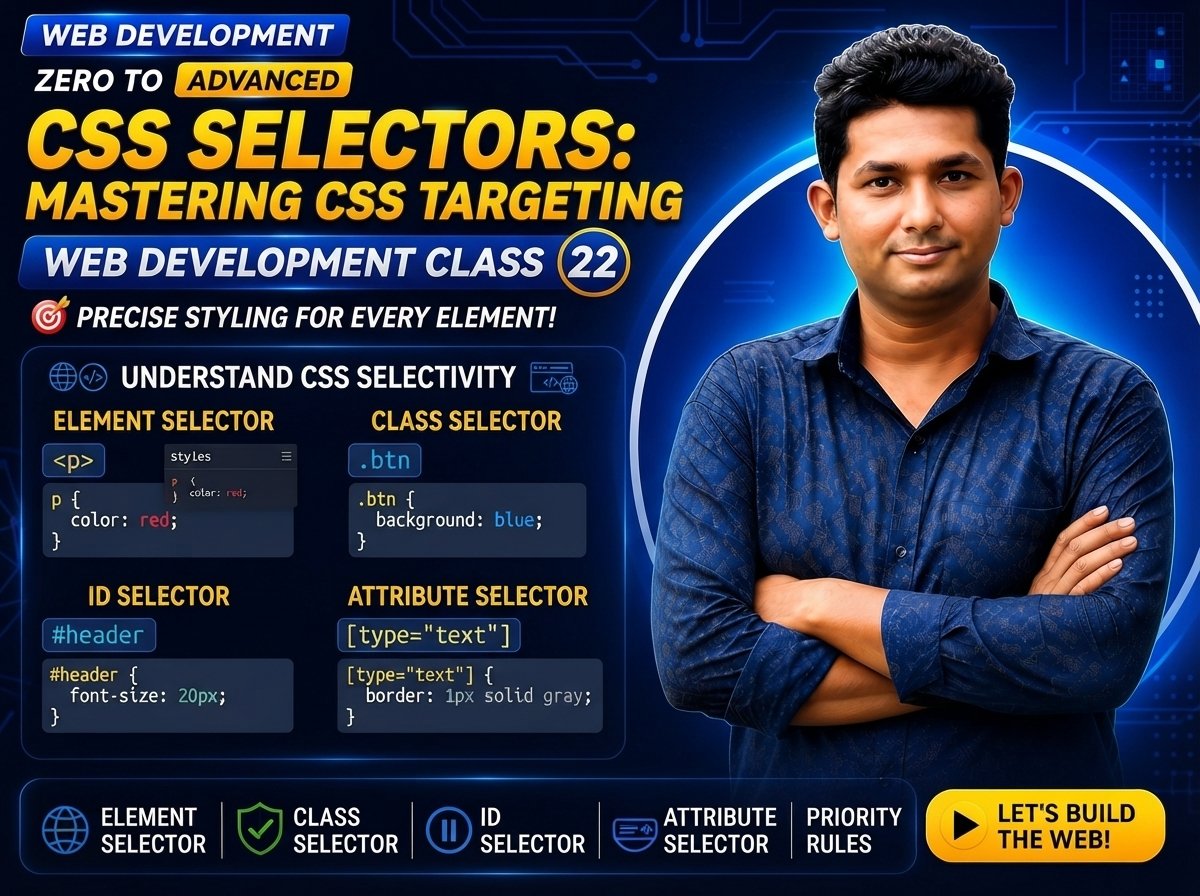
Class 022 — CSS Selectors
CSS selectors are used to select HTML elements that you want to style.
In the previous class, you learned the basic structure of CSS:
selector {
property: value;
}
The selector is the first part of a CSS rule. It tells the browser which HTML element or elements should receive the styles.
In this class, you will learn the most important CSS selectors, including:
- Element Selector
- Class Selector
- ID Selector
- Universal Selector
- Grouping Selector
- Descendant Selector
- Child Selector
- Multiple Classes
- Basic selector combinations
LEARNING OBJECTIVES
After completing this class, you will be able to:
- Understand what a CSS selector is.
- Select HTML elements by tag name.
- Select elements using classes.
- Select elements using IDs.
- Use the universal selector.
- Group multiple selectors.
- Select descendant elements.
- Select direct child elements.
- Apply multiple classes to an element.
- Understand the difference between class and ID selectors.
- Combine basic selectors correctly.
- Avoid common selector mistakes.
WHAT IS A CSS SELECTOR?
A CSS selector is a pattern used to select HTML elements.
After selecting an element, CSS declarations can be applied to it.
Example HTML:
Hello World
CSS:
h1 {
color: blue;
}
Here:
h1 = Selector
color = Property
blue = Value
The browser finds the
element and changes its text color to blue. BASIC CSS RULE The basic structure is: selector {
property: value;
} Example: p {
color: red;
font-size: 18px;
} Here, all matching elements receive the styles. WHY ARE CSS SELECTORS IMPORTANT? A webpage may contain many different elements. For example: You usually do not want every element to have the same design. Selectors allow you to target specific elements. For example: h1 {
color: blue;
} p {
color: gray;
} button {
background-color: green;
} Each selector targets a different type of element. ELEMENT SELECTOR An Element Selector selects HTML elements using their element name. Syntax: element {
property: value;
} Example: p {
color: blue;
} HTML: First paragraphSecond paragraphBoth paragraphs will become blue because the selector targets all matching elements. ANOTHER ELEMENT SELECTOR EXAMPLE HTML: Main HeadingSecond HeadingWelcome to our website.CSS: h1 {
color: red;
} h2 {
color: green;
} p {
color: gray;
} Each HTML element is styled according to its selector. CLASS SELECTOR A Class Selector selects elements based on their class attribute. A class selector begins with: . Syntax: .class-name {
property: value;
} Example HTML: Important informationCSS: .highlight {
color: red;
} The dot before: .highlight means that CSS is selecting a class. CLASS SELECTOR EXAMPLE HTML: Our Services We provide professional web development services. CSS: .title {
color: blue;
font-size: 32px;
} .description {
color: gray;
font-size: 18px;
} USING THE SAME CLASS ON MULTIPLE ELEMENTS A major advantage of classes is reusability. HTML: First messageSecond messageImportant contentCSS: .important {
color: red;
} All three elements with: class=”important” will receive the style. CLASS NAMES Good class names describe purpose or meaning. Examples: .card
.button
.product
.product-title
.navigation
.hero
.container
.error-message Avoid confusing names such as: .x
.abc
.test123 unless they have a specific purpose in your project. ID SELECTOR An ID Selector selects an element based on its id attribute. An ID selector begins with: Syntax: #id-name {
property: value;
} Example HTML: Welcome to My Website CSS: #main-title {
color: purple;
} The # symbol represents an ID selector. ID EXAMPLE HTML: Contact Us CSS: #contact {
background-color: lightgray;
padding: 20px;
} CLASS VS ID Class: .card {
background-color: white;
} HTML: Card 1 Card 2A class can be reused across multiple elements. ID: #header {
background-color: black;
} HTML: Website Header An ID should identify a unique element within the document. IMPORTANT DIFFERENCE Class selector starts with: . Example: .product {
color: blue;
} ID selector starts with: Example: #main {
color: blue;
} UNIVERSAL SELECTOR The Universal Selector selects all elements. It is written using: Example: {
margin: 0;
padding: 0;
} This selects all elements on the page. COMMON UNIVERSAL SELECTOR EXAMPLE A common pattern is: {
box-sizing: border-box;
} This applies: box-sizing: border-box; to all selected elements. GROUPING SELECTOR Sometimes multiple selectors need the same styles. Instead of writing: h1 {
color: blue;
} h2 {
color: blue;
} h3 {
color: blue;
} you can group them: h1,
h2,
h3 {
color: blue;
} Selectors are separated using commas. ANOTHER GROUPING EXAMPLE h1,
h2,
p {
font-family: Arial, sans-serif;
} The font-family declaration is applied to all matching: elements. WHY GROUP SELECTORS? Grouping helps: Reduce repeated CSS. Keep stylesheets shorter. Improve maintainability. Apply common styles consistently. DESCENDANT SELECTOR A Descendant Selector selects elements located inside another selected element. Syntax: parent descendant {
property: value;
} Example HTML: <h2>Article Title</h2> <p>Article paragraph.</p>CSS: .article p {
color: gray;
} This selects elements that are descendants of an element with the class: article DESCENDANT SELECTOR EXAMPLE HTML: <a href="#">Home</a> <a href="#">About</a><a href="#">Read More</a>CSS: nav a {
color: red;
} Only links inside the are targeted by this rule. The link inside is not selected by: nav a CHILD SELECTOR A Child Selector selects elements that are direct children of another selected element. The symbol is: Syntax: parent > child {
property: value;
} Example: .container > p {
color: blue;
} HTML: <p>Direct child paragraph</p> <div> <p>Nested paragraph</p> </div>CSS: .container > p {
color: blue;
} Only the direct child paragraph is selected. DESCENDANT VS CHILD SELECTOR Descendant: .container p {
color: red;
} This can select matching paragraphs anywhere inside: .container Child: .container > p {
color: blue;
} This selects only matching paragraphs that are direct children of: .container MULTIPLE CLASSES An HTML element can have more than one class. Example: Buy Now Here the button has two classes: button
primary CSS: .button {
padding: 10px 20px;
} .primary {
background-color: blue;
color: white;
} The button receives styles from both classes. SELECTING AN ELEMENT THAT HAS BOTH CLASSES You can combine class selectors without a space: .button.primary {
background-color: blue;
} This means: Select an element that has both: button and: primary classes. IMPORTANT DIFFERENCE .button .primary and: .button.primary do not mean the same thing. Example: .button .primary {
color: red;
} This selects an element with class: primary that is inside an element with class: button But: .button.primary {
color: red;
} selects an element that itself has both classes. COMBINING ELEMENT AND CLASS SELECTORS Example HTML: Welcome to our website. CSS: p.intro {
color: blue;
} This means: Select elements that also have: class=”intro” Another example: button.primary {
background-color: green;
} This selects: elements that have: class=”primary” COMBINING ELEMENT AND ID SELECTORS HTML: Services CSS: section#services {
background-color: lightgray;
} This means: Select the element with: id=”services” BASIC SELECTOR COMBINATIONS Examples: p {
color: black;
} .message {
color: blue;
} #error {
color: red;
} article p {
line-height: 1.6;
} nav > a {
text-decoration: none;
} h1,
h2,
h3 {
font-family: Arial, sans-serif;
} PRACTICAL EXAMPLE HTML: <meta charset="UTF-8"> <title>CSS Selectors</title> <link rel="stylesheet" href="style.css"><header id="main-header"> <h1 class="site-title"> Dinajpur IT Park </h1> <nav class="navigation"> <a href="#">Home</a> <a href="#">Products</a> <a href="#">Services</a> <a href="#">Contact</a> </nav> </header> <main class="container"> <section class="services"> <h2 class="section-title"> Our Services </h2> <div class="service-card"> <h3>Web Development</h3> <p> We build professional websites. </p> </div> <div class="service-card featured"> <h3>SEO Service</h3> <p> We help websites improve search visibility. </p> </div> </section> </main> <footer id="footer"> <p> Copyright 2026 </p> </footer>CSS: {
box-sizing: border-box;
} body {
margin: 0;
font-family: Arial, sans-serif;
} #main-header {
background-color: black;
color: white;
padding: 20px;
} .site-title {
text-align: center;
} .navigation a {
color: white;
} .container {
padding: 20px;
} .section-title {
color: darkblue;
} .service-card {
background-color: lightgray;
padding: 20px;
margin-bottom: 20px;
} .service-card h3 {
color: blue;
} .service-card > p {
color: gray;
} .service-card.featured {
border: 2px solid blue;
} #footer {
background-color: black;
color: white;
padding: 20px;
} #footer p {
text-align: center;
} CODE EXPLANATION {
box-sizing: border-box;
} The universal selector targets all elements. #main-header selects the element with: id=”main-header” .site-title selects elements with: class=”site-title” .navigation a selects elements located inside: .navigation .service-card selects all elements with: class=”service-card” .service-card h3 selects elements inside: .service-card .service-card > p selects elements that are direct children of: .service-card .service-card.featured selects elements that have both: service-card and: featured classes. #footer p selects paragraphs located inside the element with: id=”footer” SELECTOR SUMMARY Element Selector: p {
color: blue;
} Class Selector: .card {
background-color: white;
} ID Selector: #header {
background-color: black;
} Universal Selector: {
box-sizing: border-box;
} Grouping Selector: h1,
h2,
h3 {
color: blue;
} Descendant Selector: nav a {
color: red;
} Child Selector: nav > a {
color: red;
} Element + Class: p.intro {
color: gray;
} Multiple Classes: .button.primary {
background-color: blue;
} COMMON MISTAKES Forgetting the dot before a class. Wrong: card {
padding: 20px;
} Correct: .card {
padding: 20px;
} Forgetting # before an ID. Wrong: header {
background-color: black;
} If you are targeting: id=”header” use: #header {
background-color: black;
} Confusing class and ID. HTML: Correct: .card {
padding: 20px;
} HTML: Correct: #card {
padding: 20px;
} Confusing descendant and multiple-class selectors. .button .primary means a .primary element inside .button. .button.primary means one element has both classes. Overusing IDs for styling. Classes are generally more reusable for component styling. Using unclear class names. Avoid: .a
.x1
.test Prefer meaningful names such as: .product-card
.product-title
.navigation
.contact-form Forgetting commas in grouped selectors. Wrong: h1 h2 h3 {
color: blue;
} This does not mean the same thing as grouping. Correct: h1,
h2,
h3 {
color: blue;
} Adding a space between an element and class accidentally. p.intro means: A with class=”intro”. p .intro means: An element with class=”intro” inside a . NEW & DIFFICULT WORDS Selector = A pattern used to select HTML elements for styling. Element Selector = A selector that targets HTML elements by element name. Class Selector = A selector that targets elements based on their class attribute. ID Selector = A selector that targets an element based on its id. Universal Selector = A selector represented by * that can select all elements. Grouping Selector = Multiple selectors grouped together using commas. Descendant = An element located somewhere inside another element. Descendant Selector = A selector that targets matching descendants inside another selected element. Child = An element directly contained by another element. Child Selector = A selector using > to target direct children. Parent = An element containing another element. Class = A reusable HTML attribute value commonly used for grouping and styling elements. ID = An identifier intended to identify a unique element in a document. Combination = Using multiple selector parts together. Reusable = Something that can be used multiple times. Target = The element or elements selected by a CSS rule. IMPORTANT NOTES CSS selectors determine which HTML elements receive styles. Element selectors use the HTML element name. Example: p Class selectors start with a dot. Example: .card ID selectors start with #. Example: #header The universal selector uses: Group selectors using commas. Example: h1,
h2,
h3 A space can represent a descendant relationship. Example: nav a represents a direct child relationship. Example: nav > a Multiple classes can be applied to one element. Example: class=”button primary” Two class selectors without a space can require both classes. Example: .button.primary Classes are reusable. IDs should be unique within the HTML document. Meaningful selector names make CSS easier to understand and maintain. PRACTICE Create three paragraphs and style all of them using an element selector. Create a class named: .highlight and apply it to two elements. Create an ID named: main-title and use it on one heading. Use the universal selector. Group h1, h2 and h3. Create a navigation area and select only its links. Create a container with nested paragraphs. Test the difference between: .container p and: .container > p Give one button two classes. Example: class=”button primary” Style an element that has both classes using: .button.primary ASSIGNMENT Create a webpage named: CSS Selector Practice Your page must contain: Header Navigation Main section Three cards Multiple headings Paragraphs Buttons Footer Use at least: 2 Element Selectors 3 Class Selectors 2 ID Selectors 1 Universal Selector 1 Grouping Selector 2 Descendant Selectors 1 Child Selector 1 Multiple-Class Selector Example: .card.featured {
border: 2px solid blue;
} After completing the project, explain which selector you used for each section and why. QUIZ What is a CSS selector? Answer: A CSS selector is a pattern used to select HTML elements that should receive CSS styles. Which symbol starts a class selector? Answer: . Which symbol starts an ID selector? Answer: Which symbol represents the universal selector? Answer: How do you group selectors? Answer: Using commas. Example: h1,
h2,
h3 {
color: blue;
} What does this select? .card {
color: blue;
} Answer: Elements with class=”card”. What does this select? #header {
background-color: black;
} Answer: The element with id=”header”. What does this select? nav a {
color: red;
} Answer: elements that are descendants of . What does this select? nav > a {
color: red;
} Answer: elements that are direct children of . What does this mean? .button.primary Answer: An element that has both button and primary classes. What is the difference between: .button .primary and: .button.primary Answer: .button .primary selects a .primary descendant inside .button. .button.primary selects an element that has both classes. Can the same class be used on multiple elements? Answer: Yes. Should the same ID normally be repeated on multiple elements? Answer: No. An ID should be unique within the document. INTERVIEW QUESTIONS Q: What is a CSS selector? Answer: A CSS selector is a pattern used to identify the HTML elements to which CSS declarations should be applied. Q: What is an Element Selector? Answer: An Element Selector targets HTML elements using their element name. Example: p {
color: blue;
} Q: What is a Class Selector? Answer: A Class Selector targets elements based on their class attribute and begins with a dot. Example: .card {
padding: 20px;
} Q: What is an ID Selector? Answer: An ID Selector targets an element based on its id attribute and begins with #. Example: #header {
background-color: black;
} Q: What is the difference between class and ID? Answer: A class is designed to be reusable across elements, while an ID should uniquely identify an element within the document. Q: What is the Universal Selector? Answer: The Universal Selector uses * and can select all elements. Q: What is a Grouping Selector? Answer: Grouping allows multiple selectors to share the same declarations by separating them with commas. Q: What is a Descendant Selector? Answer: A Descendant Selector targets matching elements located inside another selected element. Q: What is a Child Selector? Answer: A Child Selector uses > to target direct children of another selected element. Q: What does .card.featured mean? Answer: It selects an element that has both card and featured classes. CLASS SUMMARY In Class 22, you learned CSS Selectors. You learned: Element Selector Class Selector ID Selector Universal Selector Grouping Selector Descendant Selector Child Selector Multiple Classes Element + Class combinations Class vs ID Basic selector combinations Important syntax: Element: p {
color: blue;
} Class: .card {
color: blue;
} ID: #header {
color: blue;
} Universal: {
box-sizing: border-box;
} Grouping: h1,
h2,
h3 {
color: blue;
} Descendant: nav a {
color: blue;
} Child: nav > a {
color: blue;
} Multiple classes: .button.primary {
background-color: blue;
} CSS selectors are one of the most important foundations of CSS because they determine exactly which HTML elements receive each style. NEXT CLASS: Class 023 — Colors & Backgrounds