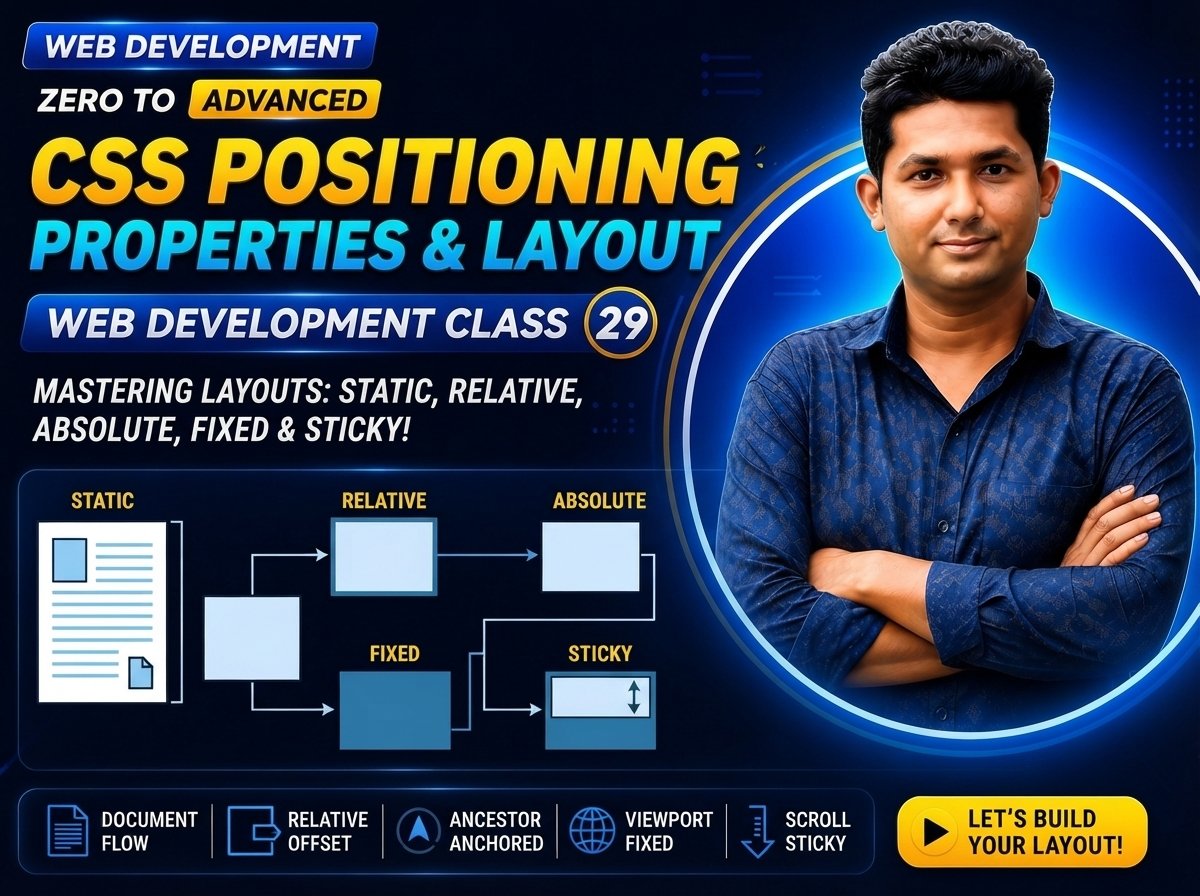
Class 029 — CSS Position
The CSS position property controls how an element is positioned in a webpage layout.
By default, HTML elements follow the normal document flow. CSS positioning allows developers to move elements, place them relative to other elements, keep elements fixed on the screen, or make them stick while scrolling.
In this class, you will learn:
- What CSS position is
- Normal document flow
- position: static
- position: relative
- position: absolute
- position: fixed
- position: sticky
- top
- right
- bottom
- left
- inset
- Positioned ancestors
- Overlapping elements
- Sticky headers
- Fixed buttons
- Practical layout examples
- Common positioning mistakes
LEARNING OBJECTIVES
After completing this class, you will be able to:
- Understand how CSS positioning works.
- Explain normal document flow.
- Use position: static.
- Use position: relative.
- Use position: absolute.
- Use position: fixed.
- Use position: sticky.
- Use top, right, bottom and left.
- Position child elements relative to a parent.
- Create fixed interface elements.
- Create sticky navigation.
- Avoid common positioning mistakes.
WHAT IS CSS POSITION?
The position property determines how an element is positioned in the document.
Basic syntax:
selector {
position: value;
}
Common values are:
static
relative
absolute
fixed
sticky
NORMAL DOCUMENT FLOW
Before learning position, you must understand normal flow.
By default, elements appear according to their HTML order.
Example:
Heading
Paragraph One
Paragraph Two
The browser lays these elements out in normal document flow.
Block elements generally appear one below another.
Inline elements flow within lines of text.
POSITION: STATIC
static is the default positioning behavior for most HTML elements.
Example:
.box {
position: static;
}
A static element remains in normal document flow.
Properties such as:
top
right
bottom
left
do not move a statically positioned element in the normal way.
Example:
.box {
position: static;
top: 50px;
}
The top value will not reposition the element as it would with a positioned value such as relative or absolute.
POSITION: RELATIVE
position: relative keeps the element in normal document flow, but allows it to be visually offset from its original position.
Example:
.box {
position: relative;
top: 20px;
left: 30px;
}
The element is moved visually:
20px downward
30px to the right
Its original space in normal flow is still preserved.
RELATIVE POSITION EXAMPLE
HTML:
Relative Box
CSS:
.box {
position: relative;
top: 20px;
left: 20px;
width: 200px;
padding: 20px;

background-color: lightblue;
}
IMPORTANT IDEA
With relative positioning:
The element moves visually.
But its original layout space remains reserved.
NEGATIVE OFFSET
Example:
.box {
position: relative;
top: -20px;
}
This moves the element upward.
Example:
.box {
position: relative;
left: -30px;
}
This moves the element to the left.
POSITION: ABSOLUTE
position: absolute removes the element from normal document flow for layout purposes and positions it relative to its containing block.
A very common pattern is:
Parent:
position: relative;
Child:
position: absolute;
Example:
.parent {
position: relative;
}
.child {
position: absolute;
top: 20px;
right: 20px;
}
ABSOLUTE POSITION EXAMPLE
HTML:
<span class="badge">
    Sale
</span>

<h2>
    Laptop
</h2>

<p>
    Professional laptop for work.
</p>
CSS:
.card {
position: relative;
width: 300px;

padding: 30px;

border: 1px solid #cccccc;
}
.badge {
position: absolute;
top: 10px;
right: 10px;

padding: 5px 10px;

background-color: red;
color: white;
}
WHY POSITION RELATIVE ON THE PARENT?
The absolutely positioned badge needs a useful positioning reference.
By adding:
.card {
position: relative;
}
the badge can be positioned relative to the card’s positioning context.
WITHOUT POSITIONED PARENT
If an absolutely positioned element has no suitable positioned ancestor, its positioning reference may be an initial containing block rather than the intended component.
This can cause the element to appear in unexpected places.
POSITIONED ANCESTOR
A positioned ancestor is commonly an ancestor whose position value is not static.
Examples:
relative
absolute
fixed
sticky
A common component pattern is:
.component {
position: relative;
}
.component__badge {
position: absolute;
top: 10px;
right: 10px;
}
TOP PROPERTY
top specifies an offset from the top side of the element’s positioning reference.
Example:
.box {
position: absolute;
top: 20px;
}
RIGHT PROPERTY
Example:
.box {
position: absolute;
right: 20px;
}
BOTTOM PROPERTY
Example:
.box {
position: absolute;
bottom: 20px;
}
LEFT PROPERTY
Example:
.box {
position: absolute;
left: 20px;
}
COMBINING OFFSETS
Example:
.box {
position: absolute;
top: 20px;
left: 30px;
}
BOTTOM-RIGHT POSITION
Example:
.button {
position: absolute;
right: 20px;
bottom: 20px;
}
INSET PROPERTY
Modern CSS provides the inset shorthand.
Instead of:
top: 0;
right: 0;
bottom: 0;
left: 0;
you can write:
inset: 0;
Example:
.overlay {
position: absolute;
inset: 0;
}
INDIVIDUAL INSET VALUES
Example:
.overlay {
position: absolute;
inset:
    10px
    20px
    30px
    40px;
}
The order follows:
Top
Right
Bottom
Left
FULL-SIZE OVERLAY
HTML:
<img
    src="image.jpg"
    alt="Product"
>

<div class="overlay">
    View Product
</div>
CSS:
.image-card {
position: relative;
}
.overlay {
position: absolute;
inset: 0;

background-color:
    rgba(0, 0, 0, 0.5);

color: white;
}
POSITION: FIXED
A fixed-positioned element is positioned relative to the viewport in common use and remains in the same screen position while the page scrolls.
Example:
.chat-button {
position: fixed;
right: 20px;
bottom: 20px;
}
FIXED CHAT BUTTON
HTML:
<a
href=”#”
class=”chat-button”
Chat
CSS:
.chat-button {
position: fixed;
right: 20px;
bottom: 20px;

padding: 15px 20px;

background-color: #2563eb;
color: white;

text-decoration: none;

border-radius: 50px;
}
The button remains near the bottom-right corner while the user scrolls.
COMMON USES OF FIXED POSITION
- Chat buttons
- Floating action buttons
- Persistent navigation
- Back-to-top buttons
- Fixed notices
- Floating contact controls
IMPORTANT FIXED POSITION NOTE
Fixed elements are removed from normal document flow.
This means surrounding content does not reserve space for them.
A poorly designed fixed element can cover other content.
POSITION: STICKY
position: sticky combines aspects of relative and fixed positioning.
A sticky element behaves according to normal flow until a specified scrolling threshold is reached.
Example:
.header {
position: sticky;
top: 0;
}
STICKY HEADER
HTML:
<h1>
    My Website
</h1>
CSS:
.header {
position: sticky;
top: 0;

background-color: white;
}
As the page scrolls, the header can remain stuck at the top of its scrolling container when the threshold is reached.
STICKY NEEDS AN OFFSET
A common mistake is:
.header {
position: sticky;
}
without specifying:
top: 0;
In many practical cases, sticky positioning needs an inset such as top to define where it should stick.
STICKY SIDEBAR EXAMPLE
HTML:
<main>
    Main content
</main>

<aside class="sidebar">
    Sidebar
</aside>
CSS:
.sidebar {
position: sticky;
top: 20px;
}
Sticky behavior depends on the surrounding scrolling and containing context.
STATIC VS RELATIVE VS ABSOLUTE VS FIXED VS STICKY
STATIC
position: static;
- Default behavior
- Stays in normal flow
- Offset properties do not reposition it like positioned elements
RELATIVE
position: relative;
- Remains in normal flow
- Can be offset visually
- Original layout space remains
- Often creates a reference for absolute children
ABSOLUTE
position: absolute;
- Removed from normal flow
- Positioned relative to its containing block
- Often used for badges, icons and overlays
FIXED
position: fixed;
- Removed from normal flow
- Commonly positioned relative to the viewport
- Stays in a fixed screen location while scrolling
STICKY
position: sticky;
- Participates in normal flow
- Becomes stuck after reaching a specified offset
- Useful for headers and sidebars
PRACTICAL PRODUCT CARD
HTML:
<span class="product-card__badge">
    20% OFF
</span>

<img
    src="laptop.jpg"
    alt="Laptop"
>

<h2>
    Professional Laptop
</h2>

<p>
    Fast performance for business and development.
</p>
CSS:
.product-card {
position: relative;
width: 300px;

padding: 20px;

border: 1px solid #dddddd;

border-radius: 12px;
}
.product-card__badge {
position: absolute;
top: 12px;
right: 12px;

padding: 5px 10px;

background-color: red;
color: white;

border-radius: 20px;
}
PRACTICAL HERO OVERLAY
HTML:
<div class="hero__overlay"></div>

<div class="hero__content">

    <h1>
        Professional Web Development
    </h1>

    <p>
        Build modern websites for your business.
    </p>

</div>
CSS:
.hero {
position: relative;
min-height: 500px;

background-image:
    url("hero.jpg");

background-size: cover;
background-position: center;
}
.hero__overlay {
position: absolute;
inset: 0;

background-color:
    rgba(0, 0, 0, 0.6);
}
.hero__content {
position: relative;
color: white;
}
WHY IS HERO CONTENT RELATIVE?
The overlay is absolutely positioned.
The content remains in normal flow but uses:
position: relative;
so that layering can later be controlled more intentionally if needed.
You will learn z-index in Class 30.
CENTERING WITH ABSOLUTE POSITIONING
A traditional centering pattern is:
.box {
position: absolute;
top: 50%;
left: 50%;

transform:
    translate(-50%, -50%);
}
This can center an element inside an appropriately positioned parent.
Example:
.parent {
position: relative;
height: 400px;
}
.child {
position: absolute;
top: 50%;
left: 50%;

transform:
    translate(-50%, -50%);
}
IMPORTANT NOTE
Modern layouts often use Flexbox or Grid for centering because they are usually simpler for normal layout.
Absolute positioning should be used when the design actually requires positioned layering or precise placement.
ABSOLUTE STRETCH
You can stretch an absolutely positioned element using:
.overlay {
position: absolute;
top: 0;
right: 0;
bottom: 0;
left: 0;
}
Modern shorthand:
.overlay {
position: absolute;
inset: 0;
}
FIXED HEADER EXAMPLE
HTML: Website Header Main content
CSS:
.header {
position: fixed;
top: 0;
left: 0;
right: 0;

height: 70px;

background-color: white;
}
.content {
padding-top: 70px;
}
Why add padding-top?
Because the fixed header is removed from normal flow.
Without extra space, it may cover the top of the main content.
STICKY VS FIXED
Fixed:
.header {
position: fixed;
top: 0;
}
The element is removed from normal flow and stays fixed relative to its positioning reference, commonly the viewport.
Sticky:
.header {
position: sticky;
top: 0;
}
The element remains part of normal flow and only becomes stuck after reaching the defined scroll threshold.
WHEN TO USE RELATIVE
Use relative when:
- You need a positioning reference for an absolute child.
- You need a small visual offset.
- You need a positioned element for layering.
WHEN TO USE ABSOLUTE
Use absolute when:
- Adding badges
- Positioning icons
- Creating overlays
- Placing decorative elements
- Positioning UI inside a specific component
WHEN TO USE FIXED
Use fixed when:
- An element must remain in the same screen location while scrolling.
- Creating chat buttons.
- Creating floating controls.
- Building fixed headers or notices.
WHEN TO USE STICKY
Use sticky when:
- A header should stick while scrolling.
- A sidebar should remain visible within a scroll context.
- Table headings or navigation need temporary sticky behavior.
DO NOT USE POSITION FOR NORMAL PAGE LAYOUT
Avoid positioning every section using:
position: absolute;
Example:
.header {
position: absolute;
}
.services {
position: absolute;
}
.footer {
position: absolute;
}
This creates fragile layouts.
Normal page structure should primarily use:
- Normal document flow
- Margin and padding
- Flexbox
- Grid
Use positioning where it solves a specific positioning problem.
POSITION AND OVERLAPPING
Positioned elements can overlap.
Example:
.box-one {
position: absolute;
top: 20px;
left: 20px;
}
.box-two {
position: absolute;
top: 40px;
left: 40px;
}
These boxes may overlap.
To control which element appears above another, CSS provides:
z-index
You will learn this in Class 30.
PRACTICAL WEBSITE EXAMPLE
HTML:
<meta charset="UTF-8">

<title>CSS Position</title>

<link rel="stylesheet" href="style.css">
<header class="header">
<div class="container">
<h1>
Web Development
</h1>
</div>
</header>
<main>
<section class="hero">
<div class="hero__overlay"></div>
<div class="hero__content">
<h2>
Build Modern Websites
</h2>
<p>
Learn professional web development.
</p>
</div>
</section>
<section class="products">
<div class="product-card">
<span class="badge">
New
</span>
<h2>
Web Development Course
</h2>
<p>
Complete beginner to advanced training.
</p>
</div>
</section>
</main>
<a
href="#"
class="chat-button"
>
Chat
</a>CSS:
- {
box-sizing: border-box;
}
body {
margin: 0;
font-family:
    Arial,
    sans-serif;
}
.container {
width: 90%;
max-width: 1200px;
margin: 0 auto;
}
.header {
position: sticky;
top: 0;

padding: 20px 0;

background-color: white;
}
.hero {
position: relative;
min-height: 500px;

background-color: #1e293b;
}
.hero__overlay {
position: absolute;
inset: 0;

background-color:
    rgba(0, 0, 0, 0.4);
}
.hero__content {
position: relative;
padding: 120px 40px;

color: white;
}
.products {
padding: 80px 20px;
}
.product-card {
position: relative;
width: 100%;
max-width: 400px;

padding: 30px;

border: 1px solid #dddddd;
}
.badge {
position: absolute;
top: 10px;
right: 10px;

padding: 5px 10px;

background-color: red;
color: white;
}
.chat-button {
position: fixed;
right: 20px;
bottom: 20px;

padding: 15px 22px;

background-color: #2563eb;
color: white;

text-decoration: none;

border-radius: 30px;
}
CODE EXPLANATION
.header {
position: sticky;
top: 0;
}
The header can stick to the top during scrolling.
.hero {
position: relative;
}
This establishes a useful positioning context for the overlay.
.hero__overlay {
position: absolute;
inset: 0;
}
The overlay stretches across the hero.
.product-card {
position: relative;
}
This gives the badge a local positioning reference.
.badge {
position: absolute;
top: 10px;
right: 10px;
}
The badge is placed near the top-right of the card.
.chat-button {
position: fixed;
right: 20px;
bottom: 20px;
}
The chat button stays near the bottom-right of the screen.
COMMON MISTAKES
- USING ABSOLUTE WITHOUT A POSITIONED PARENT
Problem:
.child {
position: absolute;
top: 0;
right: 0;
}
If the intended parent does not establish the positioning context, the child may appear somewhere unexpected.
Common solution:
.parent {
position: relative;
}
- USING POSITION ABSOLUTE FOR THE ENTIRE PAGE
Do not build the main page layout by manually positioning every element.
Use normal flow, Flexbox or Grid.
- FORGETTING TOP WITH STICKY
Incomplete:
.header {
position: sticky;
}
Common useful version:
.header {
position: sticky;
top: 0;
}
- FIXED ELEMENT COVERING CONTENT
A fixed header is removed from normal flow and may cover content.
Account for its height when necessary.
- CONFUSING RELATIVE AND ABSOLUTE
Relative:
Keeps its original space.
Absolute:
Is removed from normal flow.
- THINKING RELATIVE ALWAYS MEANS “RELATIVE TO PARENT”
position: relative primarily changes how that element itself is positioned and can establish a containing reference for descendants.
It does not simply mean “position this element relative to its parent.”
- USING LARGE OFFSETS TO FIX BAD LAYOUT
Example:
left: 500px;
should not be used as a replacement for proper layout techniques.
- FORGETTING RESPONSIVE BEHAVIOR
An absolutely positioned element may look correct on desktop but overlap content on mobile.
Always test different screen sizes.
- STICKY NOT WORKING AS EXPECTED
Sticky behavior depends on scroll containers, containing blocks and overflow conditions.
Check parent layout and scrolling behavior when sticky positioning does not work as expected.
- OVERLAPPING WITHOUT UNDERSTANDING STACKING
If positioned elements overlap, you may need to understand:
z-index
stacking context
These are covered in Class 30.
NEW & DIFFICULT WORDS
Position = CSS property controlling how an element is positioned.
Static = Default positioning mode for most elements.
Relative = Positioning mode that keeps an element in normal flow while allowing offsets.
Absolute = Positioning mode that removes an element from normal flow and positions it relative to its containing block.
Fixed = Positioning mode commonly used to keep an element fixed relative to the viewport.
Sticky = Positioning mode that behaves in flow until reaching a scrolling threshold, then sticks.
Offset = Distance used to reposition an element.
Top = Offset from the top side.
Right = Offset from the right side.
Bottom = Offset from the bottom side.
Left = Offset from the left side.
Inset = Shorthand for top, right, bottom and left offsets.
Normal Flow = Default page layout behavior.
Containing Block = Reference rectangle used to calculate positioning and dimensions.
Positioned Ancestor = Ancestor that establishes a positioning context for descendants.
Viewport = Visible browser area.
Overlay = Layer positioned over other content.
Sticky Header = Header that sticks to a position while scrolling.
Fixed Element = Element that remains in a fixed visual position during scrolling.
Overlap = Situation where elements occupy the same visual area.
IMPORTANT NOTES
Default:
position: static;
Relative:
position: relative;
Absolute:
position: absolute;
Fixed:
position: fixed;
Sticky:
position: sticky;
Absolute child pattern:
.parent {
position: relative;
}
.child {
position: absolute;
top: 0;
right: 0;
}
Fixed button:
.button {
position: fixed;
right: 20px;
bottom: 20px;
}
Sticky header:
.header {
position: sticky;
top: 0;
}
Full overlay:
.overlay {
position: absolute;
inset: 0;
}
Remember:
Static = Normal default positioning
Relative = Offset while preserving original flow space
Absolute = Removed from flow and positioned using a containing block
Fixed = Fixed visual location during scroll
Sticky = Becomes stuck after reaching an offset
PRACTICE
- Create a static element.
- Create a relative element.
- Move it using top and left.
- Use negative top.
- Create a parent with position: relative.
- Add an absolute child.
- Position the child at top-right.
- Position another child at bottom-left.
- Create a full overlay using inset: 0.
- Create a fixed chat button.
- Create a sticky header.
- Create a sticky sidebar.
- Create a product badge.
- Center an absolute element using top, left and transform.
- Test the layout on mobile and desktop.
ASSIGNMENT
Create a webpage called:
CSS Position Practice
The page should contain:
- Sticky header
- Hero section
- Hero overlay
- Product section
- Three product cards
- Sale badges
- Fixed chat button
- Sticky sidebar
- Footer
Requirements:
- Use position: static.
- Use position: relative.
- Use position: absolute.
- Use position: fixed.
- Use position: sticky.
- Use top.
- Use right.
- Use bottom.
- Use left.
- Use inset.
- Create at least one positioned-parent/absolute-child component.
- Test scrolling behavior.
- Test on small and large screens.
MINI PROJECT
Create a professional product card.
HTML:
<span class="product-card__badge">
    SALE
</span>

<img
    src="laptop.jpg"
    alt="Laptop"
>

<h2>
    Business Laptop
</h2>

<p>
    Powerful laptop for office and development.
</p>
CSS:
.product-card {
position: relative;
width: 90%;
max-width: 350px;

padding: 24px;

border: 1px solid #d1d5db;

border-radius: 12px;
}
.product-card__badge {
position: absolute;
top: 12px;
right: 12px;

padding: 6px 12px;

background-color: #dc2626;
color: white;

border-radius: 20px;
}
QUIZ
- What is the default position value?
Answer:
static
- Which position value keeps the original layout space while allowing visual offsets?
Answer:
relative
- Which position value removes an element from normal flow?
Answer:
absolute
- Which position is commonly used for a floating chat button?
Answer:
fixed
- Which position is commonly used for sticky navigation?
Answer:
sticky
- Which properties are commonly used to offset positioned elements?
Answer:
top
right
bottom
left
- What does inset: 0 do?
Answer:
It sets top, right, bottom and left offsets to 0.
- Why is position: relative commonly added to a parent?
Answer:
It can establish a useful positioning context for absolutely positioned descendants.
- Does a relatively positioned element keep its original space?
Answer:
Yes.
- Does an absolutely positioned element participate in normal flow like a normal block element?
Answer:
No.
- What does position: fixed commonly position an element relative to?
Answer:
The viewport in typical use.
- What does sticky positioning need in common use?
Answer:
A threshold offset such as top: 0.
INTERVIEW QUESTIONS
Q: What is the CSS position property?
Answer:
The position property controls how an element is positioned and how offset properties affect it.
Q: What is the difference between relative and absolute positioning?
Answer:
A relatively positioned element remains in normal flow and preserves its original space, while an absolutely positioned element is removed from normal flow and positioned relative to its containing block.
Q: Why is position: relative often used on a parent?
Answer:
It provides a local positioning context for absolutely positioned child elements.
Q: What is position: fixed?
Answer:
Fixed positioning removes an element from normal flow and commonly anchors it to a viewport-relative location while scrolling.
Q: What is position: sticky?
Answer:
Sticky positioning keeps an element in flow until a scrolling threshold is reached, after which it sticks within its scrolling context.
Q: What is the difference between fixed and sticky?
Answer:
Fixed elements are removed from normal flow and stay fixed to a positioning reference, commonly the viewport. Sticky elements remain in normal flow and only stick after reaching a defined scroll offset.
Q: What does inset do?
Answer:
inset is shorthand for the top, right, bottom and left positioning offsets.
Q: Why should absolute positioning not be used for the complete page layout?
Answer:
It removes elements from normal flow and can create fragile, overlapping layouts. Normal flow, Flexbox and Grid are generally better for page structure.
CLASS SUMMARY
In Class 29, you learned CSS Position.
You learned:
- Normal document flow
- position: static
- position: relative
- position: absolute
- position: fixed
- position: sticky
- top
- right
- bottom
- left
- inset
- Positioned ancestors
- Absolute children
- Overlays
- Product badges
- Sticky headers
- Sticky sidebars
- Fixed buttons
- Positioning mistakes
Important pattern:
.parent {
position: relative;
}
.child {
position: absolute;
top: 10px;
right: 10px;
}
Fixed:
.chat-button {
position: fixed;
right: 20px;
bottom: 20px;
}
Sticky:
.header {
position: sticky;
top: 0;
}
Remember:
Static
= Default normal positioning
Relative
= Remains in flow but can be offset
Absolute
= Removed from flow and positioned using a containing block
Fixed
= Stays in a fixed location during scrolling
Sticky
= Sticks after reaching a scroll threshold
NEXT CLASS:
Class 030 — Z-index & Overflow