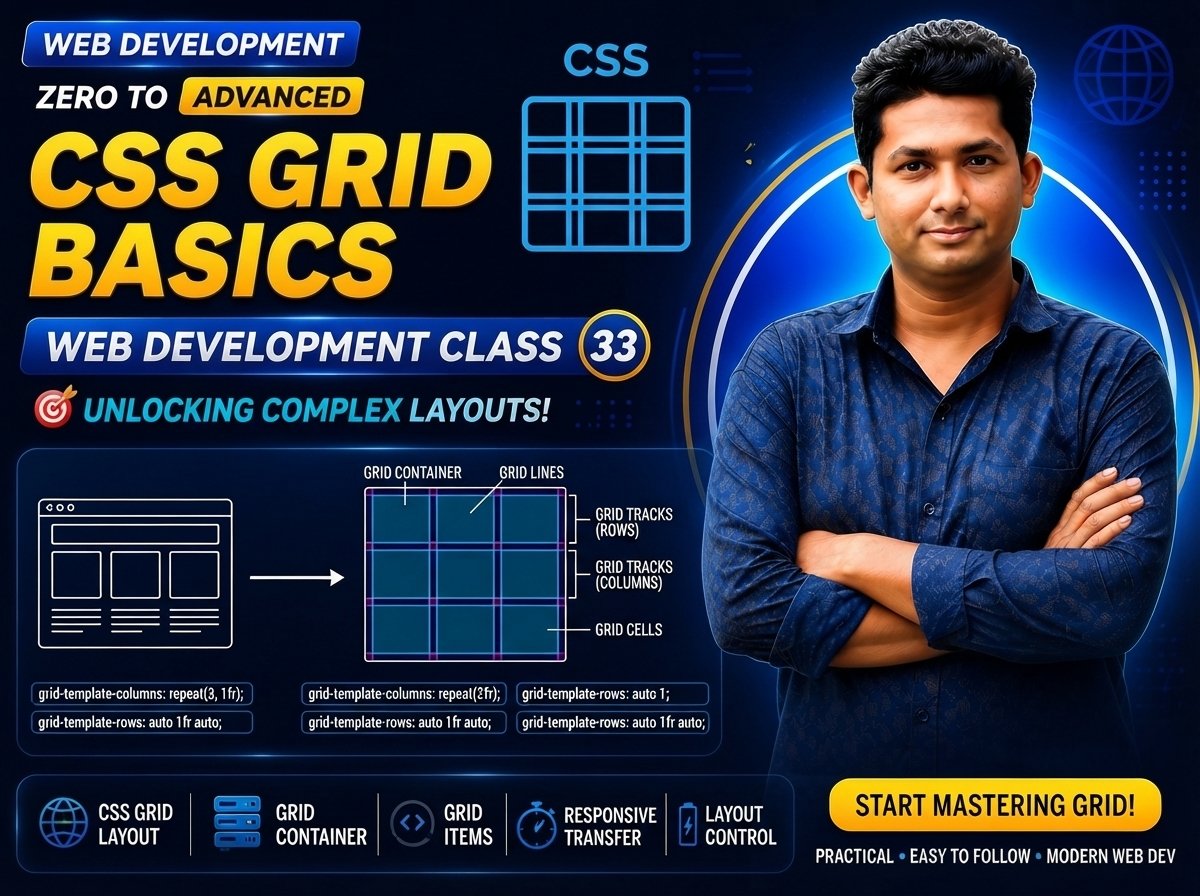
Class 033 — CSS Grid Basics
CSS Grid is a powerful two-dimensional layout system used to create rows and columns in web pages.
Flexbox is mainly one-dimensional. It works best when you are arranging items in a row or a column.
CSS Grid is two-dimensional. It can control rows and columns together.
CSS Grid is very useful for:
- Page layouts
- Product grids
- Service sections
- Galleries
- Dashboards
- Card layouts
- Pricing tables
- Responsive sections
- Complex website structures
In this class, you will learn:
- What CSS Grid is
- Grid Container
- Grid Items
- display: grid
- grid-template-columns
- grid-template-rows
- fr unit
- repeat()
- gap
- row-gap
- column-gap
- Grid lines
- Grid cells
- Grid tracks
- Basic responsive grids
- Practical card layouts
LEARNING OBJECTIVES
After completing this class, you will be able to:
- Understand CSS Grid.
- Create a Grid container.
- Understand Grid items.
- Create columns.
- Create rows.
- Use the fr unit.
- Use repeat().
- Use gap.
- Understand Grid lines.
- Understand Grid cells.
- Understand Grid tracks.
- Build card layouts.
- Build service grids.
- Create simple responsive Grid layouts.
WHAT IS CSS GRID?
CSS Grid is a two-dimensional CSS layout system.
It allows developers to arrange elements in:
Rows
and
Columns
at the same time.
Basic example:
.container {
display: grid;
}
HTML:
<div>One</div>

<div>Two</div>

<div>Three</div>
Once display: grid is applied, the direct children become Grid items.
GRID CONTAINER
The element using:
display: grid;
is called the Grid Container.
Example:
.container {
display: grid;
}
GRID ITEMS
The direct children of a Grid container become Grid items.
Example:
<div class="item">
    Item 1
</div>

<div class="item">
    Item 2
</div>

<div class="item">
    Item 3
</div>
CSS:
.container {
display: grid;
}
The .item elements become Grid items.
DISPLAY: GRID
The most important declaration is:
display: grid;
Example:
.cards {
display: grid;
}
Without this, Grid container properties will not work.
DEFAULT GRID BEHAVIOR
If you only write:
.container {
display: grid;
}
the browser creates a Grid formatting context.
If you do not explicitly define columns, items commonly appear in a single column using automatically created rows.
GRID-TEMPLATE-COLUMNS
grid-template-columns defines the columns of a Grid.
Example:
.container {
display: grid;
grid-template-columns:
    200px 200px 200px;
}
This creates three columns.
THREE-COLUMN GRID
HTML:
<div class="item">
    One
</div>

<div class="item">
    Two
</div>

<div class="item">
    Three
</div>
CSS:
.grid {
display: grid;
grid-template-columns:
    200px 200px 200px;
}
Now the three items occupy three columns.
DIFFERENT COLUMN SIZES
Example:
.grid {
display: grid;
grid-template-columns:
    200px 400px 200px;
}
This creates:
Column 1 = 200px
Column 2 = 400px
Column 3 = 200px
PERCENTAGE COLUMNS
Example:
.grid {
display: grid;
grid-template-columns:
    30% 70%;
}
This creates two percentage-based columns.
WHAT IS FR?
fr means:
Fraction of available Grid space
Example:
.grid {
display: grid;
grid-template-columns:
    1fr 1fr 1fr;
}
This creates three equal flexible columns.
THREE EQUAL COLUMNS
Example:
grid-template-columns:
1fr 1fr 1fr;
Available space is divided into three equal fractional parts.
UNEQUAL FR COLUMNS
Example:
.grid {
display: grid;
grid-template-columns:
    1fr 2fr;
}
The second column receives twice the fraction of available space compared with the first.
Another example:
grid-template-columns:
1fr 2fr 1fr;
The fractions are:
1 : 2 : 1
FR WITH FIXED WIDTH
Example:
.layout {
display: grid;
grid-template-columns:
    250px 1fr;
}
This is useful for:
Sidebar + Main Content
Sidebar:
250px
Main Content:
Remaining available space
PRACTICAL SIDEBAR
HTML:
<aside class="sidebar">
    Sidebar
</aside>

<main class="content">
    Main Content
</main>
CSS:
.layout {
display: grid;
grid-template-columns:
    250px 1fr;
}
.sidebar {
padding: 20px;
background-color: #e2e8f0;
}
.content {
padding: 20px;
}
REPEAT() FUNCTION
The repeat() function helps avoid repeated Grid track values.
Instead of:
grid-template-columns:
1fr 1fr 1fr;
you can write:
grid-template-columns:
    repeat(3, 1fr);
Example:
.cards {
display: grid;
grid-template-columns:
repeat(3, 1fr);
}
FIVE EQUAL COLUMNS
Example:
.grid {
display: grid;
grid-template-columns:
    repeat(5, 1fr);
}
REPEAT WITH FIXED WIDTH
Example:
grid-template-columns:
repeat(4, 200px);
GRID-TEMPLATE-ROWS
grid-template-rows defines row sizes.
Example:
.grid {
display: grid;
grid-template-rows:
    100px 200px;
}
This defines:
Row 1 = 100px
Row 2 = 200px
ROWS AND COLUMNS TOGETHER
Example:
.grid {
display: grid;
grid-template-columns:
    repeat(3, 1fr);

grid-template-rows:
    150px 150px;
}
This defines:
3 columns
2 explicitly sized rows
GRID GAP
The gap property creates space between Grid tracks.
Example:
.grid {
display: grid;
grid-template-columns:
    repeat(3, 1fr);

gap: 20px;
}
This creates 20px of spacing between both rows and columns.
ROW-GAP
Example:
.grid {
row-gap: 20px;
}
COLUMN-GAP
Example:
.grid {
column-gap: 30px;
}
ROW AND COLUMN GAP TOGETHER
Example:
.grid {
row-gap: 20px;
column-gap: 30px;
}
Or shorthand:
.grid {
gap: 20px 30px;
}
First value:
Row gap
Second value:
Column gap
GRID CELL
A Grid Cell is the smallest individual area created by the intersection of one row and one column.
Think of a spreadsheet.
Each individual box is similar to a Grid cell.
Example:
3 columns × 2 rows
creates up to six basic cells.
GRID TRACK
A Grid Track is the space between two adjacent Grid lines.
A row is a horizontal Grid track.
A column is a vertical Grid track.
GRID LINE
Grid lines divide the Grid into rows and columns.
For three columns, there are four vertical Grid lines.
Concept:
Line 1
|
Column 1
|
Line 2
|
Column 2
|
Line 3
|
Column 3
|
Line 4
You will use Grid lines more directly in the Advanced Grid class.
GRID AREA
A Grid area is a rectangular area made from one or more Grid cells.
Grid areas will be discussed more deeply in Class 34.
PRACTICAL THREE-CARD GRID
HTML:
<article class="card">

    <h2>
        HTML
    </h2>

    <p>
        Learn webpage structure.
    </p>

</article>


<article class="card">

    <h2>
        CSS
    </h2>

    <p>
        Learn professional website design.
    </p>

</article>


<article class="card">

    <h2>
        JavaScript
    </h2>

    <p>
        Learn website interactivity.
    </p>

</article>
CSS:
.cards {
display: grid;
grid-template-columns:
    repeat(3, 1fr);

gap: 24px;
}
.card {
padding: 30px;
border: 1px solid #dddddd;

border-radius: 12px;
}
TWO-COLUMN GRID
Example:
.grid {
display: grid;
grid-template-columns:
    repeat(2, 1fr);

gap: 20px;
}
FOUR-COLUMN GRID
Example:
.grid {
display: grid;
grid-template-columns:
    repeat(4, 1fr);

gap: 20px;
}
BASIC RESPONSIVE GRID WITH MEDIA QUERY
Example:
.cards {
display: grid;
grid-template-columns:
    repeat(3, 1fr);

gap: 24px;
}
@media (max-width: 900px) {
.cards {
    grid-template-columns:
        repeat(2, 1fr);
}
}
@media (max-width: 600px) {
.cards {
    grid-template-columns:
        1fr;
}
}
Desktop:
3 columns
Tablet:
2 columns
Mobile:
1 column
You will study responsive design and media queries in greater detail later.
AUTO-FIT RESPONSIVE GRID INTRODUCTION
Modern CSS Grid can create responsive layouts without manually defining every breakpoint.
Example:
.cards {
display: grid;
grid-template-columns:
    repeat(
        auto-fit,
        minmax(250px, 1fr)
    );

gap: 24px;
}
This is a very useful Grid pattern.
You will learn auto-fit, auto-fill and minmax() in greater detail in Advanced CSS Grid.
WHAT DOES THIS DO?
repeat(
auto-fit,
minmax(250px, 1fr)
)
means:
Create as many columns as can fit.
Each column should not normally become smaller than 250px.
Each column can grow up to 1fr.
PRACTICAL SERVICE GRID
HTML:
<article class="service-card">

    <h2>
        Web Development
    </h2>

    <p>
        Build professional business websites.
    </p>

</article>


<article class="service-card">

    <h2>
        SEO
    </h2>

    <p>
        Improve search engine visibility.
    </p>

</article>


<article class="service-card">

    <h2>
        Digital Marketing
    </h2>

    <p>
        Grow businesses through digital marketing.
    </p>

</article>


<article class="service-card">

    <h2>
        Website Maintenance
    </h2>

    <p>
        Keep websites secure and updated.
    </p>

</article>
CSS:
.services {
display: grid;
grid-template-columns:
    repeat(2, 1fr);

gap: 24px;
}
.service-card {
padding: 30px;
background-color: #f1f5f9;

border-radius: 12px;
}
GRID FOR IMAGE GALLERY
HTML:
<img
    src="image1.jpg"
    alt="Gallery Image 1"
>

<img
    src="image2.jpg"
    alt="Gallery Image 2"
>

<img
    src="image3.jpg"
    alt="Gallery Image 3"
>

<img
    src="image4.jpg"
    alt="Gallery Image 4"
>
CSS:
.gallery {
display: grid;
grid-template-columns:
    repeat(2, 1fr);

gap: 16px;
}
.gallery img {
display: block;
width: 100%;

height: auto;
}
GRID FOR PRICING CARDS
Example:
.pricing {
display: grid;
grid-template-columns:
    repeat(3, 1fr);

gap: 24px;
}
.pricing-card {
padding: 32px;
border: 1px solid #dddddd;

border-radius: 16px;
}
GRID FOR DASHBOARD
HTML:
<aside class="sidebar">
    Sidebar
</aside>

<main class="main-content">
    Main Content
</main>
CSS:
.dashboard {
display: grid;
grid-template-columns:
    250px 1fr;

min-height: 100vh;
}
GRID WITH HEADER, SIDEBAR AND CONTENT
Example:
.layout {
display: grid;
grid-template-columns:
    250px 1fr;

grid-template-rows:
    auto 1fr;
}
This can be used for more complex page structures.
In Advanced Grid, you will learn:
- Grid line placement
- Grid spanning
- Grid areas
- Named areas
GRID VS FLEXBOX
This is very important.
FLEXBOX
Flexbox is mainly one-dimensional.
It focuses on:
Row
or
Column
Good uses:
- Navigation
- Button groups
- Alignment
- One-dimensional components
GRID
Grid is two-dimensional.
It controls:
Rows
and
Columns
together.
Good uses:
- Card grids
- Page layouts
- Dashboards
- Galleries
- Complex two-dimensional layouts
FLEXBOX EXAMPLE
.container {
display: flex;
}
GRID EXAMPLE
.container {
display: grid;
grid-template-columns:
    repeat(3, 1fr);
}
CAN FLEXBOX AND GRID BE USED TOGETHER?
Yes.
Professional websites often use both.
Example:
Page structure:
CSS Grid
Navigation:
Flexbox
Example:
.page {
display: grid;
}
.nav {
display: flex;
}
GRID ITEMS ARE DIRECT CHILDREN
Just like Flexbox, the direct children of a Grid container become Grid items.
Example:
<div class="card">

    <h2>
        HTML
    </h2>

</div>
CSS:
.grid {
display: grid;
}
.card is a Grid item.
The h2 is not automatically a Grid item of .grid.
NESTED GRID
A Grid item can also become another Grid container.
Example:
.page {
display: grid;
}
.card {
display: grid;
}
This is called a nested Grid structure.
PRACTICAL PRODUCT GRID
HTML:
<article class="product">

    <img
        src="laptop.jpg"
        alt="Laptop"
    >

    <h2>
        Laptop
    </h2>

    <p>
        Powerful business laptop.
    </p>

</article>


<article class="product">

    <img
        src="desktop.jpg"
        alt="Desktop"
    >

    <h2>
        Desktop PC
    </h2>

    <p>
        Professional desktop computer.
    </p>

</article>


<article class="product">

    <img
        src="monitor.jpg"
        alt="Monitor"
    >

    <h2>
        Monitor
    </h2>

    <p>
        High-quality display.
    </p>

</article>
CSS:
.products {
display: grid;
grid-template-columns:
    repeat(3, 1fr);

gap: 24px;
}
.product {
padding: 20px;
border: 1px solid #dddddd;

border-radius: 12px;
}
.product img {
display: block;
width: 100%;

height: auto;
}
RESPONSIVE PRODUCT GRID
.products {
display: grid;
grid-template-columns:
    repeat(
        auto-fit,
        minmax(250px, 1fr)
    );

gap: 24px;
}
This automatically adjusts the number of columns according to available width.
MINMAX() INTRODUCTION
minmax() defines a minimum and maximum size for a Grid track.
Example:
grid-template-columns:
repeat(
3,
minmax(200px, 1fr)
);
Each column:
Minimum = 200px
Maximum = 1fr
You will learn minmax() in more detail in the next class.
AUTO-FIT INTRODUCTION
Example:
grid-template-columns:
repeat(
auto-fit,
minmax(250px, 1fr)
);
auto-fit allows Grid to fit as many columns as possible and lets empty tracks collapse.
AUTO-FILL INTRODUCTION
Another value is:
auto-fill
Example:
grid-template-columns:
repeat(
auto-fill,
minmax(250px, 1fr)
);
auto-fill and auto-fit can behave differently when extra space and empty tracks are involved.
You will study this in Advanced CSS Grid.
FULL WEBSITE EXAMPLE
HTML:
<meta charset="UTF-8">

<meta
    name="viewport"
    content="width=device-width, initial-scale=1.0"
>

<title>
    CSS Grid Basics
</title>

<link
    rel="stylesheet"
    href="style.css"
>
<header class="header">
<div class="container">
<h1>
Web Development Courses
</h1>
</div>
</header>
<main>
<section class="courses">
<div class="course-card">
<h2>
HTML
</h2>
<p>
Learn webpage structure.
</p>
</div>
<div class="course-card">
<h2>
CSS
</h2>
<p>
Learn professional website design.
</p>
</div>
<div class="course-card">
<h2>
JavaScript
</h2>
<p>
Learn website interactivity.
</p>
</div>
<div class="course-card">
<h2>
WordPress
</h2>
<p>
Learn website management.
</p>
</div>
</section>
</main>CSS:
- {
box-sizing: border-box;
}
body {
margin: 0;
font-family:
    Arial,
    sans-serif;
}
.header {
padding: 30px 5%;
background-color: #0f172a;

color: white;
}
.courses {
display: grid;
grid-template-columns:
    repeat(
        auto-fit,
        minmax(250px, 1fr)
    );

gap: 24px;

padding: 80px 5%;
}
.course-card {
padding: 30px;
border: 1px solid #dddddd;

border-radius: 12px;

background-color: white;
}
CODE EXPLANATION
.courses {
display: grid;
}
The courses section becomes a Grid container.
grid-template-columns:
repeat(
auto-fit,
minmax(250px, 1fr)
);
This creates a flexible responsive column layout.
gap: 24px;
creates consistent spacing between rows and columns.
.course-card
elements are direct children of .courses, so they become Grid items.
COMMON MISTAKES
- FORGETTING DISPLAY GRID
Wrong:
.container {
grid-template-columns:
    1fr 1fr;
}
Correct:
.container {
display: grid;
grid-template-columns:
1fr 1fr;
}
- CONFUSING FLEXBOX AND GRID
Flexbox:
Primarily one-dimensional.
Grid:
Two-dimensional.
- USING FIXED COLUMNS ON SMALL SCREENS
Example:
grid-template-columns:
400px 400px 400px;
This can cause horizontal overflow on small screens.
Use responsive values where appropriate.
- FORGETTING GAP
Instead of adding margins to every card, Grid provides:
gap: 20px;
- CONFUSING FR WITH PERCENTAGE
1fr is not simply identical to 1%.
fr represents a fraction of available Grid space.
- USING TOO MANY MEDIA QUERIES WHEN AUTO-FIT COULD WORK
For flexible card layouts:
repeat(
auto-fit,
minmax(250px, 1fr)
)
can sometimes reduce the need for multiple breakpoints.
- THINKING ALL DESCENDANTS ARE GRID ITEMS
Only direct children of the Grid container become Grid items.
- USING GRID FOR EVERY SMALL COMPONENT
Sometimes Flexbox is simpler for a one-dimensional layout.
- FORGETTING RESPONSIVE IMAGES
Images inside Grid cards should usually be prevented from overflowing.
Example:
img {
max-width: 100%;
height: auto;
}
- USING FIXED ROW HEIGHTS FOR DYNAMIC CONTENT
Example:
grid-template-rows:
100px 100px;
may create issues when content needs more height.
Use fixed row heights only when the design requires them.
NEW & DIFFICULT WORDS
CSS Grid = Two-dimensional CSS layout system.
Grid Container = Element using display: grid.
Grid Item = Direct child of a Grid container.
Grid Column = Vertical Grid track.
Grid Row = Horizontal Grid track.
Grid Line = Line dividing Grid tracks.
Grid Cell = Smallest Grid area between adjacent row and column lines.
Grid Track = Space between two adjacent Grid lines.
Grid Area = Rectangular area consisting of one or more Grid cells.
fr = Fractional unit used to distribute available Grid space.
repeat() = CSS Grid function used to repeat track definitions.
gap = Property controlling spacing between Grid rows and columns.
row-gap = Spacing between rows.
column-gap = Spacing between columns.
minmax() = Function defining minimum and maximum Grid track sizes.
auto-fit = Grid value that fits tracks into available space and collapses empty tracks.
auto-fill = Grid value that creates as many tracks as can fit, including possible empty tracks.
Two-Dimensional = Controlling rows and columns together.
Nested Grid = Grid container located inside another Grid item.
IMPORTANT NOTES
Create Grid:
.container {
display: grid;
}
Three equal columns:
grid-template-columns:
repeat(3, 1fr);
Two columns:
grid-template-columns:
1fr 1fr;
Sidebar layout:
grid-template-columns:
250px 1fr;
Rows:
grid-template-rows:
100px 200px;
Gap:
gap: 20px;
Responsive Grid:
grid-template-columns:
repeat(
auto-fit,
minmax(250px, 1fr)
);
Remember:
Flexbox
= Mainly one-dimensional
Grid
= Two-dimensional
PRACTICE
- Create a Grid container.
- Add three Grid items.
- Create two equal columns.
- Create three equal columns.
- Create four equal columns.
- Use fixed-width Grid columns.
- Use percentage columns.
- Use 1fr 2fr.
- Use repeat().
- Create explicit rows.
- Add gap.
- Add row-gap.
- Add column-gap.
- Create a Sidebar + Main Content layout.
- Create a three-card Grid.
- Create a gallery.
- Create a pricing Grid.
- Create a product Grid.
- Create a responsive Grid using media queries.
- Test auto-fit with minmax().
ASSIGNMENT
Create a webpage called:
CSS Grid Basics Practice
The page should contain:
- Header
- Hero section
- Services section
- Product section
- Pricing section
- Gallery
- Footer
Requirements:
- Use display: grid.
- Use grid-template-columns.
- Use grid-template-rows.
- Use px columns.
- Use percentage columns.
- Use fr units.
- Use repeat().
- Use gap.
- Use row-gap.
- Use column-gap.
- Create at least one 2-column layout.
- Create at least one 3-column layout.
- Create a Sidebar + Content layout.
- Create one responsive Grid.
MINI PROJECT
Create a responsive service Grid.
HTML:
<article class="service-card">

    <h2>
        Web Development
    </h2>

    <p>
        Build modern and responsive websites.
    </p>

</article>


<article class="service-card">

    <h2>
        SEO
    </h2>

    <p>
        Improve website visibility in search engines.
    </p>

</article>


<article class="service-card">

    <h2>
        Digital Marketing
    </h2>

    <p>
        Grow businesses with digital marketing.
    </p>

</article>


<article class="service-card">

    <h2>
        Website Maintenance
    </h2>

    <p>
        Maintain and secure business websites.
    </p>

</article>
CSS:
.services {
display: grid;
grid-template-columns:
    repeat(
        auto-fit,
        minmax(250px, 1fr)
    );

gap: 24px;
}
.service-card {
padding: 30px;
border: 1px solid #dddddd;

border-radius: 12px;
}
QUIZ
- What is CSS Grid?
Answer:
CSS Grid is a two-dimensional layout system used to arrange elements in rows and columns.
- How do you create a Grid container?
Answer:
display: grid;
- What becomes a Grid item?
Answer:
A direct child of a Grid container.
- Which property defines Grid columns?
Answer:
grid-template-columns
- Which property defines Grid rows?
Answer:
grid-template-rows
- What does fr mean?
Answer:
Fraction of available Grid space.
- How do you create three equal columns?
Answer:
grid-template-columns:
repeat(3, 1fr);
- What does gap do?
Answer:
It creates spacing between Grid rows and columns.
- What is a Grid cell?
Answer:
The smallest area created by the intersection of one Grid row and one Grid column.
- What is a Grid track?
Answer:
The space between two adjacent Grid lines.
- Is CSS Grid one-dimensional or two-dimensional?
Answer:
Two-dimensional.
- What is the difference between Flexbox and Grid?
Answer:
Flexbox primarily lays out items along one main axis at a time, while Grid controls rows and columns together.
- What does repeat() do?
Answer:
It repeats Grid track definitions.
- What does minmax() do?
Answer:
It defines a minimum and maximum size for a Grid track.
INTERVIEW QUESTIONS
Q: What is CSS Grid?
Answer:
CSS Grid is a two-dimensional CSS layout model designed to arrange content in rows and columns.
Q: What is a Grid container?
Answer:
A Grid container is an element whose display property is set to grid or inline-grid.
Q: What is a Grid item?
Answer:
A Grid item is a direct child of a Grid container.
Q: What does grid-template-columns do?
Answer:
It defines the number and size of explicit Grid columns.
Q: What does grid-template-rows do?
Answer:
It defines the number and size of explicit Grid rows.
Q: What is the fr unit?
Answer:
The fr unit represents a fraction of the available space in a Grid container after relevant sizing has been resolved.
Q: Why is repeat() useful?
Answer:
repeat() reduces repeated track definitions and makes Grid CSS easier to read and maintain.
Q: What is the difference between a Grid cell and a Grid track?
Answer:
A Grid cell is the area at the intersection of one row and one column, while a Grid track is the space between two adjacent Grid lines forming a row or column.
Q: When should Grid be used instead of Flexbox?
Answer:
Grid is especially useful when a layout requires coordinated control over rows and columns, while Flexbox is often simpler for one-dimensional alignment.
CLASS SUMMARY
In Class 33, you learned CSS Grid Basics.
You learned:
- CSS Grid
- Grid Container
- Grid Items
- display: grid
- grid-template-columns
- grid-template-rows
- fr unit
- repeat()
- gap
- row-gap
- column-gap
- Grid lines
- Grid tracks
- Grid cells
- Grid areas
- Basic Sidebar layouts
- Card grids
- Galleries
- Product grids
- Pricing grids
- Basic responsive Grid
- Introduction to minmax()
- Introduction to auto-fit
- Introduction to auto-fill
Important example:
.container {
display: grid;
grid-template-columns:
    repeat(3, 1fr);

gap: 20px;
}
Responsive Grid:
.container {
display: grid;
grid-template-columns:
    repeat(
        auto-fit,
        minmax(250px, 1fr)
    );

gap: 24px;
}
Remember:
Flexbox
= Mainly one-dimensional
CSS Grid
= Two-dimensional
NEXT CLASS:
Class 034 — Advanced CSS Grid