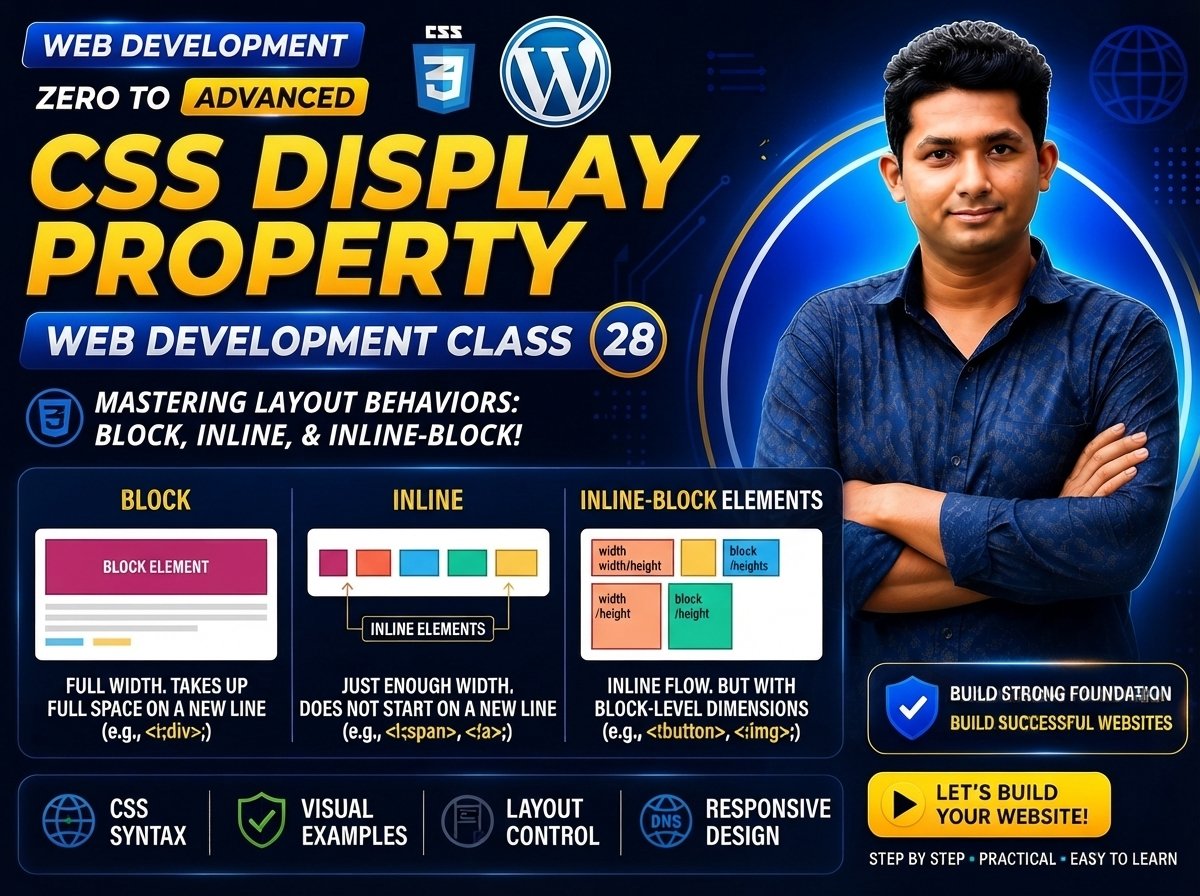
Class 028 — Display Property
The CSS display property controls how an HTML element behaves in the page layout.
Every HTML element has a default display behavior. Some elements behave like block elements, some behave like inline elements, and CSS allows developers to change that behavior.
In this class, you will learn:
- What the display property is
- Block elements
- Inline elements
- Inline-block
- display: none
- display: block
- display: inline
- display: inline-block
- Basic layout behavior
- Width and height behavior
- Margin and padding behavior
- Practical navigation and button examples
- Common mistakes
LEARNING OBJECTIVES
After completing this class, you will be able to:
- Understand the purpose of the display property.
- Explain the difference between block and inline elements.
- Use display: block.
- Use display: inline.
- Use display: inline-block.
- Use display: none.
- Understand width and height behavior with different display values.
- Build simple navigation and button layouts.
- Choose appropriate display values for common UI elements.
WHAT IS THE DISPLAY PROPERTY?
The display property defines how an element participates in the page layout.
Syntax:
selector {
display: value;
}
Example:
.box {
display: block;
}
Common values you will use in this class are:
block
inline
inline-block
none
DEFAULT DISPLAY BEHAVIOR
HTML elements have default display behavior.
Common block-level elements include:
article> header> footer>Common inline elements include: The browser applies default display behavior automatically, but CSS can change it. DISPLAY: BLOCK A block element usually: Starts on a new line. Takes the available width by default. Allows width and height to be applied. Accepts margin and padding on all sides. Example: .box {
display: block;
width: 300px;
height: 100px;
background-color: lightblue;
} HTML: Block Element BLOCK ELEMENT EXAMPLE HTML: Box One Box Two CSS: .one,
.two {
display: block;
padding: 20px;
} Because both are block elements, they appear one below another. DISPLAY: INLINE An inline element: Does not normally start on a new line. Uses only the space needed by its content. Flows beside other inline content. Does not behave like a block box for width and height in the same way. Example: span {
display: inline;
} HTML: HTML
CSS
JavaScript The spans appear on the same line if enough space is available. INLINE EXAMPLE HTML: Learn CSS today. CSS: .highlight {
display: inline;
color: blue;
} The span remains part of the text flow. WIDTH AND HEIGHT WITH INLINE ELEMENTS This can confuse beginners. Example: span {
display: inline;
width: 300px;
height: 100px;
} For a normal inline box, width and height do not control layout in the same way as they do for block or inline-block boxes. If you need an inline element that also supports explicit dimensions, inline-block is often more appropriate. DISPLAY: INLINE-BLOCK inline-block combines useful behavior from both inline and block formatting. An inline-block element: Can sit beside other inline-level elements. Can use width and height. Can use padding. Can use margins. Does not automatically occupy the full line. Example: .button {
display: inline-block;
width: 160px;
padding: 12px 20px;
} HTML: Learn More INLINE-BLOCK BUTTON HTML: Buy Now Contact Us CSS: .button {
display: inline-block;
padding: 12px 24px;
background-color: blue;
color: white;
text-decoration: none;
} The buttons can appear beside each other if enough space is available. BLOCK VS INLINE VS INLINE-BLOCK BLOCK Example: display: block; Behavior: Starts on a new line. Can take available width. Width and height can be controlled. INLINE Example: display: inline; Behavior: Stays in inline flow. Uses content width. Width and height are not handled like block boxes. INLINE-BLOCK Example: display: inline-block; Behavior: Can sit beside other inline-level elements. Supports width and height. Supports padding and margins more like a block box. DISPLAY: NONE display: none removes an element from the layout. Example: .message {
display: none;
} The element is not rendered in normal page layout. HTML: Hidden Message CSS: .message {
display: none;
} The paragraph will not occupy layout space. DISPLAY: NONE VS VISIBILITY You will study visibility in greater detail later, but the basic idea is: display: none; removes the element from layout. A hidden element using visibility can behave differently because it can still preserve layout space. CHANGING INLINE TO BLOCK Example: a {
display: block;
} Now each link behaves like a block-level box. HTML: Home
About
Contact CSS: a {
display: block;
padding: 10px;
} Each link appears on a separate line. CHANGING BLOCK TO INLINE Example: li {
display: inline;
} HTML: Home About Services CSS: li {
display: inline;
} The list items can appear on the same line. SIMPLE HORIZONTAL NAVIGATION HTML: <a href="#">Home</a> <a href="#">About</a> <a href="#">Services</a> <a href="#">Contact</a>CSS: .navigation a {
display: inline-block;
padding: 10px 16px;
text-decoration: none;
} This creates a simple horizontal navigation style. IMPORTANT NOTE Modern layouts often use: display: flex; or: display: grid; for navigation and larger layout systems. You will learn Flexbox and Grid in later classes. For now, inline-block is useful for understanding basic display behavior. PRACTICAL CARD EXAMPLE HTML: Web Development Learn HTML, CSS and JavaScript. CSS: .card {
display: block;
width: 300px;
padding: 20px;
background-color: #f1f5f9;
} PRACTICAL BADGE EXAMPLE HTML: New CSS: .badge {
display: inline-block;
padding: 4px 10px;
background-color: red;
color: white;
border-radius: 20px;
} inline-block works well because the badge stays inline but can use padding and box styling. PRACTICAL MENU EXAMPLE HTML: <a href="#">Home</a> <a href="#">Products</a> <a href="#">Services</a> <a href="#">Contact</a>CSS: .menu a {
display: inline-block;
padding: 12px 18px;
background-color: #0f172a;
color: white;
text-decoration: none;
} BLOCK ELEMENT WIDTH Example: .box {
display: block;
} A block box with width: auto commonly fills the available inline space in its containing block, subject to normal layout rules. You can also set: .box {
display: block;
width: 400px;
} INLINE-BLOCK WIDTH Example: .box {
display: inline-block;
width: 200px;
} Now multiple boxes may sit beside each other if enough horizontal space is available. INLINE-BLOCK CARD EXAMPLE HTML: HTML CSS JavaScript CSS: .card {
display: inline-block;
width: 200px;
padding: 20px;
margin: 10px;
background-color: #e2e8f0;
} WHITESPACE BETWEEN INLINE-BLOCK ELEMENTS Inline-block elements participate in inline formatting, so whitespace in the HTML source can create visible spacing between them. Example: One TwoThere may be a small space between the boxes. This is another reason Flexbox is often preferred for modern component layouts. DISPLAY AND BOX MODEL The display value affects how an element participates in layout, while the Box Model still describes its: Content Padding Border Margin Example: .button {
display: inline-block;
padding: 12px 24px;
border: 2px solid blue;
margin: 10px;
} The element uses the Box Model while remaining inline-level in layout. DISPLAY AND WIDTH Example: .block {
display: block;
width: 300px;
} Width works as expected for the block box. Example: .inline {
display: inline;
width: 300px;
} The inline formatting behavior means the width property will not affect it like a normal block box. Example: .inline-block {
display: inline-block;
width: 300px;
} Now explicit width can be used while the element remains inline-level. DISPLAY AND HEIGHT Similar behavior applies to height. Example: .inline-block {
display: inline-block;
height: 100px;
} DISPLAY NONE FOR RESPONSIVE DESIGN Later, in responsive design, you may use: display: none; to hide certain interface elements at specific screen sizes. Example: .mobile-menu {
display: none;
} Later, media queries can change this value. DISPLAY NONE FOR JAVASCRIPT JavaScript can also change an element’s display state. For example: Hidden: display: none; Visible: display: block; You will learn JavaScript later in the course. ACCESSIBILITY NOTE Be careful when hiding important content. An element with: display: none; is removed from rendering and is also not available to users through the accessibility tree in normal circumstances. Do not hide essential content without a good reason. PRACTICAL WEBSITE EXAMPLE HTML: <meta charset="UTF-8"> <title>CSS Display Property</title> <link rel="stylesheet" href="style.css"><header class="header"> <h1> Web Development Course </h1> <nav class="navigation"> <a href="#"> Home </a> <a href="#"> Courses </a> <a href="#"> About </a> <a href="#"> Contact </a> </nav> </header> <main> <section class="courses"> <div class="course-card"> HTML </div> <div class="course-card"> CSS </div> <div class="course-card"> JavaScript </div> </section> </main>CSS: {
box-sizing: border-box;
} body {
margin: 0;
font-family: Arial, sans-serif;
} .header {
display: block;
padding: 20px;
background-color: #0f172a;
color: white;
} .navigation a {
display: inline-block;
padding: 10px 16px;
color: white;
text-decoration: none;
} .courses {
padding: 40px;
} .course-card {
display: inline-block; width: 220px; padding: 24px; margin: 10px; background-color: #e2e8f0; } CODE EXPLANATION .header {
display: block;
} The header participates as a block-level box. .navigation a {
display: inline-block;
} The links can appear beside one another while still supporting padding and box dimensions. .course-card {
display: inline-block;
} The course cards can appear beside one another if enough horizontal space is available. DISPLAY VALUES SUMMARY Block: display: block; Inline: display: inline; Inline-block: display: inline-block; Hidden: display: none; COMMON MISTAKES CONFUSING BLOCK AND INLINE Block elements typically start on a new line. Inline elements participate in text flow. SETTING WIDTH ON INLINE ELEMENTS AND EXPECTING BLOCK BEHAVIOR Example: span {
display: inline;
width: 300px;
} This does not behave like a block box. Use inline-block when explicit dimensions are required. USING INLINE-BLOCK FOR COMPLEX LAYOUTS inline-block is useful, but Flexbox and Grid are usually better for modern complex layouts. USING DISPLAY NONE FOR IMPORTANT CONTENT Do not hide essential content without considering usability and accessibility. EXPECTING DISPLAY NONE TO KEEP SPACE display: none; removes the element from normal layout. It does not preserve the original space. CONFUSING INLINE AND INLINE-BLOCK inline-block allows dimensions and box styling while remaining inline-level. FORGETTING DEFAULT DISPLAY VALUES Many HTML elements already have useful default display behavior. You do not always need to explicitly set display. USING DISPLAY BLOCK TO CENTER CONTENT display: block; does not automatically center an element. Centering depends on additional layout rules. INLINE-BLOCK WHITESPACE Source-code spaces can create visible gaps between inline-block elements. USING DISPLAY TO FIX EVERY LAYOUT PROBLEM Choose the correct layout system. Later you will learn: Position Flexbox Grid NEW & DIFFICULT WORDS Display = CSS property that controls how an element generates boxes and participates in layout. Block = A layout behavior where an element generally starts on a new line and forms a block box. Inline = A layout behavior where an element participates within inline text flow. Inline-Block = An inline-level box that supports block-like dimensions. None = A display value that prevents an element from generating layout boxes. Layout = The arrangement of elements on a webpage. Flow = The normal way elements are placed in the document. Normal Flow = The default layout behavior of HTML elements before special positioning. Block-Level = An element or box participating in block layout. Inline-Level = An element or box participating in inline formatting. Whitespace = Spaces, line breaks or tabs in source content that can affect inline formatting. Hidden = Not visually rendered. Rendering = The process by which the browser displays a webpage. Accessibility Tree = Browser representation used by assistive technologies to understand interface content. IMPORTANT NOTES Block: display: block; Inline: display: inline; Inline-block: display: inline-block; Hide element: display: none; Block link: a {
display: block;
} Button-style link: .button {
display: inline-block;
padding: 12px 24px;
} Basic horizontal navigation: .navigation a {
display: inline-block;
padding: 10px 16px;
} Remember: Block = New line and block layout behavior Inline = Text flow behavior Inline-block = Inline flow + block-like sizing None = Removed from layout PRACTICE Create two block elements. Create three inline span elements. Change a span to display: block. Change a div to display: inline. Create two inline-block buttons. Set width and height on inline-block elements. Try width on an inline element and observe the difference. Create a navigation with inline-block links. Create three inline-block cards. Hide one card using display: none. Change the hidden card back to display: block. Compare block, inline and inline-block. ASSIGNMENT Create a webpage called: CSS Display Property Practice The page should contain: Header Navigation Hero section Services section Three cards Buttons Badge Hidden message Footer Requirements: Use display: block. Use display: inline. Use display: inline-block. Use display: none. Create horizontal navigation. Create button-style links. Create inline badges. Create cards with explicit width. Compare width behavior on inline and inline-block elements. MINI PROJECT Create a simple course navigation and card section. HTML: <a href="#">Home</a> <a href="#">HTML</a> <a href="#">CSS</a> <a href="#">JavaScript</a><div class="card"> HTML </div> <div class="card"> CSS </div> <div class="card"> JavaScript </div>CSS: .navigation a {
display: inline-block;
padding: 12px 18px;
background-color: #0f172a;
color: white;
text-decoration: none;
} .card {
display: inline-block; width: 220px; padding: 24px; margin: 10px; background-color: #f1f5f9; } QUIZ What does the display property control? Answer: It controls how an element generates boxes and participates in page layout. Which value makes an element behave like a block box? Answer: display: block; Which value keeps an element in inline flow? Answer: display: inline; Which value combines inline flow with block-like sizing? Answer: display: inline-block; Which value removes an element from layout? Answer: display: none; Can a block element use width and height? Answer: Yes. Does a normal inline element use width and height like a block element? Answer: No. Why is inline-block useful? Answer: It allows an element to remain inline-level while supporting explicit dimensions, padding, margins and other box properties. Does display: none preserve layout space? Answer: No. Which modern layout systems will be learned later? Answer: Flexbox and CSS Grid. INTERVIEW QUESTIONS Q: What is the CSS display property? Answer: The display property controls how an element generates layout boxes and participates in the document’s layout. Q: What is the difference between block and inline? Answer: A block-level box generally starts on a new line and participates in block layout, while an inline-level box participates within inline text flow. Q: What is inline-block? Answer: inline-block creates an inline-level box that can use block-like width, height, padding and margin behavior. Q: What does display: none do? Answer: It prevents the element from generating layout boxes, removing it from the normal page layout. Q: What is the difference between inline and inline-block? Answer: Both can participate in inline flow, but inline-block supports explicit box dimensions more like a block element. Q: When is inline-block useful? Answer: It can be useful for buttons, badges, simple navigation items and other small UI elements that should sit inline while supporting box dimensions. Q: Why are Flexbox and Grid often preferred over inline-block for layouts? Answer: They provide more powerful and predictable alignment, spacing and responsive layout controls. CLASS SUMMARY In Class 28, you learned the CSS Display Property. You learned: display block inline inline-block none Default display behavior Width and height behavior Basic navigation layouts Button-style links Inline badges Hidden elements Inline-block whitespace Basic accessibility considerations Important examples: display: block; display: inline; display: inline-block; display: none; Remember: Block
= Block layout behavior Inline
= Text-flow behavior Inline-block
= Inline position with block-like sizing None
= Removed from page layout NEXT CLASS: Class 029 — CSS Position