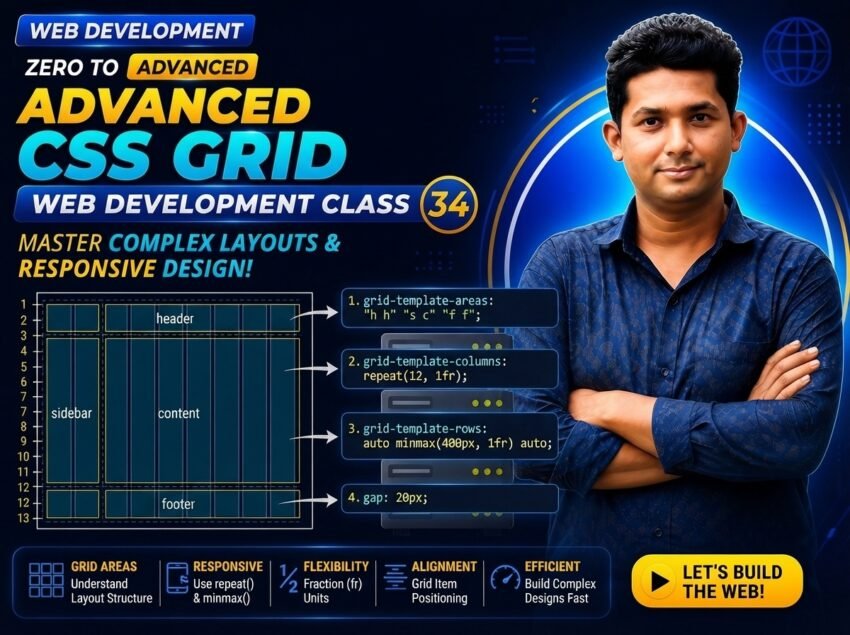
Class 034 — Advanced CSS Grid
In Class 33, you learned CSS Grid Basics, including:
- display: grid
- Grid Container
- Grid Items
- grid-template-columns
- grid-template-rows
- fr unit
- repeat()
- gap
- Grid rows and columns
Now you will learn how to create more flexible and responsive Grid layouts.
According to our course syllabus, Advanced CSS Grid focuses especially on:
- repeat()
- minmax()
- auto-fit
- Named Grid Areas
- Complex responsive layouts
These techniques are extremely useful for:
- Product catalogs
- Admin dashboards
- Blog layouts
- Service sections
- Website page structures
- Responsive card grids
The core responsive Grid pattern for this class is:
.grid {
grid-template-columns:
repeat(
auto-fit,
minmax(220px, 1fr)
);
}
This single declaration can create a highly flexible responsive layout.
LEARNING OBJECTIVES
After completing this class, you will be able to:
- Understand Advanced CSS Grid.
- Use repeat() effectively.
- Understand minmax().
- Use auto-fit.
- Combine auto-fit with minmax().
- Build responsive card grids.
- Understand named Grid areas.
- Use grid-template-areas.
- Use grid-area.
- Build structured website layouts.
- Create practical responsive Grid designs.
WHAT IS ADVANCED CSS GRID?
Advanced CSS Grid builds on the Grid fundamentals you learned in Class 33.
Instead of manually creating fixed columns such as:
.grid {
display: grid;
grid-template-columns:
    1fr 1fr 1fr;
}
you can create layouts that automatically adapt to available space.
Example:
.grid {
display: grid;
grid-template-columns:
    repeat(
        auto-fit,
        minmax(220px, 1fr)
    );

gap: 20px;
}
This allows the browser to determine how many columns can fit.
REVIEW: REPEAT()
The repeat() function prevents repeated Grid track definitions.
Instead of:
grid-template-columns:
1fr 1fr 1fr 1fr;
you can write:
grid-template-columns:
repeat(4, 1fr);
Example:
.products {
display: grid;
grid-template-columns:
    repeat(4, 1fr);

gap: 20px;
}
This creates four equal columns.
WHY USE REPEAT()?
repeat() helps:
- Reduce repeated CSS
- Improve readability
- Make Grid definitions easier to maintain
- Work with responsive Grid features
Example:
repeat(3, 1fr)
means:
Create three tracks, each using 1fr.
MINMAX()
minmax() defines a minimum and maximum size for a Grid track.
Syntax:
minmax(minimum, maximum)
Example:
grid-template-columns:
minmax(200px, 1fr);
Meaning:
Minimum size:
200px
Maximum size:
1fr
MINMAX EXAMPLE
.grid {
display: grid;
grid-template-columns:
    repeat(
        3,
        minmax(200px, 1fr)
    );

gap: 20px;
}
Each column:
- Should not normally become smaller than 200px.
- Can grow to use available Grid space.
WHY MINMAX() IS USEFUL
Without minmax():
grid-template-columns:
repeat(3, 1fr);
columns can become very narrow when available space is limited.
With:
grid-template-columns:
repeat(
3,
minmax(200px, 1fr)
);
you establish a useful minimum size for each track.
AUTO-FIT
auto-fit allows CSS Grid to automatically fit as many columns as possible into the available space.
Example:
grid-template-columns:
repeat(
auto-fit,
minmax(220px, 1fr)
);
You do not manually tell the browser:
3 columns
or:
4 columns
Instead, the browser calculates how many suitable columns can fit.
AUTO-FIT EXAMPLE
HTML:
<div class="card">
    HTML
</div>

<div class="card">
    CSS
</div>

<div class="card">
    JavaScript
</div>

<div class="card">
    React
</div>
CSS:
.grid {
display: grid;
grid-template-columns:
    repeat(
        auto-fit,
        minmax(220px, 1fr)
    );

gap: 20px;
}
.card {
padding: 30px;
background-color: #f1f5f9;

border-radius: 12px;
}
EXPECTED BEHAVIOR
On a large screen, several cards may appear in one row.
As the available width becomes smaller, fewer columns fit.
The remaining cards automatically move to new rows.
This makes the layout responsive without manually setting a fixed number of columns for every screen size.
CORE ADVANCED GRID PATTERN
Remember this pattern:
.grid {
display: grid;
grid-template-columns:
    repeat(
        auto-fit,
        minmax(220px, 1fr)
    );

gap: 20px;
}
Breaking it down:
display: grid;
Creates the Grid container.
repeat(…)
Repeats the column definition.
auto-fit
Allows as many suitable tracks as possible to fit.
minmax(220px, 1fr)
Each column has:
Minimum = 220px
Maximum = flexible 1fr
RESPONSIVE PRODUCT GRID
HTML:
<article class="product-card">

    <h2>
        Laptop
    </h2>

    <p>
        Professional laptop for developers.
    </p>

</article>


<article class="product-card">

    <h2>
        Desktop
    </h2>

    <p>
        Powerful desktop computer.
    </p>

</article>


<article class="product-card">

    <h2>
        Monitor
    </h2>

    <p>
        Professional display solution.
    </p>

</article>


<article class="product-card">

    <h2>
        Keyboard
    </h2>

    <p>
        Mechanical keyboard for productivity.
    </p>

</article>
CSS:
.products {
display: grid;
grid-template-columns:
    repeat(
        auto-fit,
        minmax(220px, 1fr)
    );

gap: 24px;
}
.product-card {
padding: 24px;
border: 1px solid #dddddd;

border-radius: 12px;
}
WHY THIS IS BETTER THAN FIXED COLUMNS
Fixed example:
.products {
grid-template-columns:
repeat(4, 1fr);
}
This always requests four columns.
On smaller screens, this may create very narrow cards.
Responsive example:
.products {
grid-template-columns:
repeat(
auto-fit,
minmax(220px, 1fr)
);
}
The number of columns adjusts according to available space.
NAMED GRID AREAS
CSS Grid can also name different parts of a layout.
This makes complex page structures easier to understand.
Example areas:
Header
Sidebar
Main
Footer
Instead of thinking only about column and row numbers, you can name the areas.
GRID-TEMPLATE-AREAS
Example:
.layout {
display: grid;
grid-template-areas:
    "header header"
    "sidebar main"
    "footer footer";
}
This describes a layout with:
First row:
Header across both columns.
Second row:
Sidebar + Main.
Third row:
Footer across both columns.
COMPLETE NAMED AREA EXAMPLE
HTML:
<header class="header">
    Header
</header>

<aside class="sidebar">
    Sidebar
</aside>

<main class="main">
    Main Content
</main>

<footer class="footer">
    Footer
</footer>
CSS:
.layout {
display: grid;
grid-template-columns:
    250px 1fr;

grid-template-rows:
    auto 1fr auto;

grid-template-areas:
    "header header"
    "sidebar main"
    "footer footer";

min-height: 100vh;

gap: 20px;
}
.header {
grid-area: header;
}
.sidebar {
grid-area: sidebar;
}
.main {
grid-area: main;
}
.footer {
grid-area: footer;
}
GRID-AREA
The grid-area property connects an element to a named area.
Example:
.header {
grid-area: header;
}
The name:
header
must correspond with the name used inside:
grid-template-areas
Another example:
.sidebar {
grid-area: sidebar;
}
.main {
grid-area: main;
}
.footer {
grid-area: footer;
}
VISUAL STRUCTURE
The layout:
grid-template-areas:
“header header”
“sidebar main”
“footer footer”;
can be visualized as:
+————————-+
| HEADER |
+———–+————-+
| SIDEBAR | MAIN |
| | |
+———–+————-+
| FOOTER |
+————————-+
WHY NAMED AREAS ARE USEFUL
Named Grid areas make complex page layouts easier to:
- Read
- Understand
- Maintain
- Rearrange
- Debug
Compare:
grid-column: 1 / 3;
grid-row: 1;
with a meaningful name such as:
grid-area: header;
Named areas can make page structure much clearer.
RESPONSIVE NAMED GRID AREAS
You can rearrange named areas for smaller screens.
Desktop:
.layout {
display: grid;
grid-template-columns:
    250px 1fr;

grid-template-areas:
    "header header"
    "sidebar main"
    "footer footer";
}
Mobile:
@media (max-width: 768px) {
.layout {
    grid-template-columns:
        1fr;

    grid-template-areas:
        "header"
        "main"
        "sidebar"
        "footer";
}
}
The same HTML can now use a different visual layout.
IMPORTANT ACCESSIBILITY NOTE
Although Grid can visually rearrange content, the HTML document should still use a logical source order.
Do not create confusing visual layouts that conflict with meaningful reading order.
PRACTICAL ADMIN DASHBOARD
HTML:
<header class="dashboard-header">

    <h1>
        Admin Dashboard
    </h1>

</header>


<aside class="dashboard-sidebar">

    <h2>
        Navigation
    </h2>

    <p>Dashboard</p>

    <p>Products</p>

    <p>Orders</p>

    <p>Customers</p>

</aside>


<main class="dashboard-main">

    <section class="stats">

        <div class="stat-card">
            Total Sales
        </div>

        <div class="stat-card">
            Orders
        </div>

        <div class="stat-card">
            Customers
        </div>

        <div class="stat-card">
            Products
        </div>

    </section>

</main>


<footer class="dashboard-footer">
    Dashboard Footer
</footer>
CSS:
.dashboard {
display: grid;
grid-template-columns:
    250px 1fr;

grid-template-areas:
    "header header"
    "sidebar main"
    "footer footer";

min-height: 100vh;
}
.dashboard-header {
grid-area: header;
padding: 20px;

background-color: #0f172a;

color: white;
}
.dashboard-sidebar {
grid-area: sidebar;
padding: 30px;

background-color: #e2e8f0;
}
.dashboard-main {
grid-area: main;
padding: 30px;
}
.dashboard-footer {
grid-area: footer;
padding: 20px;

background-color: #0f172a;

color: white;
}
.stats {
display: grid;
grid-template-columns:
    repeat(
        auto-fit,
        minmax(220px, 1fr)
    );

gap: 20px;
}
.stat-card {
padding: 30px;
border: 1px solid #dddddd;

border-radius: 12px;
}
WHAT HAPPENS HERE?
.dashboard
uses named Grid areas for the main page structure.
.stats
uses:
repeat()
auto-fit
minmax()
for responsive cards.
This demonstrates how multiple Grid techniques can work together.
PRACTICAL BLOG GRID
HTML:
<article class="post-card">
    Post One
</article>

<article class="post-card">
    Post Two
</article>

<article class="post-card">
    Post Three
</article>

<article class="post-card">
    Post Four
</article>
CSS:
.blog-grid {
display: grid;
grid-template-columns:
    repeat(
        auto-fit,
        minmax(280px, 1fr)
    );

gap: 24px;
}
.post-card {
padding: 24px;
border: 1px solid #dddddd;

border-radius: 12px;
}
PRACTICAL SERVICE GRID
.services {
display: grid;
grid-template-columns:
    repeat(
        auto-fit,
        minmax(250px, 1fr)
    );

gap: 24px;
}
PRACTICAL GALLERY GRID
.gallery {
display: grid;
grid-template-columns:
    repeat(
        auto-fit,
        minmax(200px, 1fr)
    );

gap: 16px;
}
.gallery img {
width: 100%;
height: auto;

display: block;
}
COMBINING FIXED AND FLEXIBLE TRACKS
Example:
.layout {
display: grid;
grid-template-columns:
    250px
    minmax(0, 1fr);
}
This creates:
Sidebar = 250px
Main Content = Flexible remaining space
The minmax(0, 1fr) pattern can help flexible content shrink correctly instead of being forced wider by long content.
ADVANCED RESPONSIVE PAGE EXAMPLE
HTML:
<meta charset="UTF-8">

<meta
    name="viewport"
    content="width=device-width, initial-scale=1.0"
>

<title>
    Advanced CSS Grid
</title>

<link
    rel="stylesheet"
    href="style.css"
>
<div class="page">
<header class="header">
<h1>
Web Development
</h1>
</header>
<aside class="sidebar">
<h2>
Categories
</h2>
<p>HTML</p>
<p>CSS</p>
<p>JavaScript</p>
</aside>
<main class="main">
<h2>
Courses
</h2>
<section class="courses">
<article class="course-card">
<h3>
HTML
</h3>
<p>
Learn website structure.
</p>
</article>
<article class="course-card">
<h3>
CSS
</h3>
<p>
Learn professional website styling.
</p>
</article>
<article class="course-card">
<h3>
JavaScript
</h3>
<p>
Learn website interactivity.
</p>
</article>
<article class="course-card">
<h3>
React
</h3>
<p>
Learn modern frontend development.
</p>
</article>
</section>
</main>
<footer class="footer">
<p>
Web Development Course
</p>
</footer>
</div>CSS:
- {
box-sizing: border-box;
}
body {
margin: 0;
font-family:
    Arial,
    sans-serif;
}
.page {
display: grid;
grid-template-columns:
    250px
    minmax(0, 1fr);

grid-template-areas:
    "header header"
    "sidebar main"
    "footer footer";

min-height: 100vh;
}
.header {
grid-area: header;
padding: 24px;

background-color: #0f172a;

color: white;
}
.sidebar {
grid-area: sidebar;
padding: 30px;

background-color: #e2e8f0;
}
.main {
grid-area: main;
min-width: 0;

padding: 40px;
}
.footer {
grid-area: footer;
padding: 24px;

background-color: #0f172a;

color: white;
}
.courses {
display: grid;
grid-template-columns:
    repeat(
        auto-fit,
        minmax(220px, 1fr)
    );

gap: 24px;
}
.course-card {
padding: 24px;
border: 1px solid #dddddd;

border-radius: 12px;
}
@media (max-width: 768px) {
.page {
    grid-template-columns:
        1fr;

    grid-template-areas:
        "header"
        "main"
        "sidebar"
        "footer";
}
}
CODE EXPLANATION
.page {
display: grid;
}
The main page becomes a Grid container.
grid-template-columns:
250px minmax(0, 1fr);
creates a fixed sidebar and flexible main content area.
grid-template-areas:
“header header”
“sidebar main”
“footer footer”;
defines the desktop page structure.
.header {
grid-area: header;
}
connects the header element to the named header area.
.courses {
grid-template-columns:
    repeat(
        auto-fit,
        minmax(220px, 1fr)
    );
}
creates responsive course cards.
On smaller screens:
grid-template-areas:
“header”
“main”
“sidebar”
“footer”;
changes the layout to one column.
REPEAT + MINMAX + AUTO-FIT
These three features work extremely well together.
Pattern:
repeat(
auto-fit,
minmax(220px, 1fr)
)
repeat()
Creates repeated tracks.
auto-fit
Fits as many appropriate tracks as possible.
minmax()
Controls minimum and maximum track sizes.
Combined:
.grid {
display: grid;
grid-template-columns:
repeat(
auto-fit,
minmax(220px, 1fr)
);
}
This is one of the most useful responsive Grid patterns to remember.
COMMON MISTAKES
- FORGETTING DISPLAY GRID
Wrong:
.grid {
grid-template-columns:
    repeat(3, 1fr);
}
Correct:
.grid {
display: grid;
grid-template-columns:
repeat(3, 1fr);
}
- USING FIXED COLUMNS FOR EVERY SCREEN
Example:
grid-template-columns:
repeat(4, 300px);
can overflow on smaller screens.
Use responsive Grid techniques when appropriate.
- USING MINMAX() INCORRECTLY
Understand:
minmax(minimum, maximum)
Example:
minmax(220px, 1fr)
- FORGETTING THE MINIMUM CARD SIZE
If the minimum is too small, cards may become difficult to read.
Choose values according to your actual component design.
- USING AUTO-FIT WITHOUT UNDERSTANDING AVAILABLE SPACE
auto-fit works according to the available Grid container width.
Resize the browser and observe how tracks change.
- SPELLING GRID AREA NAMES DIFFERENTLY
Wrong:
grid-template-areas:
“header main”;
.header {
grid-area: head;
}
The names do not match.
Correct:
grid-template-areas:
“header main”;
.header {
grid-area: header;
}
- CREATING INVALID GRID-TEMPLATE-AREAS
Each quoted row in grid-template-areas must form a valid rectangular area structure.
Keep the visual pattern organized.
- USING NAMED AREAS WITHOUT LOGICAL HTML
CSS can visually rearrange layout, but semantic HTML and logical source order remain important.
- FORGETTING GAP
Grid provides:
gap
for consistent track spacing.
- BUILDING EVERY COMPONENT WITH ONE GIANT GRID
Use Grid where a two-dimensional layout is useful.
Flexbox can still be simpler for many one-dimensional components.
NEW & DIFFICULT WORDS
Advanced CSS Grid = More flexible Grid techniques for responsive and complex layouts.
repeat() = CSS Grid function used to repeat track definitions.
minmax() = CSS function defining a minimum and maximum size for a Grid track.
auto-fit = Grid feature used to fit as many appropriate tracks as possible into available space.
Named Grid Area = Grid area identified using a custom name.
grid-template-areas = Property used to describe a Grid layout through named areas.
grid-area = Property used to assign a Grid item to a named area.
Track = Space between two Grid lines.
Responsive Grid = Grid layout that adapts according to available space.
Flexible Track = Grid track capable of growing or shrinking according to layout conditions.
Dashboard = Interface containing organized information, navigation and controls.
Product Catalog = Structured collection of products displayed to users.
Layout = Arrangement of interface elements on a page.
Source Order = Original order of elements in the HTML document.
Maintainability = How easily code can be understood, modified and managed.
IMPORTANT NOTES
Fixed repeated columns:
grid-template-columns:
repeat(3, 1fr);
minmax():
grid-template-columns:
minmax(220px, 1fr);
Responsive Grid:
grid-template-columns:
repeat(
auto-fit,
minmax(220px, 1fr)
);
Named layout:
grid-template-areas:
“header header”
“sidebar main”
“footer footer”;
Assign area:
.header {
grid-area: header;
}
Remember the most important Class 34 pattern:
.grid {
display: grid;
grid-template-columns:
    repeat(
        auto-fit,
        minmax(220px, 1fr)
    );

gap: 20px;
}
PRACTICE
- Create a Grid using repeat().
- Create three equal columns.
- Change it to four columns.
- Use minmax(200px, 1fr).
- Test different minimum values.
- Use auto-fit.
- Combine repeat(), auto-fit and minmax().
- Resize the browser and observe the result.
- Create a responsive product Grid.
- Create a service Grid.
- Create a blog Grid.
- Create a gallery Grid.
- Create a layout with header, sidebar, main and footer.
- Create named Grid areas.
- Assign elements using grid-area.
- Change named areas on a smaller screen.
- Create a responsive dashboard.
- Create a product catalog.
- Test long content inside Grid items.
- Compare a fixed Grid with an auto-fit Grid.
ASSIGNMENT
Create a webpage called:
Advanced CSS Grid Practice
The page should contain:
- Header
- Sidebar
- Main content
- Service cards
- Product cards
- Blog cards
- Footer
Requirements:
- Use display: grid.
- Use repeat().
- Use minmax().
- Use auto-fit.
- Use gap.
- Use named Grid areas.
- Use grid-template-areas.
- Use grid-area.
- Create a Sidebar + Main layout.
- Create a responsive card Grid.
- Test the layout on different screen sizes.
MINI PROJECT
Create a responsive business dashboard.
HTML:
<header class="header">
    Business Dashboard
</header>

<aside class="sidebar">

    <p>Dashboard</p>
    <p>Products</p>
    <p>Orders</p>
    <p>Customers</p>

</aside>

<main class="main">

    <div class="cards">

        <article class="card">
            Total Sales
        </article>

        <article class="card">
            Orders
        </article>

        <article class="card">
            Customers
        </article>

        <article class="card">
            Products
        </article>

    </div>

</main>

<footer class="footer">
    Dashboard Footer
</footer>
CSS:
.dashboard {
display: grid;
grid-template-columns:
    250px
    minmax(0, 1fr);

grid-template-areas:
    "header header"
    "sidebar main"
    "footer footer";

min-height: 100vh;
}
.header {
grid-area: header;
padding: 20px;
}
.sidebar {
grid-area: sidebar;
padding: 30px;
}
.main {
grid-area: main;
padding: 30px;
}
.footer {
grid-area: footer;
padding: 20px;
}
.cards {
display: grid;
grid-template-columns:
    repeat(
        auto-fit,
        minmax(220px, 1fr)
    );

gap: 20px;
}
.card {
padding: 30px;
border: 1px solid #dddddd;

border-radius: 12px;
}
@media (max-width: 768px) {
.dashboard {
    grid-template-columns:
        1fr;

    grid-template-areas:
        "header"
        "main"
        "sidebar"
        "footer";
}
}
QUIZ
- What does repeat() do?
Answer:
It repeats Grid track definitions.
- What does minmax() do?
Answer:
It defines the minimum and maximum size of a Grid track.
- What does auto-fit do?
Answer:
It allows Grid to fit as many suitable tracks as possible into the available space.
- What does this mean?
minmax(220px, 1fr)
Answer:
The Grid track has a minimum size of 220px and can grow up to a flexible fraction of available Grid space.
- What does this create?
repeat(
auto-fit,
minmax(220px, 1fr)
)
Answer:
A flexible responsive Grid that automatically fits columns according to the available space.
- Which property defines named Grid areas?
Answer:
grid-template-areas
- Which property assigns an element to a named area?
Answer:
grid-area
- What might this represent?
grid-template-areas:
“header header”
“sidebar main”
“footer footer”;
Answer:
A page containing a full-width header, sidebar and main content, followed by a full-width footer.
- Why are named Grid areas useful?
Answer:
They make complex page layouts easier to understand, organize and maintain.
- Can named Grid areas be changed for smaller screens?
Answer:
Yes. Media queries can redefine the Grid template.
INTERVIEW QUESTIONS
Q: What is Advanced CSS Grid?
Answer:
Advanced CSS Grid uses features such as repeat(), minmax(), auto-fit and named Grid areas to create flexible and responsive two-dimensional layouts.
Q: What is minmax()?
Answer:
minmax() defines a Grid track size range using a minimum and maximum value.
Q: What is auto-fit?
Answer:
auto-fit allows CSS Grid to fit as many appropriate tracks as possible within the available Grid container space.
Q: Why combine auto-fit with minmax()?
Answer:
The combination allows Grid to automatically change the number of columns while keeping tracks within useful minimum and flexible maximum sizes.
Q: What are named Grid areas?
Answer:
Named Grid areas allow sections of a Grid layout to be given meaningful names such as header, sidebar, main and footer.
Q: What is grid-template-areas?
Answer:
grid-template-areas defines a visual Grid structure using named areas.
Q: What is grid-area?
Answer:
grid-area can assign a Grid item to a named Grid area.
Q: Give a common responsive Grid pattern.
Answer:
grid-template-columns:
repeat(
auto-fit,
minmax(220px, 1fr)
);
Q: Where can Advanced CSS Grid be used?
Answer:
It can be used for product catalogs, admin dashboards, blogs, service layouts and other complex responsive website sections.
CLASS SUMMARY
In Class 34, you learned Advanced CSS Grid.
You learned:
- Advanced Grid concepts
- repeat()
- minmax()
- auto-fit
- Responsive Grid columns
- Flexible tracks
- Named Grid Areas
- grid-template-areas
- grid-area
- Responsive product layouts
- Service grids
- Blog grids
- Dashboard layouts
- Responsive page structures
The most important pattern from this class is:
.grid {
display: grid;
grid-template-columns:
    repeat(
        auto-fit,
        minmax(220px, 1fr)
    );

gap: 20px;
}
For structured page layouts:
.layout {
display: grid;
grid-template-areas:
    "header header"
    "sidebar main"
    "footer footer";
}
Advanced Grid allows developers to build complex responsive layouts while keeping the CSS organized and maintainable.
NEXT CLASS:
Class 035 — Pseudo Class & Pseudo Element