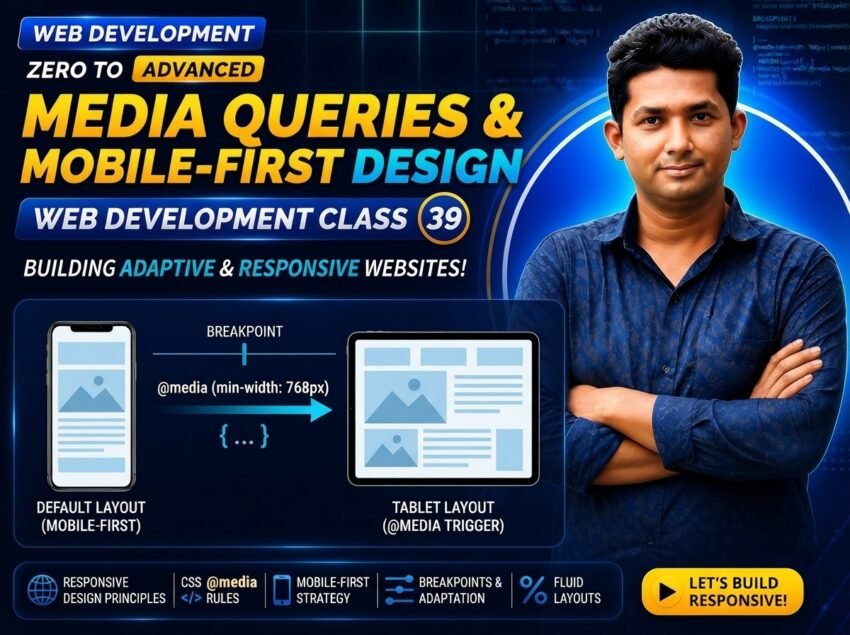
Class 039 — Media Queries + Mobile-First Design
Media Queries and Mobile-First Design are essential techniques for building responsive websites.
Responsive Web Design helps a website remain usable across different screen sizes.
Media Queries allow CSS rules to be applied only when specific conditions are true.
Mobile-First Design means starting with styles for smaller screens first, then progressively enhancing the layout for larger screens.
The core example from this class is:
@media (min-width: 768px) {
.grid {
    grid-template-columns:
        1fr 1fr;
}
}
This means:
When the available viewport width becomes at least 768px, the grid changes to two columns.
In this class, you will learn:
- What a Media Query is
- @media syntax
- min-width
- max-width
- Breakpoints
- Mobile-First Design
- Desktop-First Design
- Progressive Enhancement
- Responsive navigation
- Responsive Flexbox
- Responsive Grid
- Responsive typography
- Media features
- Orientation queries
- Combining conditions
- Practical mobile-to-desktop layouts
LEARNING OBJECTIVES
After completing this class, you will be able to:
- Understand Media Queries.
- Understand Mobile-First Design.
- Write @media rules.
- Use min-width.
- Use max-width.
- Understand breakpoints.
- Choose breakpoints based on layout requirements.
- Build mobile-first CSS.
- Progressively enhance layouts.
- Create responsive Grid layouts.
- Create responsive Flexbox layouts.
- Adjust navigation for larger screens.
- Adjust typography and spacing.
- Understand common Media Query mistakes.
- Build practical responsive components.
WHAT IS A MEDIA QUERY?
A Media Query allows CSS to apply styles only when a particular media condition matches.
Basic syntax:
@media (condition) {
selector {
    property: value;
}
}
Example:
@media (min-width: 768px) {
.container {
    width: 90%;
}
}
The CSS inside the media query only applies when the condition is true.
WHY DO WE NEED MEDIA QUERIES?
Different layouts may work better at different available widths.
For example:
On mobile:
- Navigation may stack vertically.
- Cards may appear in one column.
- Padding may be smaller.
- Headings may be smaller.
On larger screens:
- Navigation may become horizontal.
- Cards may appear in multiple columns.
- Sections may have more spacing.
- Hero content may become wider.
Media Queries allow CSS to make these layout changes.
BASIC MEDIA QUERY STRUCTURE
Example:
@media (min-width: 768px) {
.box {
    background-color: blue;
}
}
Breaking it down:
@media
starts the Media Query.
(min-width: 768px)
is the condition.
.box
is the selector.
background-color: blue;
is applied when the condition matches.
WHAT IS MIN-WIDTH?
min-width in a Media Query means:
Apply these styles when the viewport or relevant media width is at least the specified size.
Example:
@media (min-width: 768px) {
.grid {
    grid-template-columns:
        1fr 1fr;
}
}
Below 768px:
The rule does not apply.
At 768px and above:
The rule applies.
MOBILE-FIRST EXAMPLE
Base CSS:
.grid {
display: grid;
grid-template-columns:
    1fr;

gap: 20px;
}
Then:
@media (min-width: 768px) {
.grid {
    grid-template-columns:
        1fr 1fr;
}
}
Then:
@media (min-width: 1200px) {
.grid {
    grid-template-columns:
        repeat(3, 1fr);
}
}
Result:
Small screen:
1 column
Medium screen:
2 columns
Large screen:
3 columns
WHAT IS MOBILE-FIRST DESIGN?
Mobile-First Design means writing the base CSS for smaller screens first.
Then larger layouts are added using:
min-width
Media Queries.
Example:
.card-grid {
display: grid;
grid-template-columns:
    1fr;
}
@media (min-width: 768px) {
.card-grid {
    grid-template-columns:
        repeat(2, 1fr);
}
}
@media (min-width: 1100px) {
.card-grid {
    grid-template-columns:
        repeat(3, 1fr);
}
}
The base layout is designed for smaller screens.
Then the design is progressively enhanced.
WHAT IS PROGRESSIVE ENHANCEMENT?
Progressive Enhancement means starting with a functional basic experience and adding improvements when the browser, device or available space can support them.
In a mobile-first responsive layout:
Small screen:
Basic usable layout
Larger screen:
Enhanced layout
Example:
Mobile:
1 column
Tablet:
2 columns
Desktop:
3 columns
The smaller layout is not considered incomplete.
It is the foundation.
WHY MOBILE-FIRST IS USEFUL
Mobile-first development encourages developers to focus on:
- Essential content
- Simple layouts
- Limited available space
- Readability
- Usability
- Performance
- Progressive enhancement
It can also reduce the need to override many desktop-specific styles later.
WHAT IS MAX-WIDTH IN MEDIA QUERIES?
max-width means:
Apply the CSS when the viewport width is at or below the specified maximum.
Example:
@media (max-width: 767px) {
.desktop-menu {
    display: none;
}
}
This rule applies at widths up to 767px.
DESKTOP-FIRST EXAMPLE
Base:
.grid {
display: grid;
grid-template-columns:
    repeat(3, 1fr);
}
@media (max-width: 900px) {
.grid {
    grid-template-columns:
        repeat(2, 1fr);
}
}
@media (max-width: 600px) {
.grid {
    grid-template-columns:
        1fr;
}
}
This approach starts with the larger layout and modifies it as screens become smaller.
That is commonly called Desktop-First styling.
MOBILE-FIRST VS DESKTOP-FIRST
MOBILE-FIRST
Base CSS:
Small screen
Media Queries:
min-width
Example:
@media (min-width: 768px)
DESKTOP-FIRST
Base CSS:
Large screen
Media Queries:
max-width
Example:
@media (max-width: 768px)
Both approaches can work.
However, this class focuses on Mobile-First Design.
BREAKPOINT
A breakpoint is a point where the layout needs to change.
Example:
@media (min-width: 768px)
Here:
768px
acts as a breakpoint.
IMPORTANT:
Breakpoints should not be chosen only because a certain device is called a tablet or desktop.
A better approach is:
Resize the layout.
Observe when the content no longer works well.
Add a breakpoint where the design actually needs to change.
COMMON BREAKPOINT EXAMPLE
Some projects may use values such as:
576px
768px
992px
1200px
However, there is no universal breakpoint system that every website must follow.
Choose breakpoints based on your design and content.
MASTER COURSE EXAMPLE
The course uses:
@media (min-width: 768px) {
.grid {
    grid-template-columns:
        1fr 1fr;
}
}
This is a clear mobile-first example.
The base layout can remain one column.
At 768px and above:
The Grid becomes two columns.
PRACTICAL GRID EXAMPLE
HTML:
<article class="card">
    HTML
</article>

<article class="card">
    CSS
</article>

<article class="card">
    JavaScript
</article>

<article class="card">
    WordPress
</article>
CSS:
.courses {
display: grid;
grid-template-columns:
    1fr;

gap: 20px;
}
@media (min-width: 768px) {
.courses {
    grid-template-columns:
        repeat(2, 1fr);
}
}
@media (min-width: 1100px) {
.courses {
    grid-template-columns:
        repeat(4, 1fr);
}
}
PRACTICAL FLEXBOX EXAMPLE
HTML:
<div class="image">
    Image
</div>

<div class="content">
    About Content
</div>
Mobile-first CSS:
.about {
display: flex;
flex-direction: column;

gap: 30px;
}
@media (min-width: 768px) {
.about {
    flex-direction: row;

    align-items: center;
}
}
Small screens:
Vertical layout
Larger screens:
Horizontal layout
RESPONSIVE NAVIGATION
Mobile navigation often requires a different structure.
Basic example:
.nav {
display: flex;
flex-direction: column;

gap: 15px;
}
@media (min-width: 768px) {
.nav {
    flex-direction: row;

    align-items: center;
}
}
On mobile:
Links appear vertically.
On larger screens:
Links appear horizontally.
MOBILE MENU EXAMPLE
HTML:
<div class="logo">
    WEBDEV
</div>

<button class="menu-button">
    Menu
</button>

<nav class="nav">

    <a href="#">
        Home
    </a>

    <a href="#">
        Courses
    </a>

    <a href="#">
        Blog
    </a>

    <a href="#">
        Contact
    </a>

</nav>
CSS:
.header {
padding: 20px;
}
.nav {
display: none;
flex-direction: column;

gap: 15px;
}
.menu-button {
display: block;
}
@media (min-width: 768px) {
.header {
    display: flex;

    justify-content:
        space-between;

    align-items: center;
}


.menu-button {
    display: none;
}


.nav {
    display: flex;

    flex-direction: row;

    gap: 24px;
}
}
Important:
Showing and hiding an actual interactive mobile menu normally requires HTML/JavaScript behavior or another accessible interaction mechanism.
Media Queries control the layout, but they do not create the menu interaction by themselves.
RESPONSIVE HERO SECTION
HTML:
<div class="hero-content">

    <h1>
        Learn Web Development
    </h1>

    <p>
        Become a professional web developer.
    </p>

</div>
CSS:
.hero {
padding:
60px 20px;
text-align: center;
}
.hero h1 {
font-size: 2rem;
}
@media (min-width: 768px) {
.hero {
    padding:
        100px 40px;
}


.hero h1 {
    font-size: 3.5rem;
}
}
@media (min-width: 1200px) {
.hero {
    padding:
        140px 60px;
}


.hero h1 {
    font-size: 4.5rem;
}
}
RESPONSIVE TYPOGRAPHY
Media Queries can change font size.
Example:
h1 {
font-size: 2rem;
}
@media (min-width: 768px) {
h1 {
    font-size: 3rem;
}
}
@media (min-width: 1200px) {
h1 {
    font-size: 4rem;
}
}
However, not every responsive font size needs multiple Media Queries.
You can also use:
clamp()
Example:
h1 {
font-size:
clamp(2rem, 5vw, 4rem);
}
Media Queries and fluid CSS functions can be used together.
RESPONSIVE SPACING
Base:
section {
padding:
50px 20px;
}
Larger screen:
@media (min-width: 768px) {
section {
    padding:
        80px 40px;
}
}
Large desktop:
@media (min-width: 1200px) {
section {
    padding:
        100px 60px;
}
}
COMBINING MEDIA CONDITIONS
Media Queries can contain multiple conditions.
Example:
@media
(min-width: 768px)
and
(max-width: 1199px) {
.box {
    background-color: lightblue;
}
}
This applies only when the width is between those values.
THE AND OPERATOR
Example:
@media
(min-width: 768px)
and
(orientation: landscape) {
.layout {
    grid-template-columns:
        1fr 1fr;
}
}
Both conditions must match.
ORIENTATION
CSS can query screen orientation.
Example:
@media (orientation: landscape) {
.hero {
    min-height: 100vh;
}
}
Possible values:
portrait
landscape
PORTRAIT
Example:
@media (orientation: portrait) {
.layout {
    grid-template-columns:
        1fr;
}
}
LANDSCAPE
Example:
@media (orientation: landscape) {
.layout {
    grid-template-columns:
        1fr 1fr;
}
}
Do not assume orientation alone determines whether a device is a mobile phone or desktop computer.
MEDIA TYPE
Media Queries can also specify media types.
Examples include:
screen
Example:
@media print {
.navigation,
.button {
    display: none;
}
}
This can create styles specifically for printing.
PRINT STYLES
Example:
@media print {
body {
    color: black;

    background: white;
}


nav,
footer,
.advertisement {
    display: none;
}
}
Print styling can be useful for:
- Articles
- Invoices
- Reports
- Receipts
- Documentation
PREFERS-REDUCED-MOTION
Media Queries can also detect certain user preferences.
Example:
@media (prefers-reduced-motion: reduce) {
* {
    animation-duration:
        0.01ms;

    transition-duration:
        0.01ms;
}
}
This can help reduce non-essential motion for users who request it.
PREFERS-COLOR-SCHEME
Another media feature is:
prefers-color-scheme
Example:
@media (prefers-color-scheme: dark) {
body {
    background-color:
        #0f172a;

    color:
        #f8fafc;
}
}
This can help respond to a user’s preferred color scheme.
Dark mode itself is a larger design topic, but this demonstrates that Media Queries can respond to more than screen width.
MEDIA QUERY ORDER
CSS still follows the cascade.
Example:
.box {
color: black;
}
@media (min-width: 768px) {
.box {
    color: blue;
}
}
@media (min-width: 1200px) {
.box {
    color: red;
}
}
At 1300px:
Both Media Queries match.
If specificity and importance are equal, the later matching rule wins.
So the color becomes:
red
MOBILE-FIRST CASCADE
A common pattern:
Base
↓
Tablet enhancement
↓
Desktop enhancement
Example:
.grid {
grid-template-columns:
1fr;
}
@media (min-width: 768px) {
.grid {
    grid-template-columns:
        repeat(2, 1fr);
}
}
@media (min-width: 1200px) {
.grid {
    grid-template-columns:
        repeat(4, 1fr);
}
}
This is simple and predictable.
DO NOT OVERUSE BREAKPOINTS
Bad approach:
@media (min-width: 360px)
@media (min-width: 375px)
@media (min-width: 390px)
@media (min-width: 412px)
@media (min-width: 430px)
for every small device difference.
This can make CSS difficult to maintain.
Use breakpoints when the layout actually requires a change.
CONTENT-BASED BREAKPOINTS
Suppose navigation looks correct until 720px.
At 700px, the links start wrapping badly.
That may be a useful breakpoint.
Example:
@media (min-width: 720px) {
.navigation {
    flex-direction: row;
}
}
The breakpoint was chosen because of the content, not because a specific device model uses 720px.
RESPONSIVE CARD PROJECT
HTML:
<article class="product-card">

    <h2>
        Laptop
    </h2>

    <p>
        Professional development laptop.
    </p>

</article>


<article class="product-card">

    <h2>
        Desktop
    </h2>

    <p>
        Powerful desktop computer.
    </p>

</article>


<article class="product-card">

    <h2>
        Monitor
    </h2>

    <p>
        Professional monitor.
    </p>

</article>
CSS:
.products {
display: grid;
grid-template-columns:
    1fr;

gap: 20px;
}
.product-card {
padding: 24px;
border:
    1px solid #dddddd;

border-radius: 12px;
}
@media (min-width: 600px) {
.products {
    grid-template-columns:
        repeat(2, 1fr);
}
}
@media (min-width: 1000px) {
.products {
    grid-template-columns:
        repeat(3, 1fr);
}
}
MOBILE-FIRST FORM
HTML:
<div class="field">
    <label>Name</label>
    <input type="text">
</div>


<div class="field">
    <label>Email</label>
    <input type="email">
</div>


<button>
    Submit
</button>
CSS:
.contact-form {
display: grid;
gap: 20px;
}
@media (min-width: 768px) {
.contact-form {
    grid-template-columns:
        1fr 1fr;
}


.contact-form button {
    grid-column:
        1 / -1;
}
}
Mobile:
Fields stack.
Larger screens:
Two columns.
FULL MOBILE-FIRST WEBSITE EXAMPLE
HTML:
<meta charset="UTF-8">

<meta
    name="viewport"
    content="width=device-width, initial-scale=1.0"
>

<title>
    Mobile First Website
</title>

<link
    rel="stylesheet"
    href="style.css"
>
<header class="header">
<div class="container header-layout">
<div class="logo">
WEBDEV
</div>
<nav class="nav">
<a href="#">
Home
</a>
<a href="#">
Courses
</a>
<a href="#">
Blog
</a>
<a href="#">
Contact
</a>
</nav>
</div>
</header>
<main>
<section class="hero">
<div class="container">
<h1>
Learn Modern Web Development
</h1>
<p>
Build professional responsive websites.
</p>
</div>
</section>
<section class="courses">
<div class="container">
<div class="course-grid">
<article class="card">
<h2>HTML</h2>
<p>
Learn website structure.
</p>
</article>
<article class="card">
<h2>CSS</h2>
<p>
Learn website styling.
</p>
</article>
<article class="card">
<h2>JavaScript</h2>
<p>
Learn interactivity.
</p>
</article>
</div>
</div>
</section>
</main>CSS:
*,
*::before,
*::after {
box-sizing:
border-box;
}
body {
margin: 0;
font-family:
    Arial,
    sans-serif;

line-height: 1.6;
}
.container {
width:
min(
100% – 2rem,
70rem
);
margin-inline:
    auto;
}
.header {
padding:
20px 0;
}
.header-layout {
display: flex;
flex-direction: column;

gap: 20px;
}
.nav {
display: flex;
flex-direction: column;

gap: 12px;
}
.hero {
padding:
60px 0;
}
.hero h1 {
font-size:
2.2rem;
line-height:
    1.1;
}
.course-grid {
display: grid;
grid-template-columns:
    1fr;

gap: 20px;
}
.card {
padding: 24px;
border:
    1px solid #dddddd;

border-radius:
    12px;
}
@media (min-width: 768px) {
.header-layout {
    flex-direction:
        row;

    justify-content:
        space-between;

    align-items:
        center;
}


.nav {
    flex-direction:
        row;

    gap:
        24px;
}


.hero {
    padding:
        100px 0;
}


.hero h1 {
    font-size:
        3.5rem;
}


.course-grid {
    grid-template-columns:
        repeat(2, 1fr);
}
}
@media (min-width: 1100px) {
.hero {
    padding:
        140px 0;
}


.hero h1 {
    font-size:
        4.5rem;
}


.course-grid {
    grid-template-columns:
        repeat(3, 1fr);
}
}
CODE EXPLANATION
The CSS outside Media Queries is the mobile-first base.
Example:
.course-grid {
grid-template-columns:
1fr;
}
Small screens get one column.
At:
min-width: 768px
the layout becomes:
2 columns.
At:
min-width: 1100px
the layout becomes:
3 columns.
The same progressive approach is used for:
- Navigation
- Hero spacing
- Heading size
- Card layout
COMMON MISTAKES
- WRITING MEDIA QUERIES WITHOUT A RESPONSIVE BASE
Do not depend entirely on Media Queries to repair a rigid layout.
Start with flexible CSS.
- CONFUSING MIN-WIDTH AND MAX-WIDTH
min-width:
Applies at the specified width and above.
max-width:
Applies at the specified width and below.
- MIXING MOBILE-FIRST AND DESKTOP-FIRST RANDOMLY
It is technically possible to use both min-width and max-width.
But using them without a clear strategy can make the stylesheet difficult to understand.
- TOO MANY BREAKPOINTS
Do not create a breakpoint for every device size.
Use breakpoints where the content requires layout changes.
- FORGETTING THE VIEWPORT META TAG
Responsive mobile layouts should include:
- OVERLAPPING MEDIA QUERIES WITHOUT UNDERSTANDING THE CASCADE
Example:
@media (min-width: 768px)
and:
@media (min-width: 1200px)
both match at 1400px.
Later rules may override earlier rules.
- USING DEVICE-SPECIFIC BREAKPOINTS ONLY
Do not design specifically for:
“iPhone width”
“Samsung width”
“Tablet width”
Build for content and available space.
- FORGETTING REAL CONTENT
Test:
- Long headings
- Long product names
- Large images
- Forms
- Navigation links
- Real buttons
- HIDING IMPORTANT CONTENT ON MOBILE
Responsive design should not automatically mean removing essential information from smaller screens.
- MAKING MOBILE USERS WAIT FOR DESKTOP ASSETS
Responsive design also involves performance considerations.
Avoid unnecessary large resources where practical.
- IGNORING ACCESSIBILITY
Responsive layouts should preserve:
- Keyboard access
- Focus states
- Readable text
- Logical content order
- Usable controls
- THINKING MEDIA QUERY = RESPONSIVE DESIGN
Media Queries are only one part of responsive design.
You also need:
- Flexible widths
- Responsive images
- Flexbox
- Grid
- Good content structure
- Appropriate sizing
- Usable controls
NEW & DIFFICULT WORDS
Media Query = CSS feature that conditionally applies styles based on media conditions.
@media = CSS at-rule used to define Media Queries.
Mobile-First Design = Approach where base CSS targets smaller screens and larger layouts are progressively added.
Desktop-First Design = Approach where base CSS targets larger layouts and smaller layouts are handled with conditions such as max-width.
min-width = Media feature that matches when the width is at least a specified value.
max-width = Media feature that matches when the width is at most a specified value.
Breakpoint = Point at which a layout changes based on a media condition.
Progressive Enhancement = Starting with a functional base experience and adding enhancements when conditions allow.
Viewport = Visible webpage area in the browser.
Media Feature = Characteristic tested inside a Media Query, such as width or orientation.
Orientation = Portrait or landscape arrangement.
Portrait = Orientation where height is generally greater than width.
Landscape = Orientation where width is generally greater than height.
Cascade = CSS system that determines which declarations apply when multiple rules match.
Responsive Layout = Layout capable of adapting to different available spaces.
Content-Based Breakpoint = Breakpoint selected because the actual content or layout requires a change rather than because of a specific device.
IMPORTANT NOTES
Basic Media Query:
@media (min-width: 768px) {
.grid {
    grid-template-columns:
        1fr 1fr;
}
}
This is the core example from the course.
Mobile-first structure:
Base CSS
↓
Small screens
@media (min-width: 768px)
↓
Medium screens
@media (min-width: 1200px)
↓
Large screens
Remember:
min-width
= This width and larger
max-width
= This width and smaller
Mobile-First
= Small-screen CSS first
Progressive Enhancement
= Add improvements as available space/capability increases
PRACTICE
- Create a basic Media Query.
- Use min-width: 768px.
- Change an element’s background at 768px.
- Create a one-column mobile Grid.
- Change it to two columns at 768px.
- Change it to three columns at 1200px.
- Create a mobile-first navigation.
- Change the navigation to horizontal on larger screens.
- Create a Flexbox layout that changes direction.
- Test max-width.
- Compare min-width and max-width.
- Create two content-based breakpoints.
- Adjust heading sizes with Media Queries.
- Adjust section spacing.
- Use orientation: landscape.
- Use orientation: portrait.
- Create a print Media Query.
- Test prefers-reduced-motion.
- Resize the browser continuously and observe where the design needs breakpoints.
- Build a mobile-first responsive page.
ASSIGNMENT
Create a webpage called:
Media Queries + Mobile-First Design Practice
The webpage should contain:
- Header
- Logo
- Navigation
- Hero section
- About section
- Services section
- Product cards
- Contact form
- Footer
Requirements:
- Start with mobile styles.
- Use at least two min-width Media Queries.
- Use @media.
- Use a 1-column mobile layout.
- Create a 2-column medium layout.
- Create a 3-column large layout.
- Change Flexbox direction responsively.
- Change navigation layout.
- Adjust typography.
- Adjust spacing.
- Keep images responsive.
- Test multiple viewport widths.
- Keep content usable at every breakpoint.
MINI PROJECT
Create a mobile-first course grid.
HTML:
<article class="course-card">

    <h2>
        HTML
    </h2>

    <p>
        Learn website structure.
    </p>

</article>


<article class="course-card">

    <h2>
        CSS
    </h2>

    <p>
        Learn responsive website design.
    </p>

</article>


<article class="course-card">

    <h2>
        JavaScript
    </h2>

    <p>
        Learn interactive development.
    </p>

</article>
CSS:
.courses {
display: grid;
grid-template-columns:
    1fr;

gap: 20px;
}
.course-card {
padding: 24px;
border:
    1px solid #dddddd;

border-radius:
    12px;
}
@media (min-width: 768px) {
.courses {
    grid-template-columns:
        repeat(2, 1fr);
}
}
@media (min-width: 1100px) {
.courses {
    grid-template-columns:
        repeat(3, 1fr);
}
}
QUIZ
- What is a Media Query?
Answer:
A Media Query conditionally applies CSS when specified media conditions match.
- Which CSS at-rule is used for Media Queries?
Answer:
@media
- What does min-width: 768px mean?
Answer:
The Media Query matches when the width is 768px or greater.
- What does max-width: 768px mean?
Answer:
The Media Query matches when the width is 768px or smaller.
- What is Mobile-First Design?
Answer:
Mobile-First Design starts with base CSS for smaller screens and progressively enhances the layout for larger screens.
- Which type of Media Query is commonly associated with mobile-first styling?
Answer:
min-width Media Queries.
- What is a breakpoint?
Answer:
A breakpoint is a point where a media condition causes the layout or styling to change.
- Should breakpoints always be based on specific device models?
Answer:
No. They should preferably be chosen when the actual layout or content requires a change.
- What does Progressive Enhancement mean?
Answer:
It means starting with a functional core experience and adding enhancements when conditions and capabilities allow.
- What does this code do?
@media (min-width: 768px) {
.grid {
    grid-template-columns:
        1fr 1fr;
}
}
Answer:
It changes .grid to a two-column Grid when the width is at least 768px.
- Can more than one Media Query match at the same time?
Answer:
Yes.
For example, at 1400px both min-width: 768px and min-width: 1200px can match.
- What controls which matching rule wins?
Answer:
The normal CSS cascade, including specificity, source order and importance.
INTERVIEW QUESTIONS
Q: What is a CSS Media Query?
Answer:
A CSS Media Query applies styles conditionally based on media features such as viewport width or orientation.
Q: What is Mobile-First Design?
Answer:
Mobile-First Design starts with a usable small-screen layout and progressively adds styles for larger screens, commonly using min-width Media Queries.
Q: What is the difference between min-width and max-width?
Answer:
min-width matches at or above a specified width, while max-width matches at or below a specified width.
Q: What is a breakpoint?
Answer:
A breakpoint is a condition boundary where a responsive layout changes because the design requires a different arrangement.
Q: Why is Mobile-First useful?
Answer:
It encourages developers to begin with essential content and a simple usable layout, then progressively enhance the design for larger available spaces.
Q: What is Progressive Enhancement?
Answer:
Progressive Enhancement means providing a functional base experience first and adding improvements when the environment can support them.
Q: How can you create a one-column mobile layout and two-column larger layout?
Answer:
Example:
.grid {
display: grid;
grid-template-columns: 1fr;
}
@media (min-width: 768px) {
.grid {
    grid-template-columns:
        1fr 1fr;
}
}
Q: Should a developer create a Media Query for every device width?
Answer:
No. Breakpoints should be driven by layout and content requirements rather than every individual device size.
Q: Can Media Queries detect more than viewport width?
Answer:
Yes. They can query other media features such as orientation, user motion preferences and color-scheme preferences.
Q: Is using Media Queries enough to make a website responsive?
Answer:
No. Responsive design also depends on flexible layouts, responsive media, appropriate dimensions, readable content and usable interaction.
CLASS SUMMARY
In Class 39, you learned Media Queries + Mobile-First Design.
You learned:
- @media
- Media Queries
- min-width
- max-width
- Breakpoints
- Mobile-First Design
- Desktop-First Design
- Progressive Enhancement
- Responsive Grid
- Responsive Flexbox
- Responsive navigation
- Responsive typography
- Responsive spacing
- Orientation queries
- Print styles
- User-preference Media Queries
- CSS cascade with Media Queries
- Content-based breakpoints
The master course defines Media Queries as conditional CSS and Mobile-First Design as starting from smaller screens and progressively enhancing the layout. Its core example is:
@media (min-width: 768px) {
.grid {
    grid-template-columns:
        1fr 1fr;
}
}
Most important concept:
Mobile CSS first
↓
Add larger-screen improvements using min-width
↓
Keep every stage usable
NEXT CLASS:
Class 040 — Complete Responsive Website Project