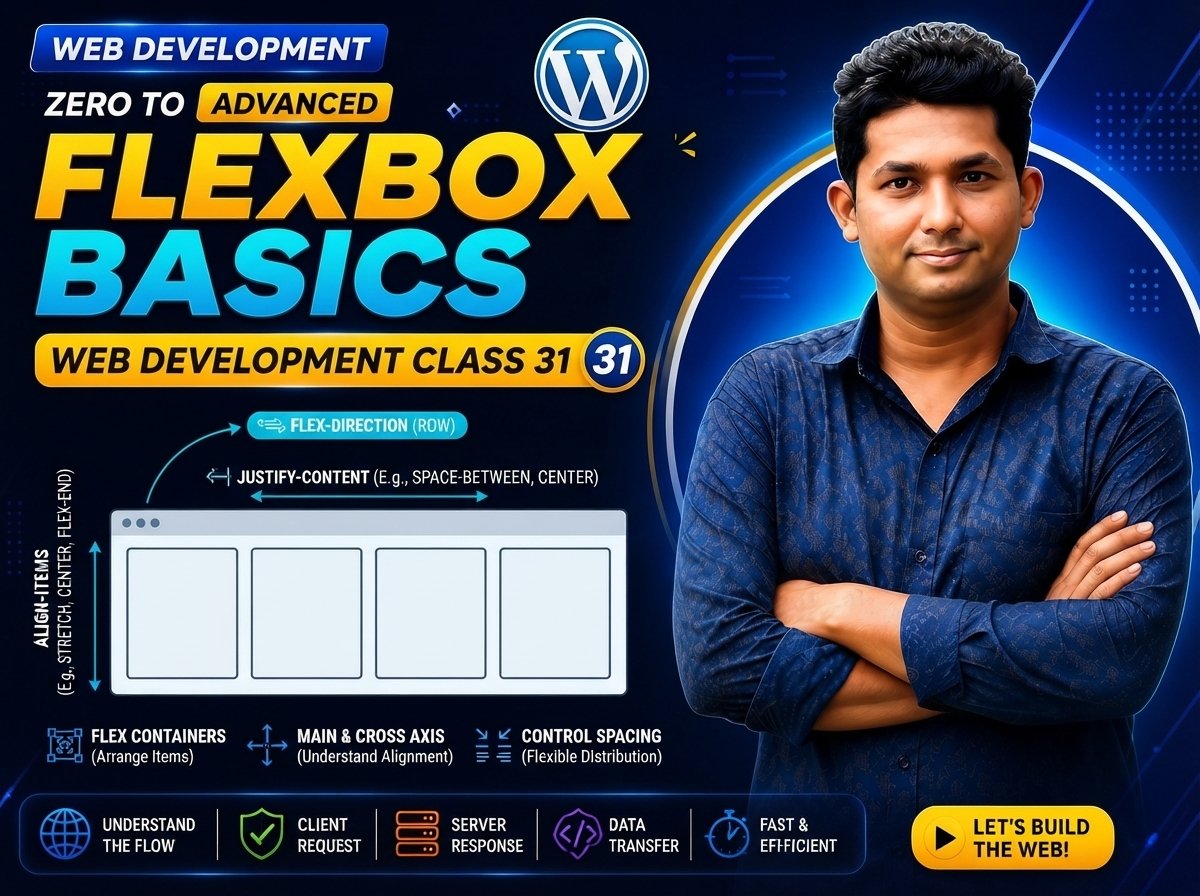
Class 031 — Flexbox Basics
Flexbox is one of the most important modern CSS layout systems.
Before Flexbox, developers often used methods such as inline-block, float and manual positioning to arrange elements. Flexbox makes it much easier to create flexible layouts, align items, distribute space and build responsive website sections.
Flexbox is especially useful for:
- Navigation menus
- Card layouts
- Button groups
- Headers
- Hero sections
- Horizontal and vertical alignment
- Centering elements
- Responsive components
- Equal-height items
In this class, you will learn the basic concepts of CSS Flexbox and build practical layouts using it.
LEARNING OBJECTIVES
After completing this class, you will be able to:
- Understand what Flexbox is.
- Create a flex container.
- Understand flex containers and flex items.
- Use display: flex.
- Understand the main axis.
- Understand the cross axis.
- Use flex-direction.
- Use justify-content.
- Use align-items.
- Use flex-wrap.
- Use gap.
- Center elements with Flexbox.
- Create navigation menus.
- Create basic responsive card layouts.
WHAT IS FLEXBOX?
Flexbox stands for:
Flexible Box Layout
It is a CSS layout model designed to arrange elements efficiently inside a container.
Basic example:
.container {
display: flex;
}
HTML:
<div>HTML</div>
<div>CSS</div>
<div>JavaScript</div>
By default, the child elements are arranged horizontally in a row.
FLEX CONTAINER
The element that contains:
display: flex;
is called the Flex Container.
Example:
.container {
display: flex;
}
Here:
.container
is the flex container.
FLEX ITEMS
The direct children of a flex container become flex items.
Example:
<div class="item">HTML</div>

<div class="item">CSS</div>

<div class="item">JavaScript</div>
CSS:
.container {
display: flex;
}
The three .item elements are flex items.
IMPORTANT CONCEPT
Flexbox has two major parts:
- Flex Container
- Flex Items
Example:
Parent:
.container {
display: flex;
}
Children:
.item
become flex items automatically.
DISPLAY: FLEX
The most important Flexbox declaration is:
display: flex;
Example:
.cards {
display: flex;
}
Without:
display: flex;
Flexbox container properties will not work as expected.
BEFORE FLEXBOX
HTML:
One
Two
Three
Block-level div elements normally appear one below another.
WITH FLEXBOX
HTML:
<div class="box">One</div>

<div class="box">Two</div>

<div class="box">Three</div>
CSS:
.container {
display: flex;
}
The boxes now appear in a row by default, provided there is sufficient space.
MAIN AXIS
Flexbox uses something called the:
Main Axis
The main axis is the primary direction in which flex items are arranged.
With the default:
flex-direction: row;
the main axis runs horizontally.
Concept:
Main Axis →
Item 1 Item 2 Item 3
CROSS AXIS
The Cross Axis runs perpendicular to the Main Axis.
If the main axis is horizontal, the cross axis is vertical.
Concept:
    Cross Axis
        ↓
Item 1 Item 2 Item 3
Main Axis →
WHY AXES ARE IMPORTANT
Flexbox alignment properties work according to these axes.
For example:
justify-content
works along the main axis.
align-items
works along the cross axis.
FLEX-DIRECTION
The flex-direction property controls the direction of flex items.
Common values:
row
row-reverse
column
column-reverse
DEFAULT FLEX-DIRECTION
The default value is:
flex-direction: row;
Example:
.container {
display: flex;
flex-direction: row;
}
Items appear from left to right in a typical left-to-right writing mode.
FLEX-DIRECTION: COLUMN
Example:
.container {
display: flex;
flex-direction: column;
}
Now the items are arranged vertically.
Example:
Item 1
Item 2
Item 3
ROW-REVERSE
Example:
.container {
display: flex;
flex-direction: row-reverse;
}
This reverses the main-axis direction.
COLUMN-REVERSE
Example:
.container {
display: flex;
flex-direction: column-reverse;
}
Items are arranged in the reverse column direction.
IMPORTANT
Changing flex-direction also changes the direction of the main axis.
With:
flex-direction: row;
Main Axis = Horizontal
With:
flex-direction: column;
Main Axis = Vertical
JUSTIFY-CONTENT
justify-content controls how flex items are distributed along the main axis when there is available free space.
Example:
.container {
display: flex;
justify-content: center;
}
COMMON JUSTIFY-CONTENT VALUES
flex-start
flex-end
center
space-between
space-around
space-evenly
JUSTIFY-CONTENT: FLEX-START
.container {
display: flex;
justify-content: flex-start;
}
Items are packed toward the start of the main axis.
JUSTIFY-CONTENT: FLEX-END
.container {
display: flex;
justify-content: flex-end;
}
Items are packed toward the end of the main axis.
JUSTIFY-CONTENT: CENTER
.container {
display: flex;
justify-content: center;
}
Items are centered along the main axis.
JUSTIFY-CONTENT: SPACE-BETWEEN
.container {
display: flex;
justify-content: space-between;
}
The first and last items are placed toward opposite ends, with remaining free space distributed between the items.
Example:
Item 1 Item 2 Item 3
This is commonly useful for:
- Headers
- Navigation
- Toolbars
JUSTIFY-CONTENT: SPACE-AROUND
.container {
display: flex;
justify-content: space-around;
}
Free space is distributed around the items.
The spaces at the outer edges are typically half the space between neighboring items.
JUSTIFY-CONTENT: SPACE-EVENLY
.container {
display: flex;
justify-content: space-evenly;
}
Free space is distributed evenly between items and the container edges.
ALIGN-ITEMS
align-items controls the alignment of flex items along the cross axis.
Example:
.container {
display: flex;
align-items: center;
}
COMMON ALIGN-ITEMS VALUES
stretch
flex-start
flex-end
center
baseline
ALIGN-ITEMS: STRETCH
The initial value is:
align-items: stretch;
Flex items can stretch along the cross axis when their cross size is auto and the layout allows it.
ALIGN-ITEMS: FLEX-START
.container {
display: flex;
align-items: flex-start;
}
Items align toward the start of the cross axis.
ALIGN-ITEMS: FLEX-END
.container {
display: flex;
align-items: flex-end;
}
Items align toward the end of the cross axis.
ALIGN-ITEMS: CENTER
.container {
display: flex;
align-items: center;
}
Items are centered along the cross axis.
ALIGN-ITEMS: BASELINE
.container {
display: flex;
align-items: baseline;
}
Items are aligned according to their text baselines.
PERFECT CENTERING WITH FLEXBOX
One of the most useful Flexbox techniques is centering an element horizontally and vertically.
HTML:
<div class="box">
    Center
</div>
CSS:
.container {
display: flex;
justify-content: center;

align-items: center;

min-height: 100vh;
}
This centers the box along both axes when the default flex-direction is row.
WHY DOES THIS WORK?
justify-content: center;
centers along the main axis.
align-items: center;
centers along the cross axis.
Together:
justify-content: center;
align-items: center;
can center the flex items in both directions.
FLEX-WRAP
By default, flex items try to remain on a single flex line.
The default is:
flex-wrap: nowrap;
Example:
.container {
display: flex;
flex-wrap: nowrap;
}
FLEX-WRAP: WRAP
Example:
.container {
display: flex;
flex-wrap: wrap;
}
If items cannot fit on one line, they can move onto additional flex lines.
This is useful for:
- Card layouts
- Product grids
- Responsive sections
- Tag lists
FLEX-WRAP: WRAP-REVERSE
Example:
.container {
display: flex;
flex-wrap: wrap-reverse;
}
This creates wrapping in the reverse cross-axis direction.
GAP
The gap property creates spacing between flex items.
Example:
.container {
display: flex;
gap: 20px;
}
This is often cleaner than adding margins to every flex item.
Example:
.cards {
display: flex;
gap: 24px;
}
ROW-GAP AND COLUMN-GAP
You can control row and column spacing separately.
Example:
.container {
display: flex;
flex-wrap: wrap;
row-gap: 20px;
column-gap: 30px;
}
You can also use:
gap: 20px 30px;
First value:
Row gap
Second value:
Column gap
FLEX-FLOW
flex-flow is shorthand for:
flex-direction
+
flex-wrap
Instead of:
.container {
flex-direction: row;
flex-wrap: wrap;
}
you can write:
.container {
flex-flow: row wrap;
}
PRACTICAL NAVIGATION EXAMPLE
HTML:
<div class="logo">
    MyWebsite
</div>

<div class="menu">

    <a href="#">Home</a>

    <a href="#">About</a>

    <a href="#">Services</a>

    <a href="#">Contact</a>

</div>
CSS:
.navbar {
display: flex;
justify-content: space-between;

align-items: center;

padding: 20px;
}
.menu {
display: flex;
gap: 20px;
}
.menu a {
text-decoration: none;
}
WHAT HAPPENS HERE?
.navbar:
display: flex;
places the logo and menu in a flex row.
justify-content: space-between;
creates space between the logo and menu.
align-items: center;
aligns them vertically along the cross axis.
.menu:
display: flex;
makes the navigation links flex items.
gap: 20px;
adds consistent spacing between links.
PRACTICAL CARD LAYOUT
HTML:
<div class="card">

    <h2>HTML</h2>

    <p>
        Learn webpage structure.
    </p>

</div>

<div class="card">

    <h2>CSS</h2>

    <p>
        Learn professional website styling.
    </p>

</div>

<div class="card">

    <h2>JavaScript</h2>

    <p>
        Learn interactive web development.
    </p>

</div>
CSS:
.cards {
display: flex;
flex-wrap: wrap;

gap: 20px;
}
.card {
width: 300px;
padding: 24px;

border: 1px solid #dddddd;

border-radius: 12px;
}
If the available space becomes smaller, flex-wrap allows cards to move to another line.
RESPONSIVE CARD EXAMPLE
.cards {
display: flex;
flex-wrap: wrap;

gap: 24px;
}
.card {
flex: 1 1 280px;
padding: 24px;

border: 1px solid #dddddd;
}
The flex shorthand is a flex-item property.
You will learn flex-grow, flex-shrink, flex-basis and flex shorthand in greater detail in the next Flexbox class.
HERO SECTION WITH FLEXBOX
HTML:
<div class="hero-content">

    <h1>
        Learn Web Development
    </h1>

    <p>
        Become a professional web developer.
    </p>

    <a href="#" class="button">
        Start Learning
    </a>

</div>
CSS:
.hero {
display: flex;
justify-content: center;

align-items: center;

min-height: 100vh;
}
.hero-content {
text-align: center;
}
This is a simple way to center hero content.
TWO-COLUMN LAYOUT
HTML:
<div class="about-image">

    <img
        src="developer.jpg"
        alt="Web Developer"
    >

</div>

<div class="about-content">

    <h2>
        About Our Course
    </h2>

    <p>
        Learn modern web development from beginner to advanced.
    </p>

</div>
CSS:
.about {
display: flex;
align-items: center;

gap: 40px;
}
.about-image,
.about-content {
width: 50%;
}
.about img {
max-width: 100%;
height: auto;
}
This creates a basic two-column layout.
RESPONSIVE TWO-COLUMN LAYOUT
Later you will learn Media Queries in detail.
A basic example:
.about {
display: flex;
align-items: center;

gap: 40px;
}
@media (max-width: 768px) {
.about {
    flex-direction: column;
}

.about-image,
.about-content {
    width: 100%;
}
}
On smaller screens, the two columns become a vertical layout.
FLEXBOX AND DIRECT CHILDREN
An important concept:
Only direct children of a flex container become flex items.
Example:
<div class="item">

    <p>
        Hello
    </p>

</div>
CSS:
.container {
display: flex;
}
Here:
.item
is a flex item.
The
inside .item is not automatically a flex item of .container.
NESTED FLEXBOX
A flex item can also become another flex container.
Example:
.header {
display: flex;
}
.menu {
display: flex;
}
Here:
.menu
can be a flex item of .header and simultaneously a flex container for its own child links.
JUSTIFY-CONTENT DEPENDS ON FLEX-DIRECTION
This is very important.
Example:
.container {
display: flex;
flex-direction: row;

justify-content: center;
}
The main axis is horizontal.
So justify-content centers horizontally.
But:
.container {
display: flex;
flex-direction: column;

justify-content: center;
}
Now the main axis is vertical.
So justify-content centers vertically.
ALIGN-ITEMS ALSO CHANGES WITH DIRECTION
With:
flex-direction: row;
align-items works along the vertical cross axis.
With:
flex-direction: column;
align-items works along the horizontal cross axis.
PRACTICAL BUTTON GROUP
HTML:
<a href="#" class="button">
    Learn More
</a>

<a href="#" class="button">
    Contact Us
</a>
CSS:
.buttons {
display: flex;
justify-content: center;

gap: 16px;
}
.button {
padding: 12px 24px;
background-color: #2563eb;

color: white;

text-decoration: none;

border-radius: 8px;
}
PRACTICAL HEADER
HTML:
<div class="logo">
    WEBDEV
</div>

<nav class="nav">

    <a href="#">Home</a>

    <a href="#">Courses</a>

    <a href="#">Blog</a>

    <a href="#">Contact</a>

</nav>
CSS:
.header {
display: flex;
justify-content: space-between;

align-items: center;

padding: 20px 5%;
}
.nav {
display: flex;
gap: 24px;
}
FLEXBOX WITH THREE CARDS
HTML:
<div class="service">
    Web Development
</div>

<div class="service">
    SEO
</div>

<div class="service">
    Digital Marketing
</div>
CSS:
.services {
display: flex;
flex-wrap: wrap;

gap: 20px;
}
.service {
flex: 1 1 250px;
padding: 30px;

background-color: #f1f5f9;
}
BASIC FLEXBOX WEBSITE EXAMPLE
HTML:
<meta charset="UTF-8">

<meta
    name="viewport"
    content="width=device-width, initial-scale=1.0"
>

<title>
    Flexbox Basics
</title>

<link
    rel="stylesheet"
    href="style.css"
>
<header class="header">
<div class="logo">
WEBDEV
</div>
<nav class="nav">
<a href="#">Home</a>
<a href="#">Courses</a>
<a href="#">About</a>
<a href="#">Contact</a>
</nav>
</header>
<main>
<section class="hero">
<div class="hero-content">
<h1>
Learn Web Development
</h1>
<p>
Learn HTML, CSS and JavaScript step by step.
</p>
<div class="buttons">
<a href="#" class="button">
Start Course
</a>
<a href="#" class="button">
Learn More
</a>
</div>
</div>
</section>
<section class="courses">
<div class="card">
<h2>HTML</h2>
<p>
Learn website structure.
</p>
</div>
<div class="card">
<h2>CSS</h2>
<p>
Learn website design.
</p>
</div>
<div class="card">
<h2>JavaScript</h2>
<p>
Learn website interactivity.
</p>
</div>
</section>
</main>CSS:
- {
box-sizing: border-box;
}
body {
margin: 0;
font-family:
    Arial,
    sans-serif;
}
.header {
display: flex;
justify-content: space-between;

align-items: center;

padding: 20px 5%;

background-color: #0f172a;

color: white;
}
.nav {
display: flex;
gap: 24px;
}
.nav a {
color: white;
text-decoration: none;
}
.hero {
display: flex;
justify-content: center;

align-items: center;

min-height: 70vh;

padding: 40px 5%;

text-align: center;
}
.buttons {
display: flex;
justify-content: center;

flex-wrap: wrap;

gap: 16px;
}
.button {
padding: 12px 24px;
background-color: #2563eb;

color: white;

text-decoration: none;

border-radius: 8px;
}
.courses {
display: flex;
flex-wrap: wrap;

gap: 24px;

padding: 80px 5%;
}
.card {
flex: 1 1 280px;
padding: 30px;

border: 1px solid #dddddd;

border-radius: 12px;
}
CODE EXPLANATION
.header {
display: flex;
}
The header becomes a flex container.
justify-content: space-between;
places available free space between the logo and navigation.
align-items: center;
aligns the logo and navigation along the cross axis.
.nav {
display: flex;
gap: 24px;
}
The navigation links become flex items with consistent spacing.
.hero {
display: flex;
justify-content: center;

align-items: center;
}
The hero content is centered along both axes.
.courses {
display: flex;
flex-wrap: wrap;
gap: 24px;
}
The cards use a wrapping flex layout.
FLEXBOX PROPERTY SUMMARY
Create Flexbox:
display: flex;
Direction:
flex-direction: row;
flex-direction: column;
Main-axis alignment:
justify-content: center;
Cross-axis alignment:
align-items: center;
Allow wrapping:
flex-wrap: wrap;
Spacing:
gap: 20px;
Shorthand:
flex-flow: row wrap;
COMMON MISTAKES
- FORGETTING DISPLAY FLEX
Wrong:
.container {
justify-content: center;
}
If the element is not a flex or grid container, justify-content will not provide the expected Flexbox behavior.
Correct:
.container {
display: flex;
justify-content: center;
}
- CONFUSING JUSTIFY-CONTENT AND ALIGN-ITEMS
Remember:
justify-content
= Main Axis
align-items
= Cross Axis
- FORGETTING FLEX-DIRECTION CHANGES THE AXES
With:
flex-direction: column;
the main axis becomes vertical.
- USING MARGINS FOR EVERY GAP
Instead of:
.item {
margin-right: 20px;
}
Flexbox often allows:
.container {
display: flex;
gap: 20px;
}
- FORGETTING FLEX-WRAP
If many items must move to another line:
.container {
display: flex;
flex-wrap: wrap;
}
- APPLYING FLEXBOX TO THE WRONG ELEMENT
Flexbox container properties belong on the parent.
Example:
.container {
display: flex;
justify-content: center;
}
The direct children become flex items.
- THINKING ALL DESCENDANTS BECOME FLEX ITEMS
Only direct children become flex items.
- USING FLEXBOX FOR EVERYTHING
Flexbox is excellent for one-dimensional layouts.
CSS Grid is often better for layouts that need strong row-and-column control.
You will learn Grid later.
- USING FIXED WIDTHS WITHOUT CONSIDERING MOBILE
Example:
.card {
width: 500px;
}
This may cause problems on smaller screens.
Flexible sizing and wrapping can improve responsiveness.
- FORGETTING GAP
Using gap often makes spacing between flex items easier and more consistent.
NEW & DIFFICULT WORDS
Flexbox = Flexible Box Layout.
Flex Container = Parent element using display: flex or display: inline-flex.
Flex Item = Direct child of a flex container.
Main Axis = Primary axis along which flex items are laid out.
Cross Axis = Axis perpendicular to the main axis.
flex-direction = Property controlling the direction of the main axis.
justify-content = Property controlling distribution and alignment along the main axis.
align-items = Property controlling flex-item alignment along the cross axis.
flex-wrap = Property controlling whether flex items remain on one line or wrap onto multiple lines.
nowrap = Default behavior where flex items stay on one flex line.
wrap = Allows flex items to move onto additional lines.
gap = Space between flex items.
row-gap = Space between rows.
column-gap = Space between columns.
flex-flow = Shorthand for flex-direction and flex-wrap.
Responsive = A layout that adapts to different available screen sizes.
Axis = A directional reference used by the Flexbox layout model.
Baseline = The line on which text characters are visually aligned.
Nested Flexbox = A flex item that is also a flex container for its own children.
IMPORTANT NOTES
Start Flexbox:
.container {
display: flex;
}
Default direction:
flex-direction: row;
Column:
flex-direction: column;
Main-axis center:
justify-content: center;
Cross-axis center:
align-items: center;
Perfect basic centering:
.container {
display: flex;
justify-content: center;
align-items: center;
}
Wrapping:
flex-wrap: wrap;
Spacing:
gap: 20px;
Navigation:
.navbar {
display: flex;
justify-content: space-between;

align-items: center;
}
Card layout:
.cards {
display: flex;
flex-wrap: wrap;

gap: 24px;
}
Remember:
justify-content
= Main Axis
align-items
= Cross Axis
PRACTICE
- Create a flex container.
- Add three flex items.
- Test flex-direction: row.
- Test flex-direction: column.
- Test row-reverse.
- Test column-reverse.
- Use justify-content: flex-start.
- Use justify-content: center.
- Use justify-content: flex-end.
- Use space-between.
- Use space-around.
- Use space-evenly.
- Test align-items: flex-start.
- Test align-items: center.
- Test align-items: flex-end.
- Create perfect horizontal and vertical centering.
- Use flex-wrap: wrap.
- Add gap between items.
- Create a Flexbox navigation menu.
- Create three responsive cards.
ASSIGNMENT
Create a webpage called:
Flexbox Basics Practice
The webpage should contain:
- Header
- Logo
- Navigation menu
- Hero section
- Two buttons
- About section
- Services section
- Three service cards
- Footer
Requirements:
- Use display: flex.
- Use flex-direction.
- Use justify-content.
- Use align-items.
- Use flex-wrap.
- Use gap.
- Create a horizontal navigation.
- Center hero content using Flexbox.
- Create a two-column section.
- Create a wrapping card section.
- Test the layout on desktop and mobile.
MINI PROJECT
Create a Flexbox services section.
HTML:
<div class="service-card">

    <h2>
        Web Development
    </h2>

    <p>
        Build modern and professional websites.
    </p>

</div>


<div class="service-card">

    <h2>
        SEO
    </h2>

    <p>
        Improve website visibility in search engines.
    </p>

</div>


<div class="service-card">

    <h2>
        Digital Marketing
    </h2>

    <p>
        Promote businesses through digital channels.
    </p>

</div>
CSS:
.services {
display: flex;
flex-wrap: wrap;

gap: 24px;
}
.service-card {
flex: 1 1 280px;
padding: 30px;

border: 1px solid #dddddd;

border-radius: 12px;
}
QUIZ
- What does Flexbox stand for?
Answer:
Flexible Box Layout.
- How do you create a flex container?
Answer:
display: flex;
- What becomes a flex item?
Answer:
Each direct child of a flex container becomes a flex item.
- What is the default flex-direction?
Answer:
row
- What is the Main Axis?
Answer:
The primary axis along which flex items are laid out.
- What is the Cross Axis?
Answer:
The axis perpendicular to the Main Axis.
- Which property controls alignment along the main axis?
Answer:
justify-content
- Which property controls alignment along the cross axis?
Answer:
align-items
- Which property allows items to move onto multiple flex lines?
Answer:
flex-wrap
- What is the default flex-wrap value?
Answer:
nowrap
- Which property creates spacing between flex items?
Answer:
gap
- How do you center items along both axes?
Answer:
display: flex;
justify-content: center;
align-items: center;
- What does space-between do?
Answer:
It distributes available free space between flex items, placing the outer items toward the main-axis edges.
- What happens when flex-direction becomes column?
Answer:
The main axis becomes vertical and the cross axis becomes horizontal.
INTERVIEW QUESTIONS
Q: What is CSS Flexbox?
Answer:
Flexbox is a one-dimensional CSS layout model used to arrange and align items inside a container.
Q: What is the difference between a flex container and a flex item?
Answer:
The element using display: flex is the flex container. Its direct children become flex items.
Q: What is the difference between justify-content and align-items?
Answer:
justify-content controls distribution and alignment along the main axis, while align-items controls alignment along the cross axis.
Q: What is flex-direction?
Answer:
flex-direction defines the direction of the main axis and therefore the direction in which flex items are laid out.
Q: What does flex-wrap do?
Answer:
It controls whether flex items remain on one line or can wrap onto additional flex lines.
Q: What does gap do?
Answer:
gap creates spacing between flex items without requiring individual margins on each item.
Q: What is the default flex-direction?
Answer:
row
Q: What is the default flex-wrap value?
Answer:
nowrap
Q: Why is Flexbox useful for responsive design?
Answer:
Flexbox provides flexible sizing, alignment, wrapping and spacing controls that help components adapt to different available widths.
Q: Is Flexbox one-dimensional or two-dimensional?
Answer:
Flexbox is primarily a one-dimensional layout system because it lays out items along one main axis at a time.
CLASS SUMMARY
In Class 31, you learned Flexbox Basics.
You learned:
- Flexible Box Layout
- Flex container
- Flex items
- display: flex
- Main Axis
- Cross Axis
- flex-direction
- row
- row-reverse
- column
- column-reverse
- justify-content
- flex-start
- flex-end
- center
- space-between
- space-around
- space-evenly
- align-items
- stretch
- baseline
- flex-wrap
- nowrap
- wrap
- wrap-reverse
- gap
- row-gap
- column-gap
- flex-flow
- Flexbox centering
- Navigation with Flexbox
- Card layouts
- Basic responsive Flexbox
Most important concept:
.container {
display: flex;
}
Main-axis alignment:
justify-content: center;
Cross-axis alignment:
align-items: center;
Wrapping:
flex-wrap: wrap;
Spacing:
gap: 20px;
Flexbox is one of the core CSS layout systems used in modern web development. Understanding these basics is essential before learning advanced Flexbox properties.
NEXT CLASS:
Class 032 — Flexbox Advanced